


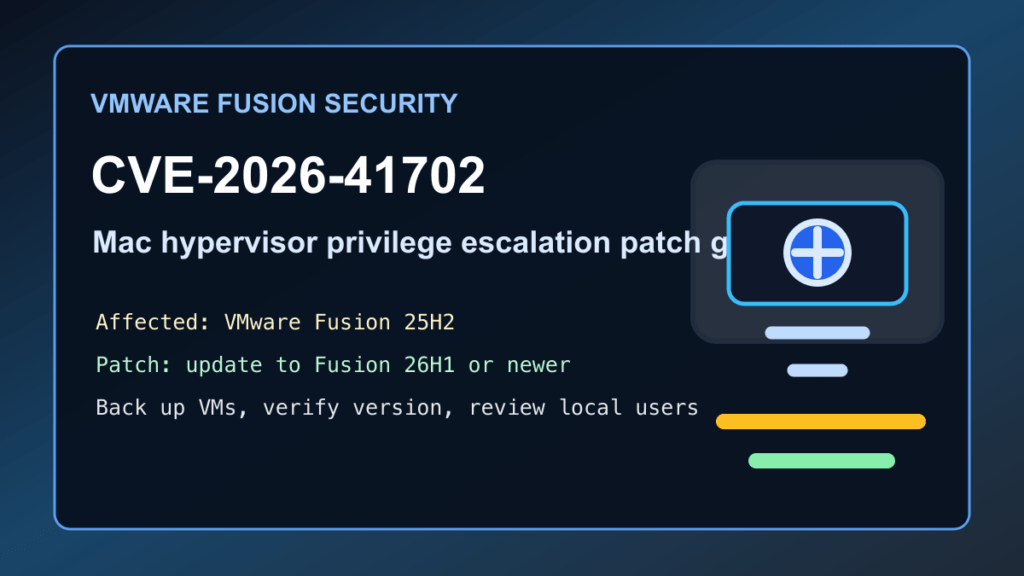
Impact statement: CVE-2026-41702 is a high-severity local privilege escalation vulnerability in VMware Fusion. Broadcom says Fusion 25H2 is affected and Fusion 26H1 is the fixed version. A local non-administrative user on a Mac where Fusion is installed may be able to gain root privileges, so this matters for developer Macs, admin workstations, support machines, and any Mac that opens customer files or runs untrusted virtual machines.
This is not an ESXi or vCenter management-plane advisory. It is a Mac desktop-hypervisor patch item. The right response is to update Fusion, protect important virtual machines before maintenance, verify the installed build, and review local workstation access if the Mac has been shared or used for risky files.
Who Is Affected
- Macs running VMware Fusion 25H2.
- Developer and support workstations where non-admin users can sign in locally.
- Macs used to open customer files, malware samples, unknown installers, or untrusted downloads.
- Macs that run lab, support, customer-recovery, or testing virtual machines in VMware Fusion.
Broadcom lists the affected product as VMware Fusion and the fixed version as Fusion 26H1. Broadcom also lists no workaround, so do not treat account cleanup or local permission tightening as a replacement for updating Fusion.
What To Patch
- Update VMware Fusion to 26H1 or newer.
- Prioritize Macs used by administrators, developers, support technicians, and anyone handling customer files.
- Update shared lab Macs before allowing lower-trust users to sign in again.
- Keep macOS itself current, especially on machines used for virtualization and customer support.
Maintenance Plan For Fusion Macs
Plan a short local maintenance window. Fusion updates can require the app to close, virtual machines to shut down, and the Mac to approve updated system components or restart.
- Save work inside all running guest VMs.
- Shut down important VMs cleanly instead of suspending them in the middle of disk activity.
- Back up critical VM bundles before the update, especially support, accounting, recovery, and customer-lab VMs.
- Export or document snapshots that matter before changing the desktop hypervisor version.
- Install VMware Fusion 26H1 or newer from Broadcom's supported download path.
- Restart the Mac if the installer or macOS security controls request it.
- Open Fusion, confirm the version, then start one non-critical VM first.
- Verify networking, shared folders, snapshots, and guest tools on important VMs after the update.
Safe Version Checks
You can verify the installed Fusion version from the menu bar with VMware Fusion > About VMware Fusion. Administrators can also check the application metadata locally on Macs they manage.
mdls -name kMDItemVersion /Applications/VMware Fusion.app
defaults read /Applications/VMware Fusion.app/Contents/Info CFBundleShortVersionString 2>/dev/null
For managed Mac fleets, verify Fusion inventory in your RMM, MDM, or software inventory tool and flag anything still reporting 25H2.
What To Review After Updating
- Local macOS user list and admin group membership.
- Recent local login history for shared workstations.
- Unexpected changes to LaunchAgents, LaunchDaemons, login items, and developer tooling paths.
- Fusion VM inventory, especially newly added or unfamiliar VMs.
- VM shared-folder settings and clipboard/drag-and-drop settings for sensitive environments.
- Backups for important VM bundles after the update is confirmed stable.
If a Mac with Fusion had lower-trust local users, unknown software, or customer files from untrusted sources, treat the update as one part of workstation hygiene. Review local accounts, remove stale users, rotate credentials stored on the Mac if suspicious activity is found, and keep customer information out of shared VM folders unless there is a documented reason.
Hosting And MSP Notes
For hosting providers and MSPs, this is mostly an admin-workstation issue. Prioritize Macs that connect to customer servers, hold SSH keys, manage backups, access billing systems, or open customer-submitted files. A local privilege issue on a support Mac can become a bigger operational problem if that Mac stores production credentials or has broad remote-admin access.
- Patch Fusion before using support Macs for customer recovery work.
- Keep SSH keys and control-panel credentials in managed vaults, not loose files inside shared folders.
- Limit who can sign in locally to admin/support Macs.
- Use separate throwaway VMs for unknown files and delete or archive them after the job is complete.
- Document which support machines were updated and when.
Customer Communication
Most website customers do not need to do anything unless they run VMware Fusion on their own Macs. For managed IT customers, a plain note is enough: VMware Fusion on Mac support workstations should be updated to 26H1 or newer, important VMs should be backed up before the update, and shared or lower-trust Macs should be reviewed for unexpected local users or software.
Fix I.T. Phill Guidance
Patch Fusion first, then clean up the workstation posture around it. Desktop hypervisors often sit on machines with admin tools, saved customer notes, SSH access, browser sessions, and local test data. Keep Fusion current, avoid running unknown files on the same Mac profile used for production support, and separate customer/lab VMs from daily admin work where possible.

