


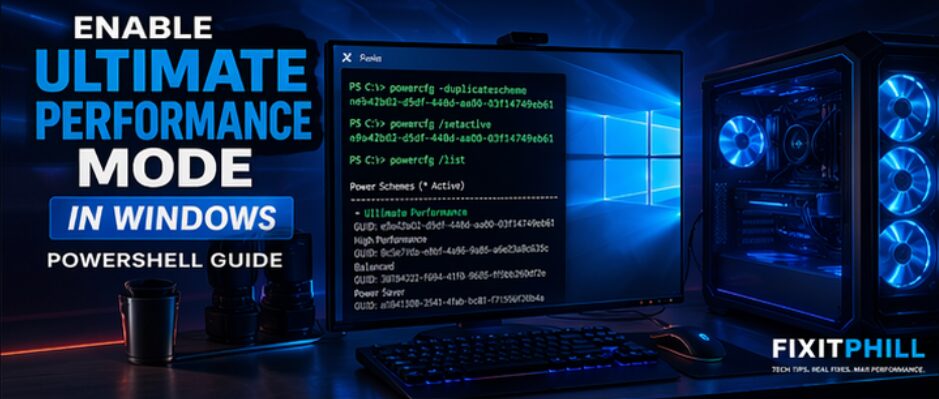
If you’re running high-performance workloads, development environments, servers, or just want your Windows machine running at full speed, enabling Ultimate Performance Mode is one of the fastest wins you can get.
This hidden Windows power plan removes power-saving delays and keeps your system running at maximum performance at all times.
🔥 What is Ultimate Performance Mode?
Ultimate Performance Mode is designed to eliminate micro-latencies caused by aggressive power management.
- Locks CPU at higher performance states
- Prevents power throttling
- Reduces latency for demanding workloads
- Keeps hardware responsive under load
Best used for:
- Developers
- System admins
- Video encoding / rendering
- Home lab / datacenter setups
⚡ Step 1: Enable Ultimate Performance Mode
Open PowerShell as Administrator and run:
powercfg -duplicatescheme e9a42b02-d5df-448d-aa00-03f14749eb61✅ Step 2: Activate It
powercfg /setactive e9a42b02-d5df-448d-aa00-03f14749eb61🔍 Step 3: Verify
powercfg /listYou should now see Ultimate Performance in the list.
⚠️ Important Notes
- Higher power usage and heat output
- May be limited on laptops
- Best for desktops / workstations
- Not intended for battery saving
💡 Pro Tip
If you’re running encoding, virtualization, or anything CPU-heavy, this prevents clock drops and keeps performance consistent.
🚀 Final Thoughts
This is one of the fastest tweaks you can apply to a Windows system. Two commands, immediate results.
If you care about performance, this should already be enabled.
When to use Ultimate Performance Mode
Ultimate Performance Mode is best for plugged-in desktops, workstations, and lab machines where consistent performance matters more than battery life. After enabling it, watch fan noise, heat, and power draw during normal work. If the machine is a laptop or a shared office PC, Balanced mode is usually the safer default.
Post-change check
- Confirm the active power plan after reboot.
- Run the workload that felt slow before changing the setting.
- Switch back to Balanced if temperatures, fan noise, or battery drain become a problem.
After enabling the power plan
Reboot once, confirm the active power plan, and test the workload that needed steadier performance. If fan noise, battery drain, or heat becomes a problem, switch back to Balanced and document the reason.