

When a WordPress change is live in the editor but an older version still appears to visitors, clearing every cache is tempting. It is also usually the slowest way to learn what is happening. Help4 CDN 0.2.1 gives administrators scoped cache controls and automatic invalidation so a site owner can refresh the affected public content, coordinate compatible WordPress cache layers, and verify the result before taking a broader action.

Start With the Change You Need Visitors to See
Before opening cache tools, identify the one public page, image, menu, or layout change that should now be visible. Then decide whether the old version is likely coming from the browser, a WordPress cache plugin, the edge cache, or the origin server. This gives you a useful test instead of a string of broad clears with no clear result.
Keep each cache action proportional to the change. A single edited page or replacement image normally calls for a page or path-level clear. A sitewide menu, theme, plugin, or shared layout change can justify a broader refresh. Do not treat visitor-specific responses as public cache content: logins, account areas, carts, checkout, password actions, and administration need their own verification path.
What Help4 CDN 0.2.1 Can Clear
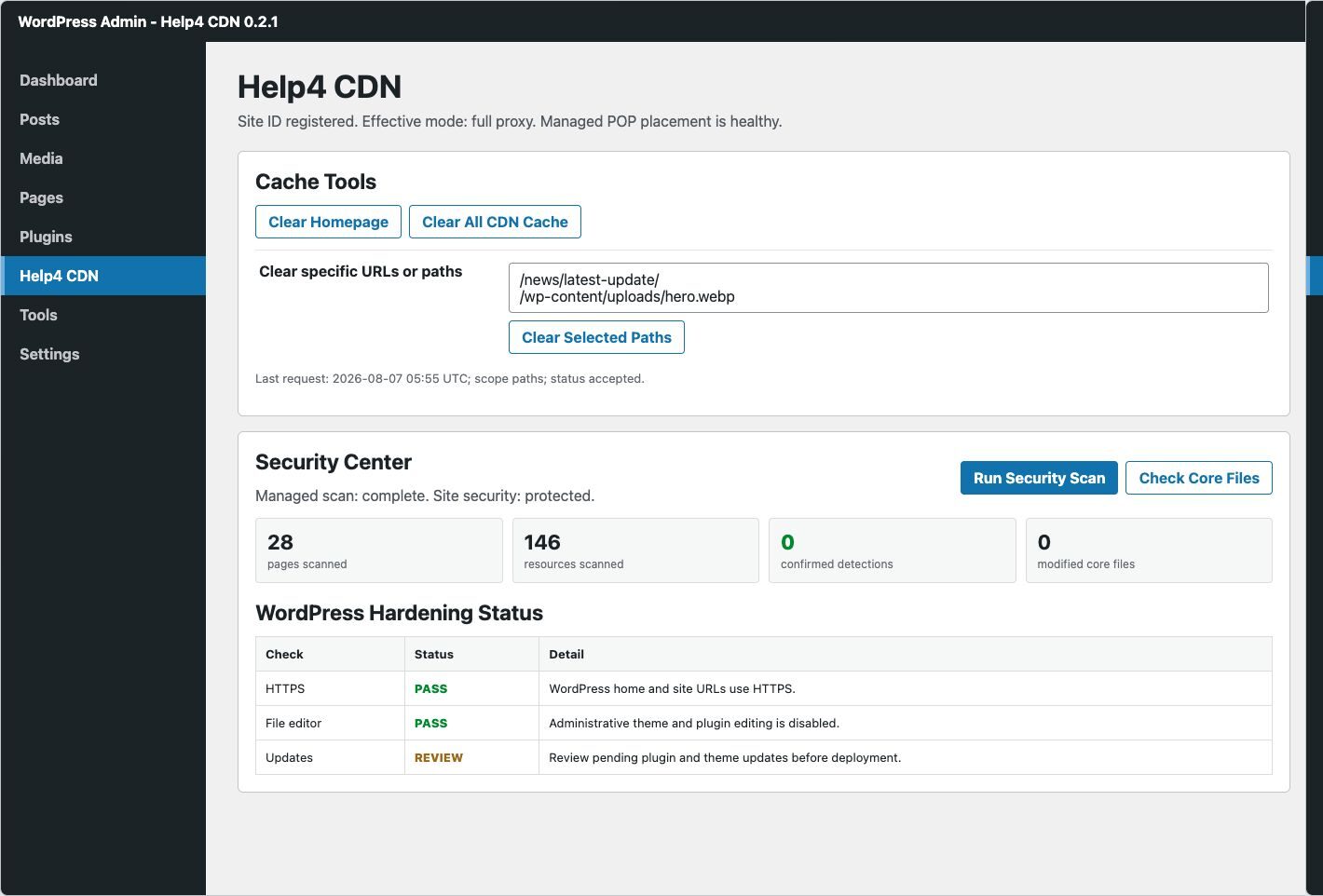
The current Help4 CDN plugin can clear the current page, homepage, selected local URLs or paths, or the assigned domain across available delivery locations. It also requests related public URLs to be invalidated when supported WordPress changes happen, including published content, comments, terms, navigation, themes, plugins, and common optimization changes.
Choose the narrowest available option that matches the approved change:
- Current page or selected paths: use after a focused public-page edit or an updated asset.
- Homepage: use when the home page itself changed or it directly displays the updated content.
- Full assigned domain: reserve for a confirmed sitewide change, such as a theme, menu, global style, or broad plugin update.
Scoped clearing keeps the test focused and reduces needless cache churn. The plugin normalizes local paths before sending a cache request, while the administrator interface requires the appropriate WordPress capability and a standard WordPress confirmation token.
Use Automatic Invalidation, Then Verify It
Automatic invalidation is there to cover routine editorial work. It can refresh related public pages after common WordPress changes, but it should not replace verification. After saving a meaningful update, wait for the publishing task to finish, open the changed page in a private browser window, and compare the public result with the approved change.
When the page is correct, stop there. When it remains stale, use the smallest manual clear that covers the affected page or asset, then repeat the public check. The WordPress cache and CDN testing guide walks through a clean browser test and helps separate a local browser view from a server or edge response.
Coordinate Compatible WordPress Cache Plugins
Help4 CDN 0.2.1 includes compatibility hooks for the WordPress object cache, W3 Total Cache, WP Rocket, WP Super Cache, Autoptimize, LiteSpeed Cache, and SiteGround Optimizer. For a full clear, those integrations are intended to reduce disagreement between the WordPress layer and the CDN layer. They do not make every cache setting interchangeable.
Keep one cache owner for each job. Let the site’s page-cache plugin manage its own configuration, let Help4 CDN manage delivery-cache clearing, and avoid changing optimization, minification, or browser-cache settings just to solve one stale page. If an installed cache plugin has its own diagnostics, use them to confirm its layer is healthy after a planned full clear.
A persistent mismatch after a scoped clear is a reason to check the active cache plugin, CDN assignment, and the actual public response. It is not a reason to uninstall working performance software during an incident. Record what changed, what was cleared, and what the visitor-facing page showed after each check.
Verify the Result as a Visitor Would
- Open the affected public page in a private browser session.
- Confirm the updated text, image, style, or menu appears completely.
- Open one related public page, especially the homepage when it links to the changed item.
- Check a mobile-sized view when the change affects layout, navigation, or media.
- For a store, test the normal product-to-cart-to-checkout path without using customer information you do not own.
This short test catches the problems that matter: a page that still looks old, a missing style or image, a layout that breaks at a smaller screen, or a cached public route that should have updated. Keep FixItPhill’s WordPress support hub handy for the next layer of troubleshooting rather than widening the first cache action.
WooCommerce Needs Its Own Check
WooCommerce pages can mix public catalog content with visitor-specific cart, checkout, account, and payment state. A CDN cache refresh can help deliver product images and public catalog pages, but it is not a substitute for testing the purchase flow. After an approved store change, verify a product page, cart behavior, checkout, confirmation page, and transactional email separately.
Keep payment-routing work in a separate maintenance task. The Stripe Router checkout-testing guide is useful when an approved payment-routing change is part of the work. Do not combine that work with a broad cache or DNS change unless there is a planned recovery path.
When You Still See the Old Version
Work from the narrowest likely layer outward. First compare a private browser view with the intended page. Next, confirm the changed file or page was actually saved and published. Then clear the affected Help4 CDN page or path and test again. If the page remains stale, check the active WordPress cache plugin and ask the authorized service owner to review the assigned CDN service and its delivery state.
Use a planned window for a full-domain clear when a sitewide change genuinely requires it. Document the reason, confirm the clear was accepted, and repeat the public checks. If a public page is correct but a cart, login, or account flow is not, stop treating it as a cache-only problem and test the application flow with the responsible site owner.
Install and Keep the Plugin Current
Help4 CDN 0.2.1 supports WordPress 6.5 or newer and PHP 8.3 or newer. Install it from an authorized Help4 distribution, activate it through the normal WordPress workflow, and allow it to synchronize the site entitlement. The official Help4 CDN installation guide shows the current setup screen and links to the focused cache-control documentation.
Do not share service credentials in tickets, screenshots, chat, or public posts. A Help4 CDN rollout is easiest to support when the site owner, WordPress administrator, and service contact each know which public behavior was changed and how it was verified.
Keep the WordPress Stack Understandable
A CDN and cache plugin can make a healthy site faster, but neither can make an unclear WordPress stack easy to debug. Keep inactive plugins and themes reviewed during planned maintenance, and make builder updates independently testable. For sites using Help4 Builder Suite, start with the Help4 Builder Suite and Blank theme installation guide.
The practical pattern is simple: publish one approved change, use automatic invalidation or a scoped clear, test the public result, and broaden only when the evidence calls for it. That makes cache work routine rather than mysterious.

