


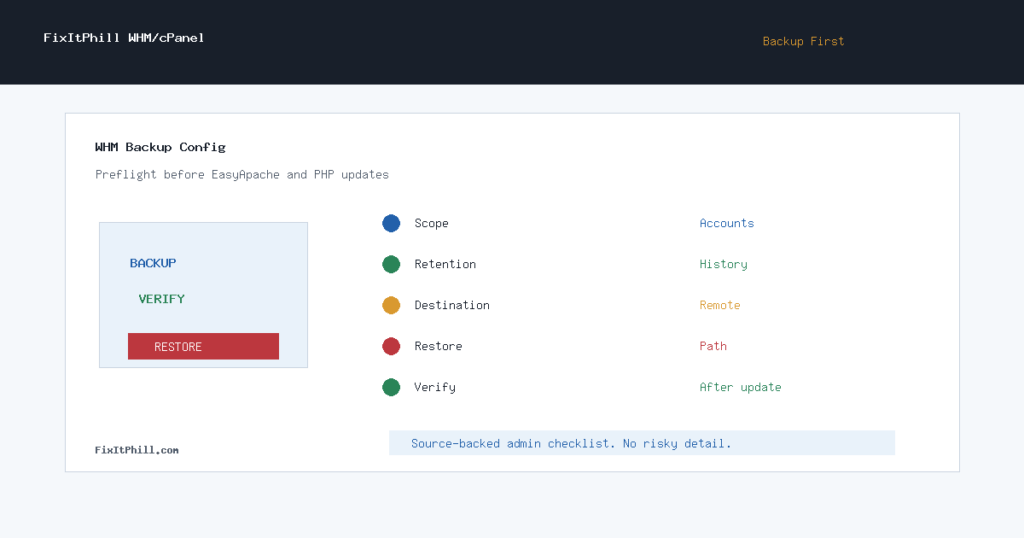
WHM Backup Configuration is the part of cPanel that should be checked before EasyApache, PHP, Apache, curl, OpenSSL, or control-panel security maintenance touches production websites. A plugin update can usually be rolled back from inside WordPress. A broken server stack update needs something stronger: verified account backups, a clear restore path, and enough retention to recover from a bad maintenance window that is discovered late.
This checklist is for hosting admins who manage cPanel and WHM servers, reseller fleets, or client WordPress sites on shared hosting. Use it before EasyApache 4 work, before PHP version changes, before control-panel security releases, and before any bulk patch window where a single bad package can affect more than one account.
Start with the backup scope
In WHM, server-wide backups and account-level backups are not the same thing as a single plugin backup inside WordPress. WHM Backup Configuration controls scheduled backups for accounts, retention, destinations, and whether the backup set is useful for a full account restore. Before you treat a server as ready for maintenance, confirm that the accounts you care about are included and that the latest backup is recent enough for the maintenance risk you are taking.
For WordPress-heavy servers, do not stop at file copies. The database, uploads, configuration files, email accounts, DNS zones, SSL material, and account metadata can all matter during a restore. If the update can affect PHP handlers, web server behavior, ModSecurity, or database connectivity, the backup has to cover the site as a hosting account, not only the visible website files.
Confirm retention before the update
Retention is where many backup plans quietly fail. If the server keeps too few backup points, a problem discovered after the next backup cycle can overwrite the only clean restore point. Before EasyApache or PHP work, check how many daily, weekly, and monthly points are kept, then compare that to the time it normally takes customers to report broken forms, missing orders, cron failures, or checkout problems.
The goal is simple: keep enough known-good history to recover from the update, plus enough older history to survive delayed discovery. On busy WooCommerce or membership sites, that also means planning how to recover without discarding new orders or new user activity. A full account restore may not be the right first move for an active store; you may need a staged restore, file comparison, database table review, or vendor help.
Check destination health
Local backups help, but they do not protect you from disk failure, storage pressure, or a server-level incident. If WHM sends backups to a remote destination, verify that the destination is still connected, still has free space, and still receives fresh backup sets. If the destination has stale backups, authentication errors, storage quota problems, or a history of interrupted transfers, fix that before the update window.
Also check whether the backup volume is mounted and monitored. A backup job that writes to the wrong local path can fill the main disk and create a second outage while you are trying to prevent the first one.
Run a restore-path check
Before a server-wide maintenance window, verify where the restore will happen if something breaks. WHM Backup Restoration is for restoring cPanel accounts from server backups. cPanel Backup Wizard is useful for account-level downloads and simpler restores. File and directory restoration can help when only a limited file set changed. These are different recovery tools, so write down which one you would use for the first rollback, the second rollback, and the full account recovery.
For a small WordPress site, a cPanel account restore may be acceptable. For a production WooCommerce store, a blind full restore can erase valid customer activity after the backup time. In that case, treat the backup as the recovery source, but use a more controlled restore plan.
Match backups to EasyApache risk
EasyApache 4 manages Apache, PHP, and related web stack components. That means the backup check should happen before you touch profiles, PHP versions, extensions, or security updates that change the runtime used by customer sites. For current EasyApache maintenance, also review the EasyApache change log so you know whether the update is a small package bump, a PHP change, a web server module change, or a security-driven update.
Before the update window, record the server’s active PHP versions, key PHP extensions, Apache handler behavior, and the sites most likely to complain first. The value is not paperwork. The value is knowing what to compare after the update.
After the update
Do not declare the maintenance complete just because WHM finishes. Check a representative set of sites, including at least one WordPress admin login, one public page, one contact form or checkout path where allowed, one PHP info-equivalent view from the panel, and one account backup status view. If the update changed PHP, check old sites that may still depend on older extensions or older runtime settings.
Then verify that scheduled backups still run after the update. A patch window is not finished if it silently disabled the backup path you need for the next incident.
Related FixItPhill checks
- cPanel EasyApache 4 25.70: PHP and curl Security Updates
- cPanel and WHM Version 136 Upgrade and Security Update Checklist
- How to Restore WordPress by cPanel Backup Wizard
- How to Check WordPress Backups and Restore Points