


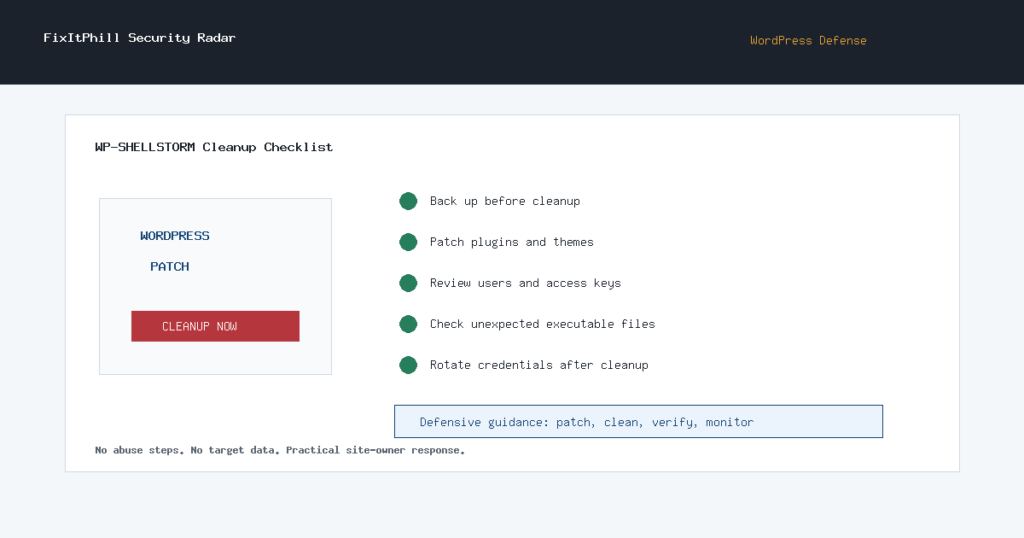
Current state, checked July 10, 2026: SOCRadar and The Hacker News are reporting a WordPress-heavy compromise campaign now tracked as WP-SHELLSTORM. SOCRadar says the exposed attacker infrastructure showed more than 1.4 million targeted domains and more than 5,700 confirmed active backdoor placements across the campaign. WordPress site owners and hosting admins should treat this as an immediate patch-and-cleanup reminder, especially on sites with stale plugins, abandoned themes, weak file permissions, or old Joomla and CMS components sharing the same hosting account.
This is not a new single WordPress core bug. It is a mass compromise operation that used many known issues across WordPress, Joomla, PrestaShop, Craft CMS, and other web stacks. That matters because the fix is not just “update one plugin.” The right response is to patch known vulnerable software, check for unexpected files and users, verify backups, and clean the whole hosting account before trusting the site again.
Who Should Act Now
- WordPress sites that have not had plugins and themes updated recently.
- Sites that previously used the Breeze caching plugin before patching CVE-2026-3844.
- Joomla sites or mixed hosting accounts that used vulnerable JCE editor versions before patching.
- Agencies and hosts managing many small business WordPress sites from shared cPanel, Plesk, DirectAdmin, or similar hosting panels.
- Any site where unfamiliar admin users, modified plugin files, strange scheduled tasks, or unexplained redirects have appeared.
What Site Owners Should Do
- Take a backup before cleanup. Save files and database first so you can preserve evidence and recover if a cleanup breaks the site.
- Update WordPress, plugins, and themes. Prioritize plugins with known recent security fixes and remove anything unused or abandoned.
- Check known campaign-adjacent software. If you run Breeze, read the FixItPhill Breeze Cache CVE-2026-3844 guide. If you run Joomla JCE, read the FixItPhill Joomla JCE CVE-2026-48907 guide.
- Review admin users and access keys. Remove unfamiliar WordPress admins, hosting-panel users, FTP/SFTP users, database users, API keys, and application passwords.
- Look for unexpected executable files. Pay close attention to uploads, cache, plugin, theme, temporary, and must-use plugin locations. Do not open or run suspicious files.
- Reinstall clean copies where possible. Replace WordPress core, plugins, and themes from trusted sources instead of editing suspicious files in place.
- Rotate passwords after cleanup. Change WordPress, hosting-panel, database, SFTP/FTP, SSH, and email passwords once the site is clean.
- Verify the public site. Check key pages, checkout, forms, search results, redirects, and mobile pages after cleanup.
Hosting Admin Checklist
- Inventory accounts running outdated WordPress, Joomla, PrestaShop, Craft CMS, or unknown custom PHP applications.
- Separate cleanup from patching: patch vulnerable software, then remove suspicious files and accounts, then rotate credentials.
- Review file-modification windows around the suspected compromise period before deleting evidence.
- Check for shared-account spread where one compromised site can write into another site under the same user.
- Use server-side malware scanning, file integrity tools, and clean package reinstalls rather than random cleanup snippets from forums.
- Tell customers what changed: vulnerable software patched, suspicious files removed, credentials rotated, and backups verified.
When To Restore Instead Of Patch In Place
If a site has multiple unfamiliar admin users, unexplained PHP files in upload or cache paths, altered core files, or repeated reinfection after patching, treat the account as compromised. Restore from a clean backup, patch before exposing the restored site, rotate credentials, and compare the restored files against trusted plugin and theme packages.
If there is no known-clean backup, rebuild the site from trusted packages and migrate only reviewed content, media, and database records. Do not carry unknown plugin folders, old cache directories, or random helper files into the rebuilt site.
Related FixItPhill Guides
- WordPress Breeze Cache CVE-2026-3844: Patch Guidance for Site Owners
- Joomla JCE CVE-2026-48907: Patch the KEV Editor Flaw
- How to Check WordPress Security Plugin Alerts
- How to Test a WordPress Backup Restore Before an Emergency
Sources
- SOCRadar: How WP-SHELLSTORM Exposed 1.4M WordPress Sites
- SOCRadar Campaign Detail: WP-SHELLSTORM
- The Hacker News: Exposed Hacker Server Reveals WP-SHELLSTORM Backdooring Thousands of WordPress Sites
Safety note: this FixItPhill article intentionally omits attacker infrastructure details, victim lists, and technical abuse steps. The useful defender action is to patch, isolate, clean, rotate credentials, verify backups, and monitor for reinfection.