


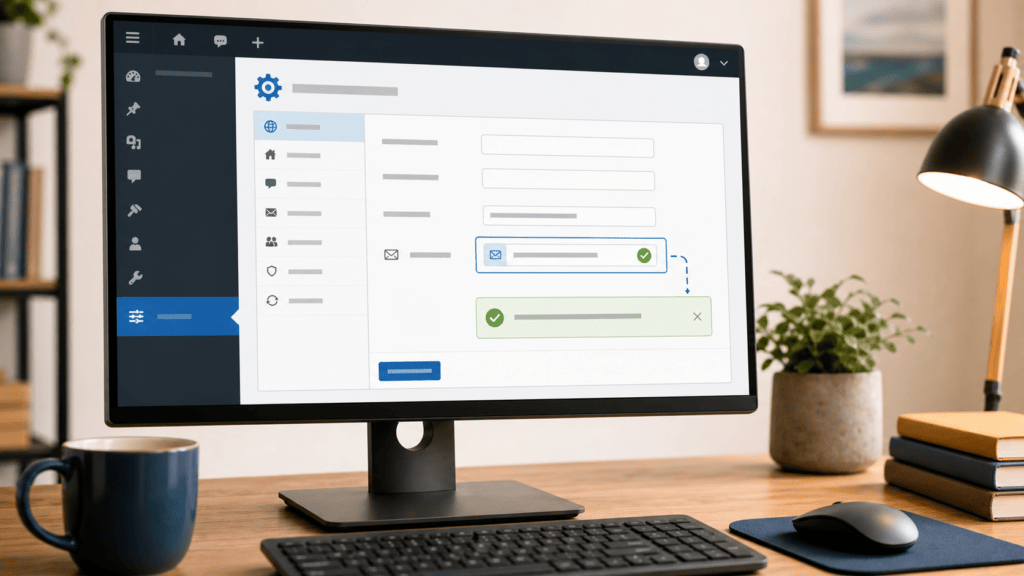
Changing a WordPress email address is easy once you know which address you actually need to change. The Administration Email Address receives site-level notices. A user’s profile email belongs to one login. They are related, but they are not interchangeable.
This guide shows the supported WordPress workflow for changing a site’s administration email, confirming the change, and deciding what to do when the confirmation message does not arrive. The visual guides use a fictitious demo site, not a customer dashboard.
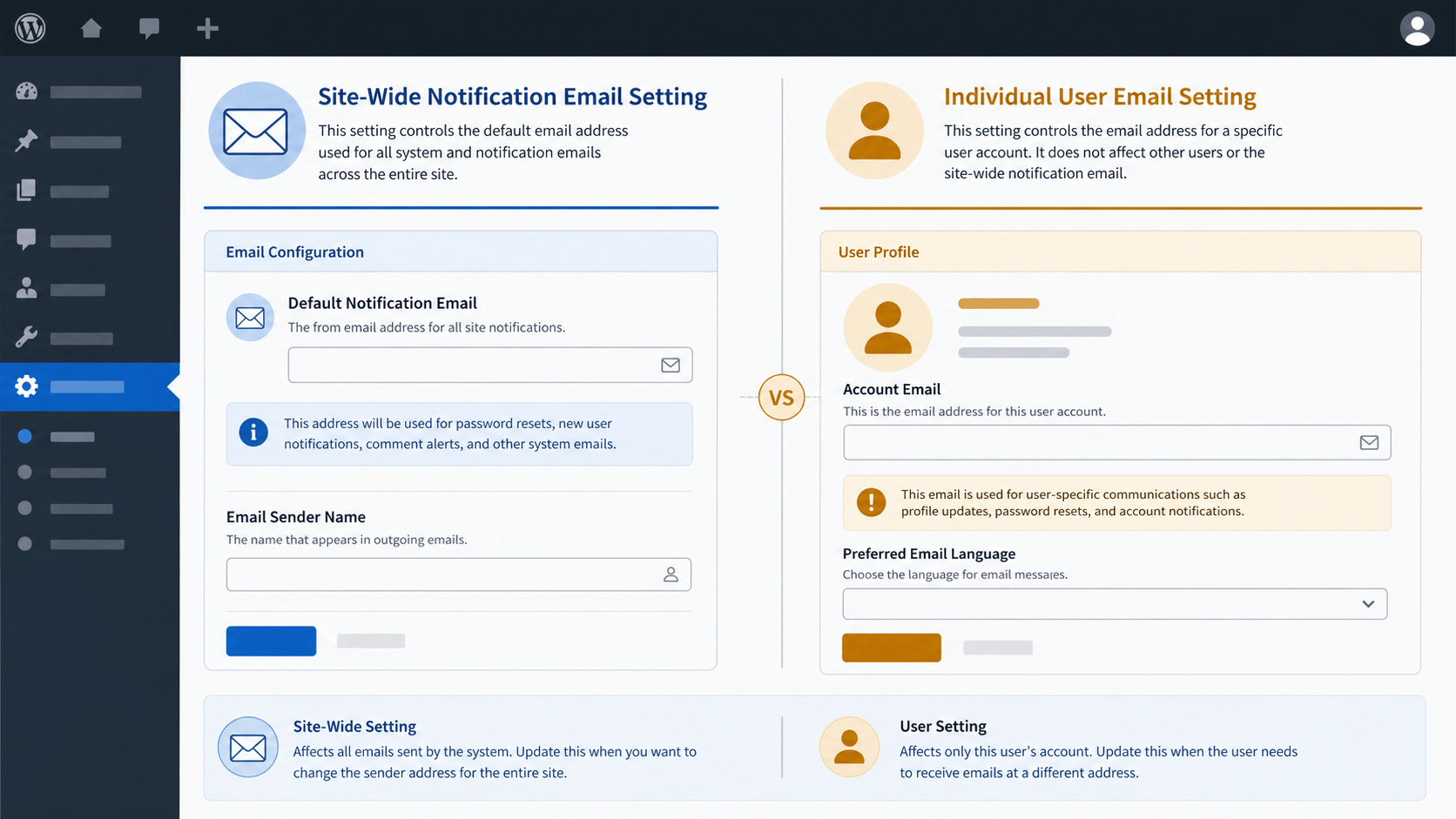
Pick the right email before you change it
| You need to change… | Use this WordPress area | What it affects |
|---|---|---|
| Where the site receives administration notices | Settings > General | The site’s Administration Email Address |
| One person’s login, profile, and recovery email | Users > Profile or Users > All Users | That individual user account |

Before you start
- Make sure you can open the new mailbox before changing anything.
- Keep an administrator account available while the confirmation is pending.
- Write down whether you are changing the site notification address or a person’s profile email.
- For a business site, use an inbox that the responsible owner can actually monitor, not a shared address that nobody checks.
How to change the WordPress Administration Email Address
- Sign in with an account that can manage site settings.
- Open Settings > General.
- Find Administration Email Address and enter the new address.
- Save the changes.
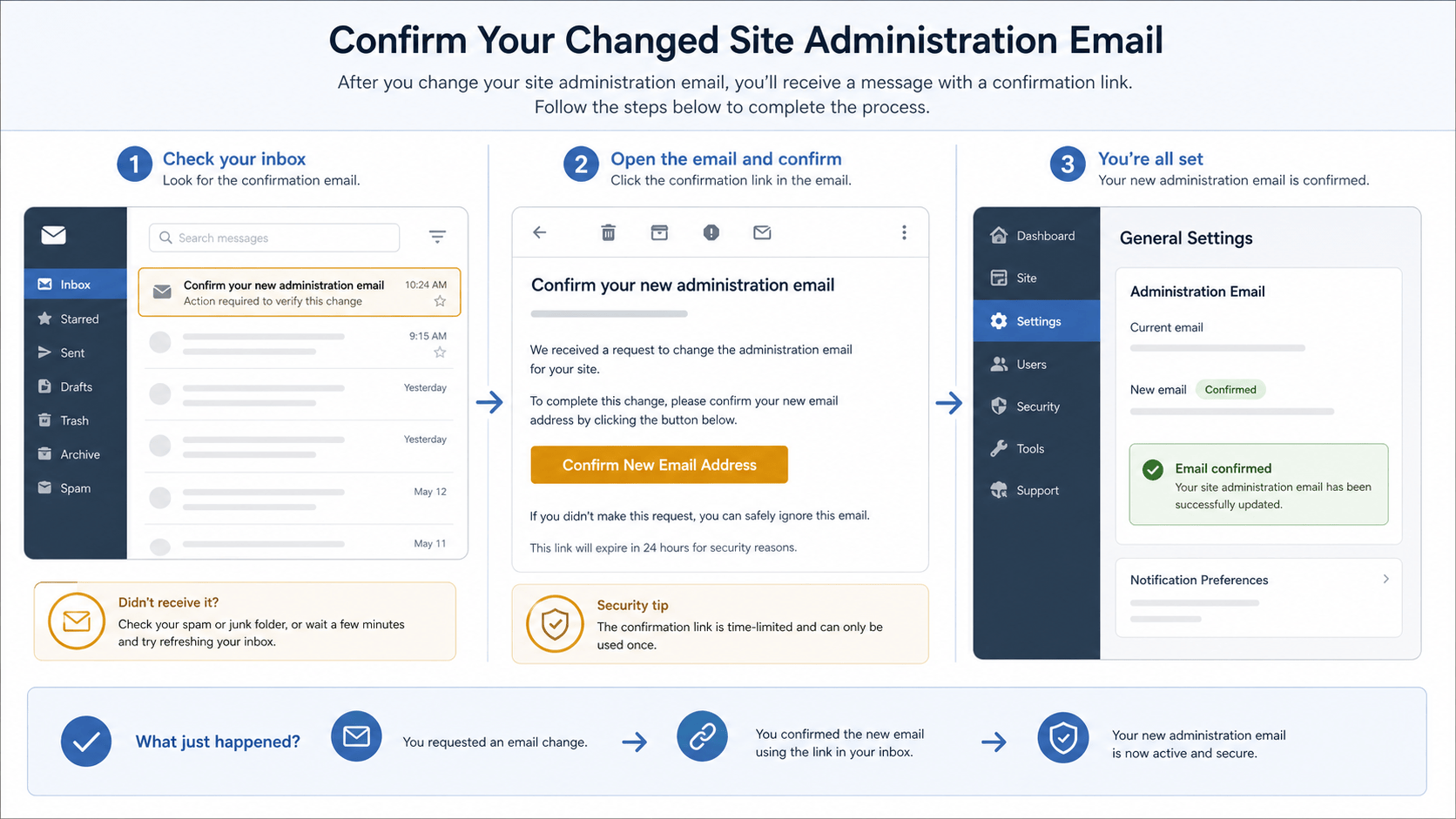
- Open the confirmation message sent to the new inbox and approve the change.
- Return to Settings > General and confirm that the new address is now shown as active.
WordPress treats the new site administration email as pending until the confirmation is completed. That confirmation step protects the site from silently sending important notices to the wrong inbox.
If you meant to change a person’s login email
Do not change the site Administration Email Address just because one administrator, editor, or author has a new email address. Open Users, select the relevant person, and update that user’s profile email instead. Each team member should normally have their own account so access can be reviewed or removed without sharing a login.
For a practical access review, use our WordPress users and admin-access checklist. It helps you remove old access rather than leaving a former staff member’s account attached to the site.
If the confirmation email never arrives
- Check the new inbox’s spam, junk, quarantine, and filtered folders.
- Confirm that you entered the new address correctly, then give delivery a few minutes before requesting another change.
- Check whether other WordPress notices are arriving. Our WordPress email delivery check gives you a safe way to verify that.
- If site mail is unreliable, work through our WordPress SMTP delivery guide before treating the email-address change as the problem.
- Ask your hosting or email provider to investigate delivery only after you can say which site notice is missing and which mailbox should receive it.
Do not solve an email problem by sharing admin access
A new employee or vendor does not need an Administrator account merely to receive site notices. Give people the smallest role that lets them do their job, keep an owner-controlled administrator account available, and review access after staff or agency changes.
Verify the change
- The active address in Settings > General is the one you intended to use.
- The new mailbox can receive WordPress notices.
- Individual user emails are still correct for the people who need to sign in.
- Your contact forms, store notifications, and recovery workflow still point to the right owners.
Keep the site support path connected
This is one small maintenance task inside a larger support workflow. Visit the FixItPhill WordPress Support Guide for help with updates, backups, access, email, performance, and migrations.