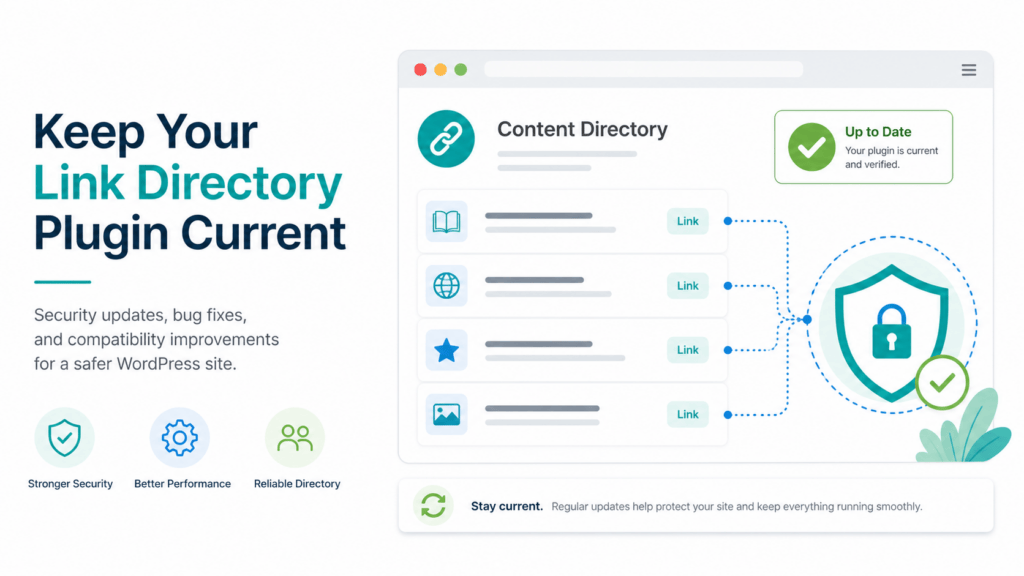
Link Library CVE-2026-18855: WordPress Security Update Checklist
Update Link Library to the supported 7.9.5 release for CVE-2026-18855, then verify directories, submissions, and ordinary site journeys safely.
Learn More
Update Link Library to the supported 7.9.5 release for CVE-2026-18855, then verify directories, submissions, and ordinary site journeys safely.
Learn MoreSet up the official WordPress Browser Extension from its official store, choose an admin-bar review preference, and use its browser tools during routine content and layout checks.
Learn MoreSet up optional Turnstile protection for Help4 Builder forms with a small rollout, accessible testing, privacy review, and a clear recovery decision for legitimate visitors.
Learn MoreUse Help4 Builder Suite starter templates safely: work in a draft, choose insert or replace deliberately, verify every screen size, and recover from a known-good version.
Learn MoreReview and remove WordPress spam comments carefully, protect legitimate discussion, and keep comment moderation manageable.
Learn MoreCreate a clear WordPress navigation menu, assign it to the right location, and verify visitors can use it on desktop and mobile.
Learn MoreUpdate a WordPress site title and tagline through General Settings, then check the public header, browser title, cache, and search setup.
Learn MoreChoose a WordPress static homepage or latest-posts view, assign an optional posts page, and verify visitors see the right public page.
Learn MoreReset a WordPress password through the normal sign-in screen, confirm the reset email reaches the right mailbox, and secure the account if access may be at risk.
Learn MoreLearn how to remove a WordPress user, decide whether to delete or reassign their content, and verify access is gone without losing pages or posts.
Learn More