


Your WordPress homepage can show recent posts or a specific page. Choosing the right option is simple, but it changes the first page visitors and search engines reach, so it is worth checking the page, navigation, and public result after saving.

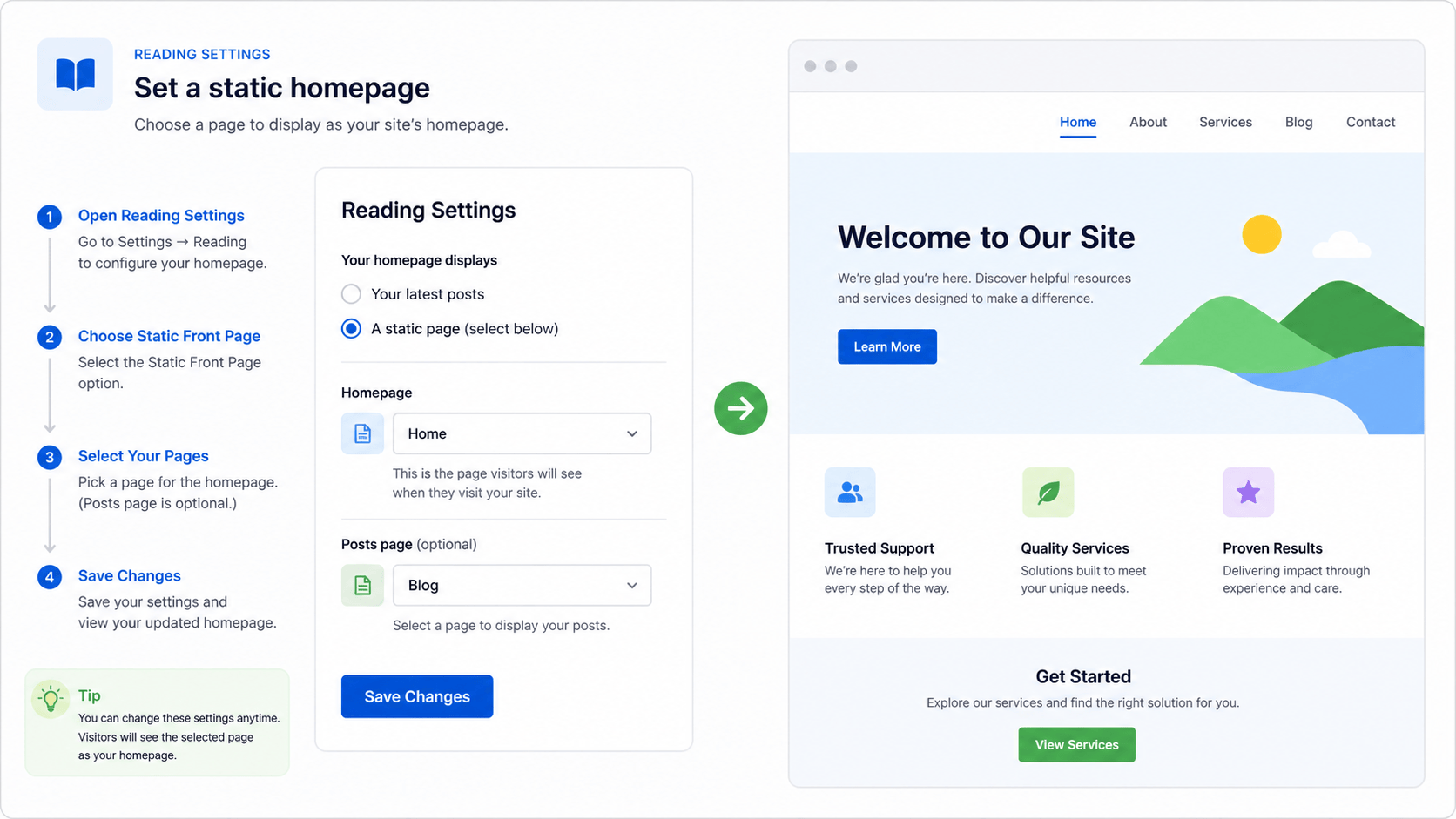
Choose the homepage approach
- Your latest posts: a good fit for a simple news or blog-first site.
- A static page: a good fit when a Home page should introduce services, contact options, or a focused next step.
Before changing settings, make sure the page you want visitors to see is published and ready. If you want a separate blog page, create that page as well before assigning it.
Set a static homepage
- Sign in with an administrator account.
- Open Settings, then Reading.
- Under the homepage display setting, choose the option for a static page.
- Select the page that should become the homepage.
- Optionally choose a separate page for posts, then save the settings.
Check the public site after saving
- Open the main site address in a signed-out browser window.
- Confirm the expected page loads at the homepage address.
- Open the site’s Blog or Posts navigation item if you assigned a posts page.
- Check key menu links, contact paths, and the page title on a phone and desktop-sized browser.
If an old version keeps appearing, refresh the relevant cache using our WordPress cache and CDN guide.
Keep search visibility intentional
A homepage setting changes which content appears at the root address; it does not replace good page titles, clear navigation, or an indexable public page. After a significant homepage change, review the result with our WordPress indexing, robots, and noindex guide. Do not mark an important homepage as noindex by accident.
Common problems
- The wrong page appears: return to Reading settings and verify the selected homepage.
- The blog is missing: confirm a distinct published page is assigned for posts when using a static homepage.
- The menu still points to an old location: update the navigation through the site’s normal menu or editor controls, then test it publicly.
WordPress covers the setting in its official Reading Settings documentation and explains how published pages are managed in the Pages screen documentation.
For practical help with homepage structure, site settings, navigation, and public verification, start at our WordPress support hub.