
Clear and Test WordPress Cache and CDN is a practical maintenance workflow for site owners and hosts using page cache, object cache, LiteSpeed Cache, W3 Total Cache, Cloudflare, or another CDN.
A WordPress maintenance plan should prove the site still works after updates. That means checking the business workflow, hosting layer, plugins, backups, cache, email, and access before a small issue becomes an outage.
When To Run This Check
Run this after updates, launches, DNS changes, design changes, checkout changes, form changes, and SSL changes.
Before You Start
- Know every cache layer: plugin page cache, object cache, host cache, CDN cache, browser cache, and image optimization.
- Back up before changing cache plugin settings on a working business site.
- List pages that should not be cached, such as cart, checkout, account, form confirmation, and member-only pages.
- Avoid cache changes during active checkout or ad campaigns unless fixing a live problem.
Maintenance Steps
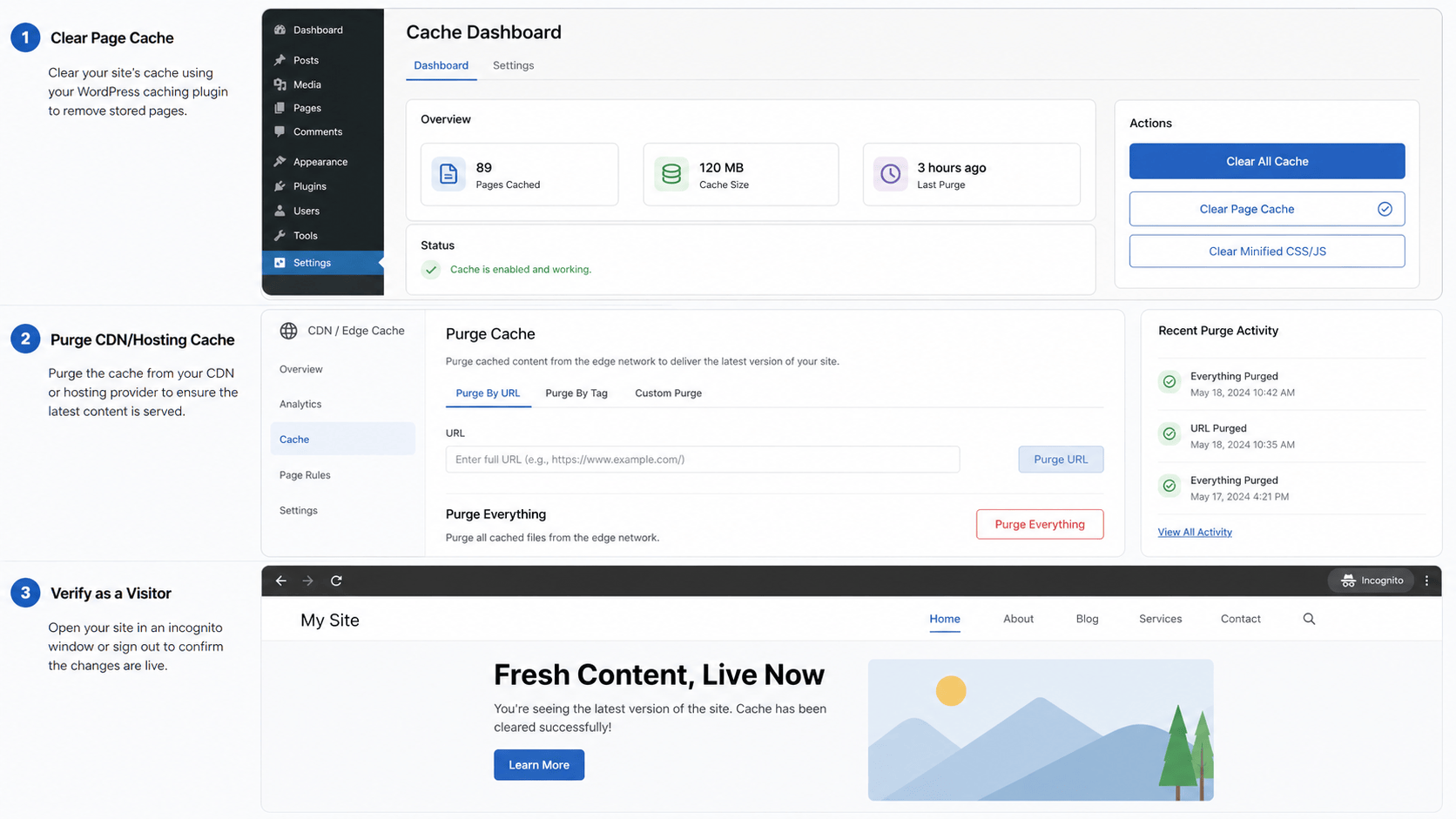
- Clear cache from the WordPress plugin first.
- Clear host or control panel cache if present.
- Purge CDN cache for changed pages and assets.
- Test logged-out and logged-in views separately.
- Check forms, cart, checkout, account pages, and mobile navigation after purge.
Hosting And Control Panel Notes
- LiteSpeed, Cloudflare, W3 Total Cache, managed host cache, and reverse proxy cache may each need a separate purge.
- Object cache can preserve stale settings even when page cache is cleared.
- CDN page rules can accidentally cache pages that should stay dynamic.
Verify It Works
Confirm visitors see the new content, dynamic pages are not stale, checkout and forms work, and error logs do not show new cache-related failures.
Backup And Rollback Notes
- Take a backup before changing plugins, themes, PHP, cache, DNS, checkout, forms, email, or user access.
- Use staging for risky changes on ecommerce, membership, booking, LMS, high-lead, or high-traffic sites.
- Keep rollback ownership clear: who restores, who approves, and how the site is verified afterward.
- Document the maintenance window and preserve version notes for future troubleshooting.
Related Fix I.T. Phill Guides
- WordPress Maintenance Checklist Hub
- How to Back Up WordPress: Complete Methods Guide
- How to Restore WordPress: Complete Recovery Methods Guide
- How to Migrate WordPress: Complete Hosting Move Guide
- How to Install WordPress: Complete Methods Guide
- How to Add Business Features to WordPress: Complete Plugin Setup Guide
- How to Build a WordPress Website for Any Business: Industry Setup Guide
- WordPress 7.0 Safe Upgrade Checklist for Business Sites
- Help4 Network hosting and website support
