
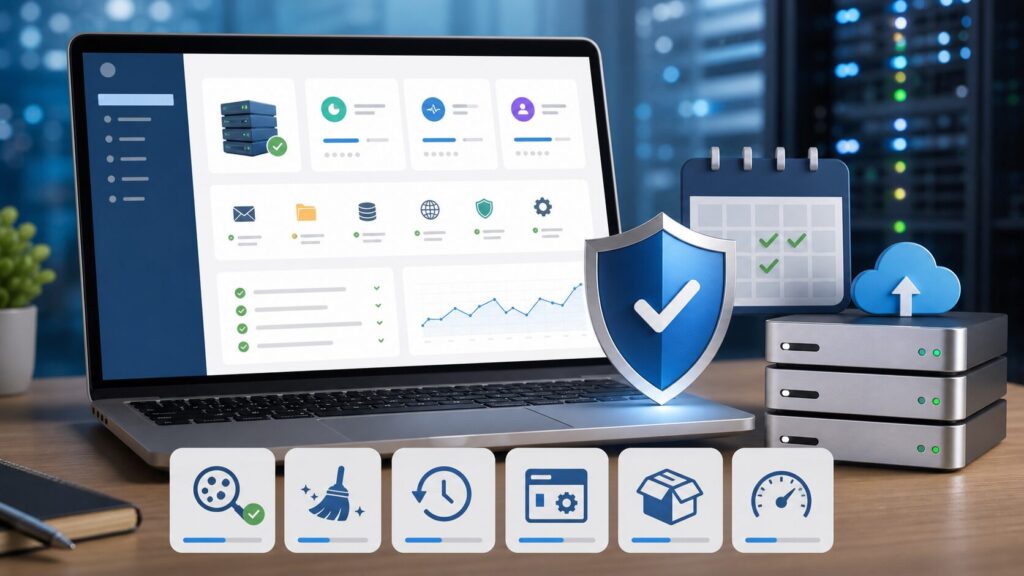
Secure cPanel WordPress hosting is not just disk space and a login. The real question is what happens when a plugin breaks, a site gets flagged, a backup is needed, or a customer needs help before the damage spreads. That is the lane Help4Network and Help4WordPress are built around: practical hosting, cPanel access, WordPress support, malware scanning and removal help, firewall coverage, backups, and a restore path that keeps getting easier.
The Short Impact Statement
If your WordPress site runs on cPanel, the cheapest hosting plan can become expensive fast when malware, failed updates, missing backups, email problems, or slow support show up at the same time. A better cPanel WordPress hosting plan should give you a clear security and recovery path before the emergency happens: scan for malware, remove infected files, protect with a firewall, keep usable backups, restore clean copies, and give the customer a support channel that understands WordPress and hosting together.
What Secure cPanel WordPress Hosting Should Include
- cPanel access so you can manage files, databases, email, SSL, PHP versions, and logs without needing root access.
- WordPress-aware support that knows the difference between a hosting outage, a bad plugin update, a PHP version problem, and a compromised site.
- Malware scanning and removal help so a hacked WordPress install is not left as a mystery for the site owner to solve alone.
- Firewall coverage to reduce common WordPress and hosting-layer abuse before it turns into downtime.
- Backups and restore assistance for bad updates, deleted files, broken themes, and security cleanup.
- Resource transparency so the customer understands when a site has outgrown starter hosting and needs more CPU, memory, storage, or operational support.
- Upgrade paths into managed WordPress support or future server hosting when the workload becomes too important for purely self-managed work.
Where Big Help Centers Leave Gaps
cPanel's own WordPress compromise guidance points site owners toward restoring a clean backup and notes that malware cleaning normally needs a specialized third party. GoDaddy's Website Security documentation describes a separate malware removal request flow. Pagely's secure managed WordPress hosting page emphasizes malware scanning, backups, vulnerability patching, and incident response at the managed-hosting tier. Those are all useful reference points, but they also show why small businesses need a simpler answer: choose hosting that has the security, backup, and support path built into the offer from the beginning.
- cPanel: How to address a WordPress compromise
- GoDaddy: Remove malware from my site
- Pagely: Secure WordPress hosting
- Bobcares: cPanel and WHM support
Safe Checks You Can Run From cPanel
These are defensive checks for site owners and administrators. They do not require exploit testing, public scanning, or risky payloads.
- Confirm WordPress core, plugins, and themes are updated or intentionally pinned for compatibility.
- Open the cPanel backup area and verify that recent restore points exist before making changes.
- Check WordPress admin users for accounts you do not recognize.
- Review recently changed files in the website document root, especially unexpected PHP files in upload or cache folders.
- Check cron jobs, redirects, and unfamiliar mail forwarders for changes that do not match normal site operations.
- Confirm the site is using a supported PHP version and that SSL is valid.
- Run the host-provided malware scanner or open a support request when the scan output is unclear.
How The $4.95/mo Starter Plan Fits
The Help4Network $4.95/month starter hosting plan is the entry point for owners who still want control over their WordPress site, but do not want to be abandoned when backups, malware, restore points, or hosting questions get real. It is the self-managed lane: you keep normal day-to-day WordPress decisions, while Help4 provides the hosting base, firewall coverage, backups, restore assistance, and the security support path around it.
Backup restores are also moving toward a cleaner customer-side workflow inside the account manager. That matters because the fastest restore is the one a customer can find before panic turns a simple rollback into a long support chain.
When To Move Up From Starter Hosting
Starter hosting is a good fit for small business websites, blogs, landing pages, service sites, and owners who are comfortable making routine WordPress decisions. Move up to managed WordPress support when updates, forms, plugin conflicts, speed work, malware events, or restore requests start taking time away from the business. Move into server hosting when you need WHM/cPanel control, multiple customer sites, bigger resources, migrations, staging workflows, or a more serious operations plan.
Internal Linking Path
For pricing and checkout, start with Help4Network starter hosting. For the full WordPress support and managed-server ladder, review Help4WordPress hosting and support plans. For a shorter pricing-focused explanation, read the FixItPhill guide to $4.95/mo self-managed WordPress hosting with malware scanning and backups.
FAQ
Is cPanel hosting good for WordPress?
Yes, cPanel hosting can be a strong WordPress fit when the host also provides current PHP support, backups, malware scanning, firewall coverage, SSL, and people who understand WordPress troubleshooting.
Does cPanel hosting automatically include malware removal?
No. cPanel is the control panel, not a promise that every host will clean malware. The hosting plan and support policy decide whether malware scanning and removal help are included.
How often should WordPress backups be tested?
At minimum, test restore points before major updates, redesigns, migrations, plugin stack changes, or cleanup work. A backup only helps if the restore process is known and the restore point is clean enough to use.
What should I check before moving from another host?
Check storage, email needs, PHP version, database size, backup access, DNS control, SSL status, malware scan history, plugin compatibility, and whether the new host can help if the site arrives with existing problems.
June 18, 2026 supply-chain follow-up: if a WordPress site used OptinMonster, TrustPulse, or PushEngage during the June 2026 exposure window, review the site-owner checklist for the OptinMonster, TrustPulse, and PushEngage supply-chain incident before assuming a normal plugin update is enough.
