


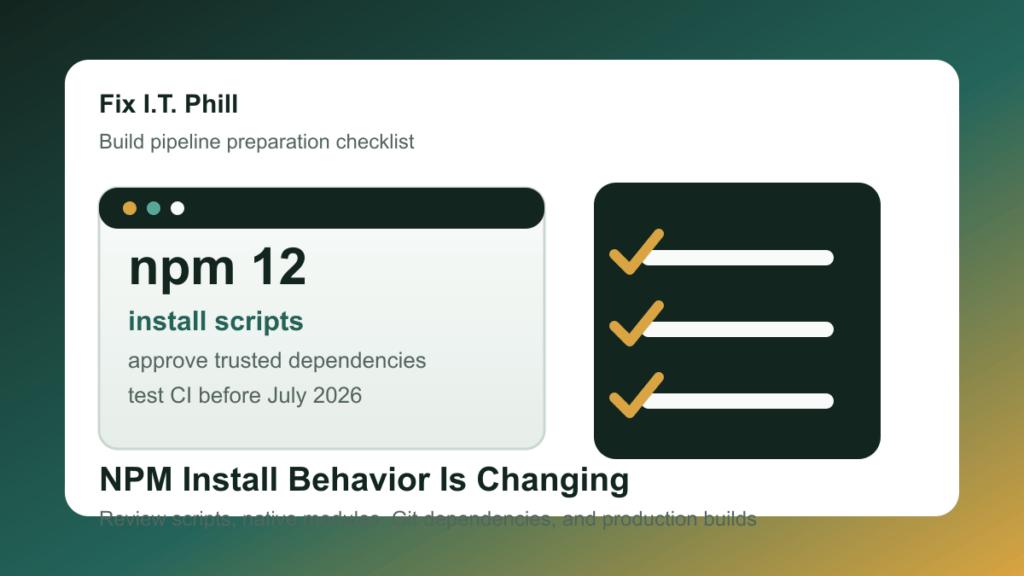
June 13, 2026 update: GitHub says NPM 12 is expected in July 2026 and will change several default npm install behaviors. The big operational change is simple: dependency install scripts will not run automatically unless the project explicitly allows them.
This is not a WordPress-core update, but it matters for many WordPress agencies, WooCommerce teams, SaaS operators, and hosts because modern themes, blocks, plugins, dashboards, static sites, and deployment pipelines often use Node.js tooling to build CSS, JavaScript, admin assets, and release packages.
SecurityWeek surfaced the change on June 13, and the official GitHub changelog confirms the current preparation path: upgrade to npm 11.16.0 or newer, run normal installs, review warnings, approve only trusted scripts, and commit the resulting project configuration before npm 12 becomes the default major version.
What changes in npm 12
- Dependency scripts are opt-in: npm install will no longer automatically run dependency preinstall, install, or postinstall scripts unless the project allows them.
- Native builds may need review: packages that compile native modules can be affected because some builds depend on install-time steps.
- Git dependencies become stricter: npm install will no longer resolve Git dependencies unless the project or command allows that behavior.
- Remote URL dependencies become stricter: packages pulled from remote tarball URLs also need explicit allowance.
- Warnings are available now: npm 11.16.0 or newer can show what would change before npm 12 arrives.
Who should check this first
- Agencies building custom WordPress themes, blocks, WooCommerce extensions, or plugin assets.
- Hosts and MSPs that run customer build pipelines, staging deploys, or static-site builds.
- SaaS teams with Node.js build steps in GitHub Actions, GitLab CI, Bitbucket Pipelines, Jenkins, or self-hosted runners.
- Sites using packages that compile native modules during install.
- Projects with Git dependencies, remote tarball dependencies, or older build scripts that nobody has reviewed recently.
- Teams that copy build artifacts into cPanel, Plesk, Docker images, Kubernetes jobs, or CDN deploy bundles.
Safe preparation checklist
- Inventory projects that use Node.js. Check WordPress theme folders, plugin build folders, static-site repos, Docker build contexts, and deployment runners for
package.jsonand lockfiles. - Test with npm 11.16.0 or newer first. Use a branch or staging runner so warnings can be reviewed before npm 12 changes the default behavior.
- Review dependency scripts. Run
npm approve-scripts --allow-scripts-pendingin the project, then approve packages you trust and deny the rest. - Commit the project decision. The allowlist belongs in project configuration, not only on one developer laptop or one temporary runner.
- Check native modules. Pay special attention to image tools, CSS processors, database clients, cryptography packages, and anything that compiles during install.
- Review Git and remote URL dependencies. Replace unusual dependency sources with registry packages where practical, or document why the exception is needed.
- Run the real build. Confirm WordPress assets, WooCommerce checkout scripts, admin dashboards, frontend bundles, Docker images, and release ZIP files still build cleanly.
- Keep rollback simple. Pin the known-good Node.js/npm version for production build runners until the project’s npm 12 readiness is confirmed.
What can break
The most common failure will be a build that used to work because a dependency silently ran an install-time script. After npm 12, that script may stop until the project explicitly approves it. That can show up as missing native bindings, broken image optimization, failed Sass/PostCSS steps, incomplete JavaScript bundles, or release packages that look fine until a browser feature is missing.
Do not test only npm install. Test the full workflow: install, build, lint if used, create the production bundle, deploy to staging, load the page, check browser console errors, and verify the business-critical path such as login, checkout, booking, forms, dashboards, and uploads.
WordPress and hosting notes
- WordPress themes and block plugins: rebuild CSS and JavaScript on a staging branch before shipping a release ZIP.
- WooCommerce: test cart, checkout, payment fields, account pages, and any custom admin screens after rebuilding assets.
- cPanel and Plesk: do not update build-runner npm versions during the same window as a site launch or plugin/theme release unless staging has passed.
- Docker and Kubernetes: pin the intended npm major version in build images and watch for install warnings before changing the base image.
- Agencies: document approved scripts per project so a future staff change does not turn build security into guesswork.
Site-owner questions to ask
- Does my site use a custom theme, block plugin, or WooCommerce extension that is built with Node.js?
- Is the build runner pinned to a known npm version?
- Has the developer tested npm 11.16 warnings before npm 12 arrives?
- Are approved dependency scripts documented in the project repository?
- Was the production bundle tested on staging after install-script approvals?
Related Fix I.T. Phill reading
- CVE-2026-45321 TanStack npm Supply Chain Response Guide
- Atomic Arch AUR Package Compromise: Check Your Arch Linux Systems
- How to plan a WordPress update window without breaking the site
- How to Update WordPress Plugins, Themes, and Core Safely
Sources
- GitHub Changelog: upcoming breaking changes for npm v12
- npm documentation for approving scripts
- npm documentation for denying scripts
- SecurityWeek report on npm 12 install-script changes
Need help checking whether a WordPress or WooCommerce build pipeline is ready for npm 12? Fix I.T. Phill can review the project build steps, test a staging branch, document approved scripts, and verify that the production bundle still works before a launch window.

