


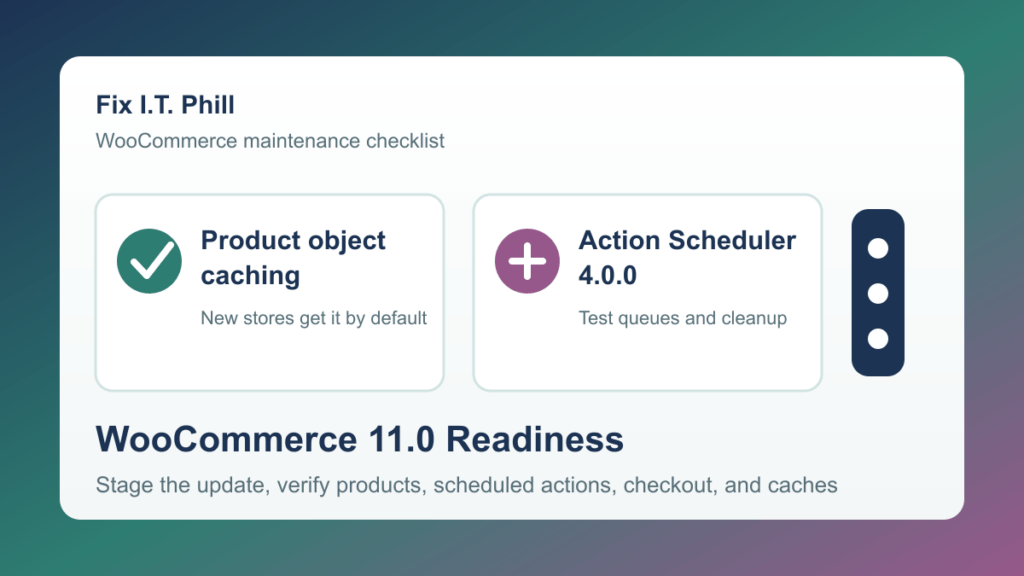
WooCommerce 11.0 is scheduled for July 28, 2026. Store owners and agencies should use the remaining testing window to verify inventory behavior, product-object caching, scheduled actions, checkout, and the extensions that shape their order workflow. This is a planned upgrade checklist, not an emergency change. Treat the vendor date as a target, confirm the final release and compatibility notes when they arrive, and do not force an update into a live store before its important customer paths pass on staging.
July update: failed orders can restore stock
WooCommerce has announced that version 11.0 will restore previously reduced stock when an order moves to Failed. That is usually the expected result for a payment failure, but it deserves a deliberate staging test for stores that use failed status in a custom fulfillment, delivery, inventory, or extension workflow.
- Identify the workflow owner. Ask who or what changes orders to Failed: the payment gateway, a fulfillment integration, a staff process, or custom store logic.
- Test with a staging product. Record the starting quantity, create a normal staged order path that would normally reduce stock, then confirm the expected quantity after the order reaches Failed.
- Test a recovery path. Where it matches the store's normal process, move the staged order back into an approved paid path and confirm inventory, notes, customer notifications, and fulfillment integrations behave as expected.
- Escalate custom status usage before production. If Failed means something other than a payment failure in your store, have the extension vendor or development owner review the compatibility impact before the WooCommerce update.
What else to check before WooCommerce 11.0
- Product object caching: WooCommerce says new 11.0 stores enable this feature by default, while existing stores keep their present setting. Confirm the expected setting on staging before comparing product pages, variations, pricing, availability, catalog filters, and cart totals.
- Action Scheduler 4.0.0: Review scheduled-action health before the upgrade. Busy stores should specifically check payment follow-up, subscriptions, webhooks, feeds, booking, fulfillment, and accounting work after staged orders and refunds.
- Large-store behavior: Test product administration, catalog browsing, search, checkout, email, and reports with the same theme, caching, and extension mix used in production.
- Extension compatibility: Review each payment, shipping, tax, subscription, booking, membership, pricing, inventory, and ERP integration for a WooCommerce 11.0 compatibility statement or support note.
Safe staging plan
- Set the test boundary. Use a current staging copy or a controlled test store that matches the production WordPress, WooCommerce, PHP, theme, extensions, cache layers, and payment configuration as closely as practical.
- Record normal behavior first. Note the expected product quantity, checkout total, delivery of transactional email, scheduled-action health, and normal order lifecycle before applying the beta or final update.
- Update one layer at a time. Start with WooCommerce core on staging. Do not combine a theme redesign, payment-gateway switch, cache redesign, and major extension updates in the same test window.
- Run business-path checks. Test catalog browsing, product edits, cart, checkout, payment confirmation, a failed-order scenario, a refund if used, customer account access, email, stock display, and the scheduled-action list.
- Review before live maintenance. If a test changes stock unexpectedly, creates a queue backlog, changes pricing, interrupts checkout, or produces unexplained errors, hold the production update and involve the relevant vendor or store maintainer.
Production-window checklist
- Confirm an approved recovery plan exists and that the person responsible for the store is available.
- Choose a lower-risk order window and tell the store owner what will be tested after maintenance.
- Update WooCommerce only after the matching staging path is understood.
- Check a real customer path without exposing customer information: a product, cart, checkout, order email, inventory display, and account area.
- Review order statuses and scheduled actions soon after the change, then again during the next normal business cycle.
- Clear only the applicable page, object, and CDN caches after the checks, then retest the public product and checkout paths.
When to pause and ask for help
Pause the live rollout if your store uses Failed for a non-payment process, if an extension changes stock or order statuses automatically, if scheduled actions already have a persistent backlog, or if the staging result cannot be explained. A short compatibility review is cheaper than reconciling inventory or payment records after a busy sales day.
Related Fix I.T. Phill guides
- How to Check WooCommerce Orders After Maintenance
- How to Test a WordPress Staging Site Before Launch
- How to Check WordPress Cron Jobs and Scheduled Tasks
- WordPress Backup Checklist: Verify Files, Database, and Restore Points
- Fix I.T. Phill WordPress Support
Official WooCommerce sources
- WooCommerce: Failed orders will restore reduced stock in 11.0
- WooCommerce 11.0 pre-release notes
- WooCommerce product object caching notes
- WooCommerce Action Scheduler 4.0.0 notes
Need a second set of eyes before a WooCommerce release window? Fix I.T. Phill can help scope staging checks, verify the order and inventory path, and document a clear go-or-hold decision before the live maintenance window.

