
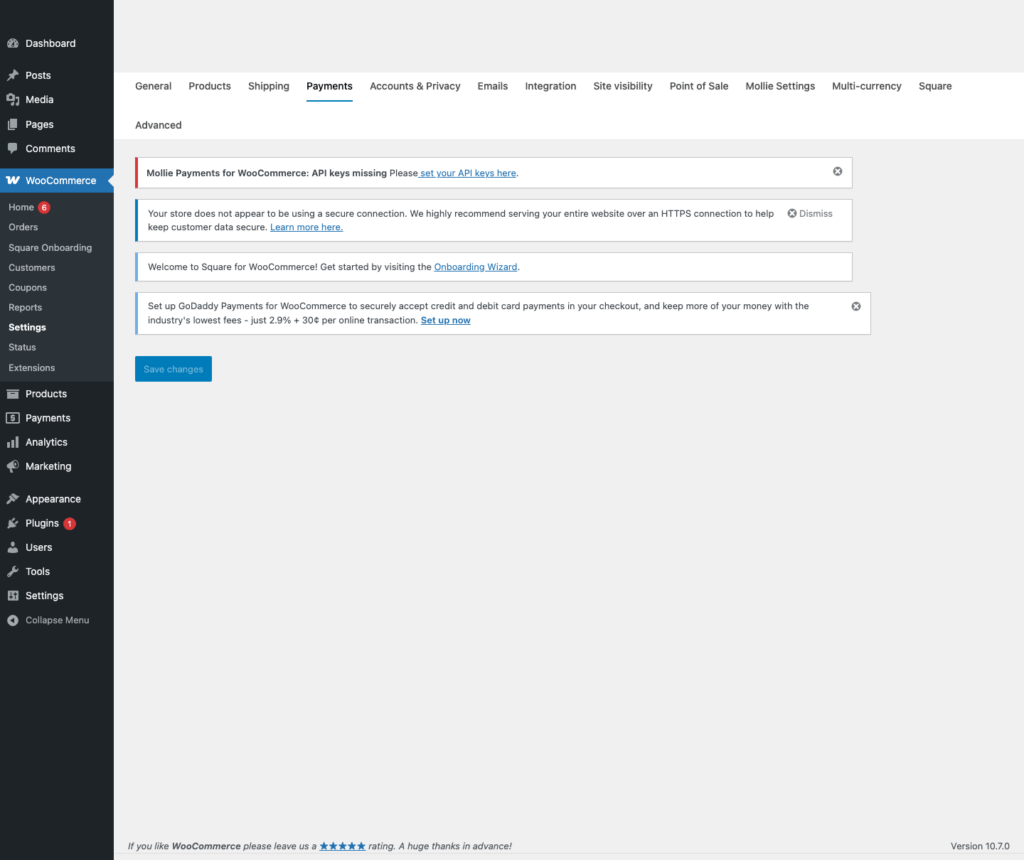
Payment keys are where a lot of WordPress store launches quietly go wrong. The beginner mistake is simple: people paste live credentials into a store they have not tested yet, or they leave test credentials in place after launch. This Mollie guide walks through the clean path: create the test or sandbox keys first, put them into the WooCommerce payment plugin, run a safe test order, then switch to live credentials only when the checkout flow is confirmed.
Open the official docsPayment tutorial hub
What You Are Setting Up
- Mollie gives you a Test API key and a Live API key.
- The Test API key lets you simulate payments without moving money.
- The Live API key is used only after Mollie approves the website profile and payment methods.
- The Mollie WooCommerce plugin can simulate payment statuses during test checkout.
Before You Touch Any Keys
- Update WordPress, WooCommerce, and the payment gateway plugin first. Key problems are harder to debug on an outdated plugin.
- Make one low-priced test product, such as a one dollar checkout product, so you can test without disturbing the real catalog.
- Use a staging site or maintenance window if the store already takes orders.
- Keep secret keys in the WordPress admin field or a proper secret manager. Do not paste live secret keys into tickets, chats, screenshots, or public docs.
- Confirm the checkout page, cart page, SSL certificate, permalinks, and transactional emails before going live.
Create Test Or Sandbox Credentials
- Log in to the Mollie Web app.
- Select the correct organization in the top-left of the Mollie dashboard.
- Open More > Developers > API keys.
- Copy the Test API key.
- Copy the Live API key only when the account and website profile are approved for live processing.
Add The Test Keys In WordPress
- In WordPress, open WooCommerce > Settings.
- Open the Mollie Settings tab.
- Paste the Test API key into the test key field.
- Select Test API or enable Mollie test mode.
- Save changes, then refresh the settings page so the plugin retrieves current Mollie payment methods.
Run A Safe Test Order
- Add the test product to the cart.
- Choose a Mollie payment method at checkout.
- Submit the order and use the Mollie test status dialog to choose a result, such as Paid or Failed.
- Confirm the WooCommerce order status matches the Mollie test status.
- Open the Mollie dashboard and confirm the test payment appears in the test environment.
Demo Cards And Test Values
- Mollie WooCommerce testing is usually status based. With the Test API key active, the Mollie checkout lets you simulate payment statuses such as Paid, Failed, Canceled, Pending, Authorized, or Expired depending on the method.
- For card-field integrations, use Mollie test mode and the current card values from Mollie testing documentation. The safer beginner path in WooCommerce is to use the Mollie-hosted status selector.
- Apple Pay Direct and some payment methods have special live-device or production-environment requirements, so check the official Mollie notes before promising a test path to a client.
Switch To Live Payments
- Confirm Mollie has approved the website profile and required payment methods.
- Copy the Live API key from More > Developers > API keys.
- Paste the Live API key into WooCommerce.
- Switch the Mollie payment mode from Test API to Live API.
- Place a controlled live verification and confirm the order status, Mollie dashboard status, email receipt, and settlement path.
Common Mistakes To Avoid
- Using the Live API key during store build-out.
- Selecting the wrong Mollie organization and copying keys for the wrong business.
- Not refreshing WooCommerce settings after changing keys.
- Forgetting to activate payment methods in the Mollie profile.
- Assuming every local payment method has the same testing behavior.
Quick Launch Checklist
- Test checkout succeeds with a demo payment method.
- Test checkout failure shows a useful error and does not create a paid order.
- Order notes show the correct processor transaction ID or sandbox transaction ID.
- Refund or void testing has been checked if the processor supports it from WooCommerce.
- Live credentials are active, test credentials are removed from production, and the store owner can see live transactions in the processor dashboard.
