


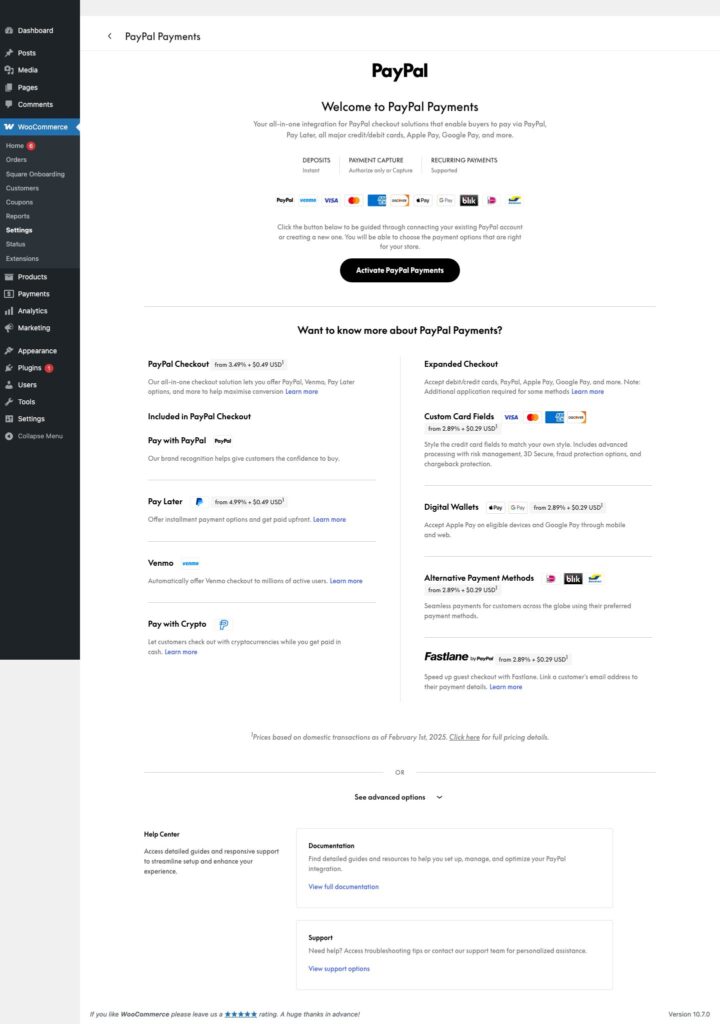
WooCommerce PayPal Payments is the maintained PayPal integration for WooCommerce stores. This guide helps store owners set it up, test a normal checkout safely, and plan a controlled move away from a legacy PayPal Standard configuration. It deliberately keeps credentials, payment data, and provider test values out of the process.
Start with the right decision
Do not treat this as a routine plugin update. First identify whether the store still depends on PayPal Standard, whether subscriptions or memberships rely on payment completion, and who can approve changes to the business PayPal account. Record the current checkout path, recent order and refund handling, customer emails, and any checkout customization that must survive the change.
WooCommerce says that updating PayPal Payments to 4.1.0 by itself does not disable PayPal Standard. The transition occurs when the merchant chooses to connect a PayPal account to the modern integration. Active and pending-cancel subscriptions still using PayPal Standard are protected from an abrupt disablement, but a subscription store should still give recurring billing its own review and approval checkpoint.
Prepare a reversible testing plan
- Confirm that the store has a recent, recoverable backup and that a named person owns restoration.
- Use a staging copy that includes the production checkout customizations, relevant extensions, and theme behavior.
- Update WordPress, WooCommerce, and WooCommerce PayPal Payments through their supported update paths. The WordPress.org directory listed WooCommerce PayPal Payments 4.1.2 as current when this guide was reviewed.
- Use WooCommerce's read-only Upgrade Readiness Tool before changing a live account connection.
- Choose a low-traffic maintenance window and tell the people handling customer questions, refunds, and order issues what is planned.
A test environment reduces checkout risk, but it does not make a business-account change trivial. Keep credentials only in the provider and WordPress administration surfaces intended for them. Do not put them in messages, screenshots, browser bookmarks, exports, or support tickets.
Set up WooCommerce PayPal Payments
Follow the current WooCommerce PayPal Payments startup and account-onboarding documentation for the supported installation and connection flow. Review the payment methods presented to shoppers, the currencies the store accepts, and any service-specific settings that affect the existing checkout. A store that uses subscriptions, memberships, tax automation, fulfillment, or multilingual checkout should include the person responsible for that system in the review.
Keep PayPal Standard enabled until the approved migration point. Connecting the merchant account is the meaningful change. Before that step, verify that the business owner can sign in to the right account and that the support team knows the escalation path if an ordinary order or renewal needs attention.
Test sandbox and live checkout without collecting sensitive data
Use the provider's current non-production guidance to confirm the normal shopper journey. Test only authorized, ordinary outcomes: a customer can reach checkout, an expected WooCommerce order state appears, inventory behavior is correct, and the appropriate confirmation email is sent. For stores that offer refunds, cancellations, subscriptions, or membership access, check the administrative process the business actually uses.
After the approved production connection, clear the WordPress, host, and CDN caches that affect checkout. Then repeat the normal business checks using controlled activity appropriate to the provider's guidance. Confirm the shopper view, WooCommerce order state, customer email, and merchant-account visibility. Do not run repeated live changes or broadly reset payment settings while a result is unclear; pause, preserve only the facts needed for support, and use the vendor's documented recovery path.
Subscriptions and customer access need a separate sign-off
Payment completion may create more than an order. It can grant access, trigger fulfillment, or start a renewal schedule. Review active and pending-cancel subscriptions before connecting PayPal Payments, then verify that existing subscription records remain intact and that the team can handle the next expected renewal. Confirm that membership or course access follows the store's ordinary payment-completion rules and that cancellations or failed payments follow the business policy.
Ongoing checkout maintenance
- Review WooCommerce and payment-plugin updates in staging before major campaigns or high-volume sales periods.
- Keep only the payment methods the business actively supports unless there is a documented reason for more.
- Review a small sample of ordinary orders, refunds, and customer emails after major checkout updates.
- Give staff a support path that never asks them to request or retain customer payment data.
For broader site maintenance and backup planning, see the Fix I.T. Phill WordPress support hub and the payment-processing guides.
Sources
- WooCommerce: PayPal Standard is Sunsetting
- WooCommerce PayPal Payments documentation
- WooCommerce PayPal Payments on WordPress.org
Last reviewed August 15, 2026. This is a defensive setup and migration guide; it does not include credentials, customer payment data, or payment-provider test values.

