


Help4 Disk Usage is a public cPanel, WHM, and WHMCS tool for hosting teams that need faster answers when an account is running out of disk space or inodes.
Release status, July 22, 2026: Help4 Disk Usage 0.3.7 changes the cPanel refresh flow so a completed refresh returns to a clean page instead of being submitted again by normal browser reload or back navigation. The release also uses clean form targets and no-store responses to avoid stale refresh pages. The cPanel entry remains once under Files with the official Help4 H4 mark introduced in v0.3.6. The published cPanel/WHM and WHMCS release assets matched their published SHA-256 digests. During validation, the cPanel/WHM archive still embedded v0.3.6 update metadata, while the public v0.3.7 manifest points its package URL at a different archive than the artifact named by its digest. Keep broad in-product update automation on hold until those artifacts align on one v0.3.7 package.

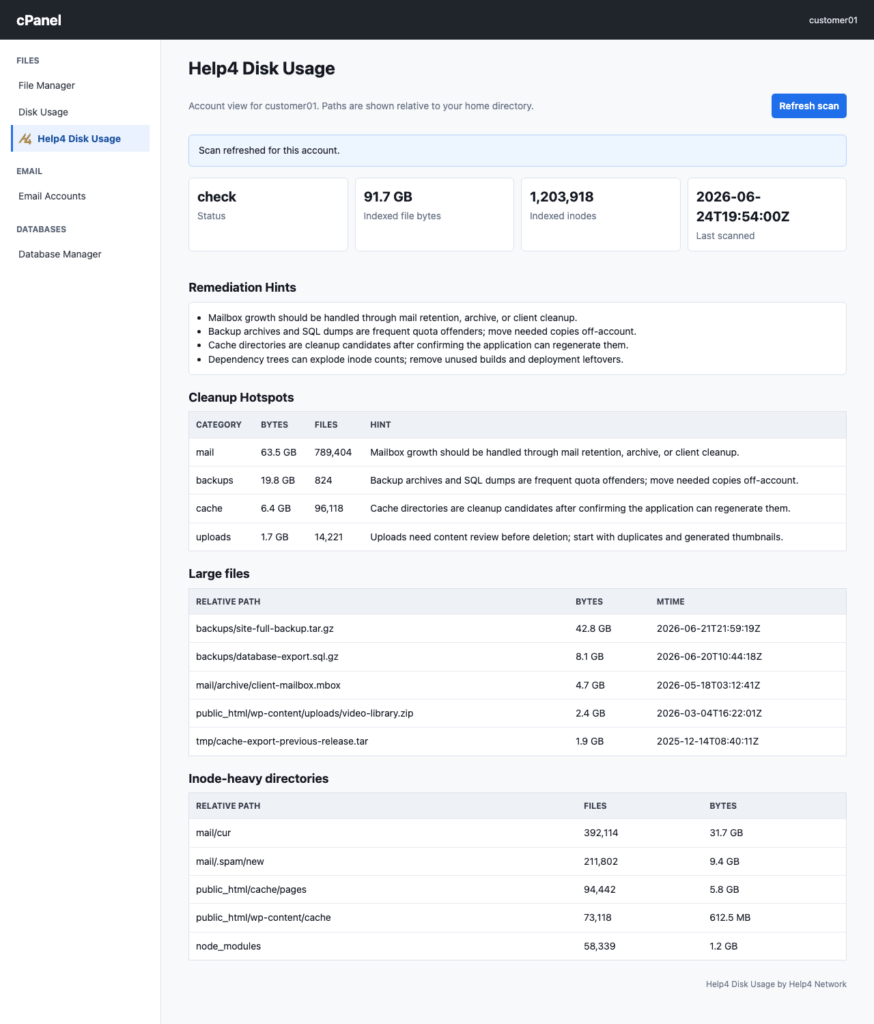
The short version: it turns disk-usage guesswork into a support-ready report. Instead of telling a customer “you are over quota” and then manually digging through account folders, the tool highlights likely offenders such as backups, logs, cache, mail, temp files, uploads, dependency folders, stale large files, disk-heavy directories, and inode-heavy trees.
It started from the Help4 Network find_large_files_and_inodes scanner and is now an installable product for cPanel/WHM servers and WHMCS-based hosting teams. The release checked for this update is 0.3.7, published through the immutable v0.3.7 tag. The current package-metadata alignment hold is described above.
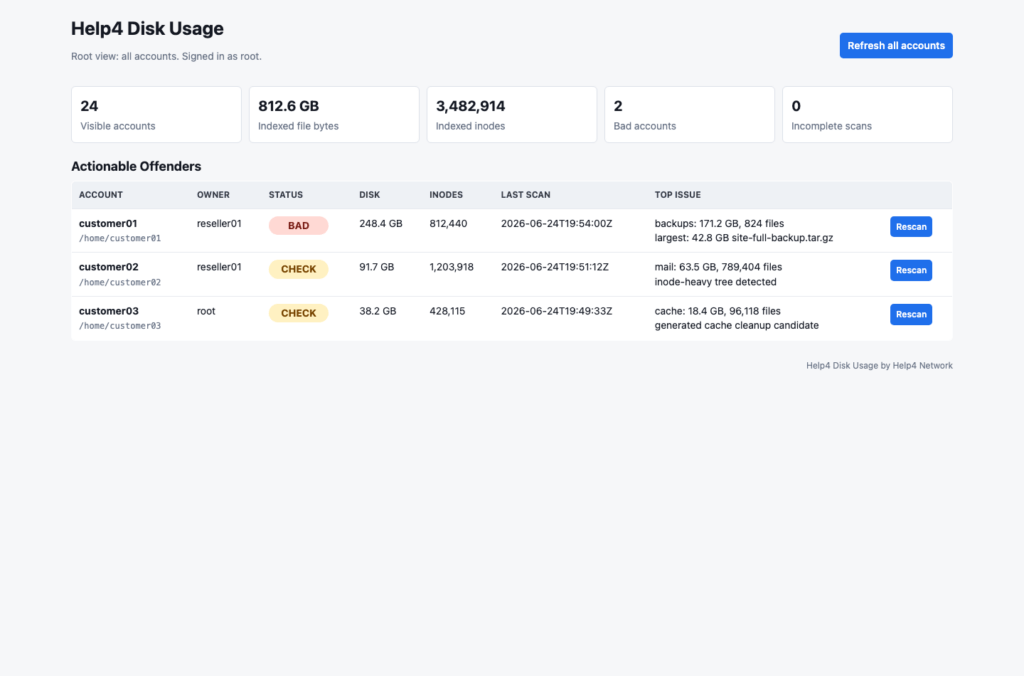
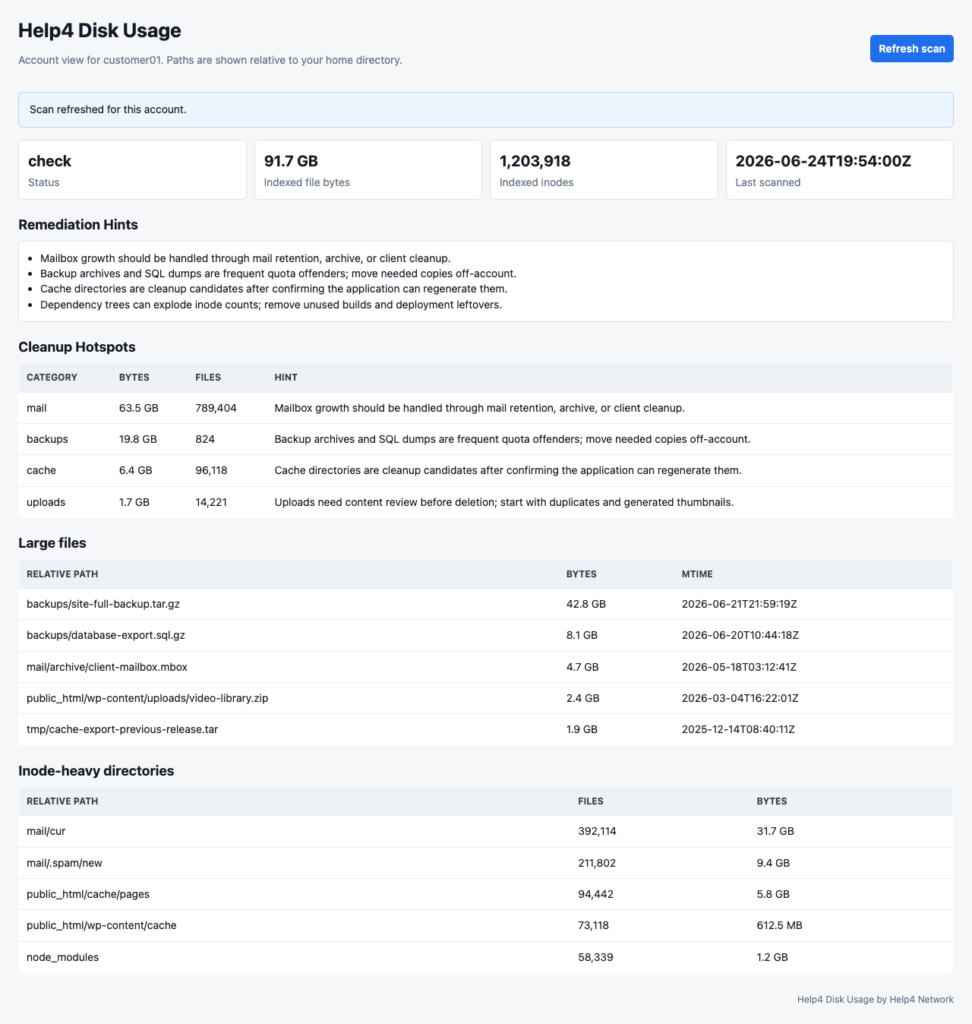
Screenshot note: the screenshots below use generated dummy data from the tutorial pack. They use demonstration placeholders instead of real customer identifiers, domains, server names, file paths, or backup names.
Help4 Disk Usage 0.3.7: Browser-Safe cPanel Refresh and Files Navigation
Release checked: Help4 Disk Usage 0.3.7 is available from the project's immutable v0.3.7 tag. The cPanel/WHM and WHMCS release assets match their published SHA-256 values. It retains the supported cPanel Files placement and WHM navigation while adding browser-safe cPanel refresh behavior.
The product remains a reporting and triage tool. It identifies likely disk and inode pressure without automatically deleting customer files.
What changed in v0.3.7
- Reloads stay read-only: after an approved cPanel refresh completes, normal browser reload and back navigation do not submit another scan.
- Cleaner browser state: the refreshed cPanel page returns to a clean target with no-store response handling, helping avoid stale refresh pages.
- Safer limiting behavior: refresh limiting fails closed when its rate state cannot be persisted.
- Files placement remains: the cPanel entry continues to appear once under Files with the official Help4 H4 mark.
- Controlled release handling: use the verified v0.3.7 release assets in an approved maintenance process, but keep in-product update automation paused until all release metadata identifies the same package.
Practical update path
- Compare the installed version with the current
v0.3.6tag, update manifest, and release notes. - Use the immutable package and its published SHA-256 value when your maintenance process approves the update.
- On a pilot server, confirm the WHM dashboard opens inside the normal WHM navigation, then check one scoped cPanel account report.
- For WHMCS, validate the separate add-on package, confirm the Server Health view and administrator health widget, and only then extend the rollout.
- Use a report to plan a human-led cleanup; retain a restore point only when that cleanup materially changes customer data.
Useful next reads
- WordPress Support Guide for maintenance, migration, and troubleshooting paths.
- cPanel disk and inode cleanup checklist before opening a hosting support ticket.
- WHMCS disk-usage support workflow for customer-facing operations.
- cPanel Backup Wizard for WordPress before a data-changing maintenance task.
- WordPress backup methods guide before moving, removing, or otherwise changing account files.
Help4 Disk Usage FAQ
Where do I find Help4 Disk Usage in cPanel?
In the verified v0.3.7 release, the entry appears once in cPanel’s Files group. It is not a Metrics tile.
Does the disk audit utility delete files or clean an account automatically?
No. It reports likely disk and inode pressure so an account owner or hosting team can review the cause and choose a controlled next step. Use the WordPress backup methods guide before a data-changing maintenance task.
Can it help when a WordPress account hits an inode limit?
Yes. The report helps separate likely sources such as uploads, cache, logs, mail, backups, and dependency folders from general account pressure. For a slow site, pair that evidence with the WordPress hosting resource-limit diagnosis guide; a disk or inode issue is not automatically a CPU, memory, or concurrency issue.
What should a hosting support team do with a report?
Confirm the report timestamp, identify the account and category involved, protect the relevant restore path, and communicate only an approved next action. The WHMCS disk-usage support workflow covers the customer-service handoff.
Who this helps
Help4 Disk Usage is built for shared hosting providers, managed WordPress hosts, WHMCS-based hosting companies, agencies managing many cPanel accounts, and server operators who need support-friendly disk and inode visibility.
It is especially useful when the support question is not just “how much space is used?” but “what changed, where is the weight, and what can we safely tell the customer?”
What it includes
- WHM root and reseller dashboards for account-level triage.
- cPanel customer dashboard for self-service account visibility.
- WHMCS addon module for deployment, sync, admin reports, and customer summaries.
- Background scans with visible timestamps so support knows whether the data is fresh.
- Largest-file and inode-heavy directory detection for common quota tickets.
- Category hints for cache, logs, temp files, backups, mail, uploads, dependencies, stale large files, disk usage, and inode growth.
- Scan controls so refresh buttons do not stack expensive jobs on busy shared-hosting servers.

The safety boundary matters
This is a reporting tool, not an automatic cleanup tool. Help4 Disk Usage reports likely cleanup candidates and support hints. It does not delete customer files.
The scanner also has operational guardrails:
- Foreground scans use a shared lock so GUI-triggered scans do not stack.
- cPanel user refreshes are rate-limited by default.
- Root can tune WHM and cPanel scan limits from WHM.
- Root can set package-specific cPanel refresh overrides.
- Scanner runs are bounded by runtime and result-count limits.
- cPanel users see relative paths for their own account, not other accounts or server-wide paths.
Install path for cPanel and WHM
Start by reviewing the project repository and building or downloading a release package:
Release channel check: the project publishes an immutable v0.3.6 tag and an update manifest that names the package and its required digest. Use the immutable package and published SHA-256 value for a controlled update; filesystem snapshots are opt-in, with immutable tags as the default rollback reference.
For a normal cPanel server install, upload the release tarball to the server, extract it, and run the installer as root:
For a first install, follow the current tagged-release instructions in the repository documentation. Test the package on a pilot server and retain a verified restore point before deploying it to production accounts.
The installer places the scanner under the cPanel third-party path, installs the WHM CGI, registers WHM AppConfig, adds the cPanel Jupiter plugin icon, creates a six-hour cron refresh, and writes the shared scan configuration and lock path.
How WHMCS fits in
The WHMCS addon lives under:
integrations/whmcs/modules/addons/help4_disk_usageCopy that folder into the matching WHMCS path, activate Help4 Disk Usage under System Settings > Addon Modules, configure the release tarball URL and scan limits, then open Addons > Help4 Disk Usage.
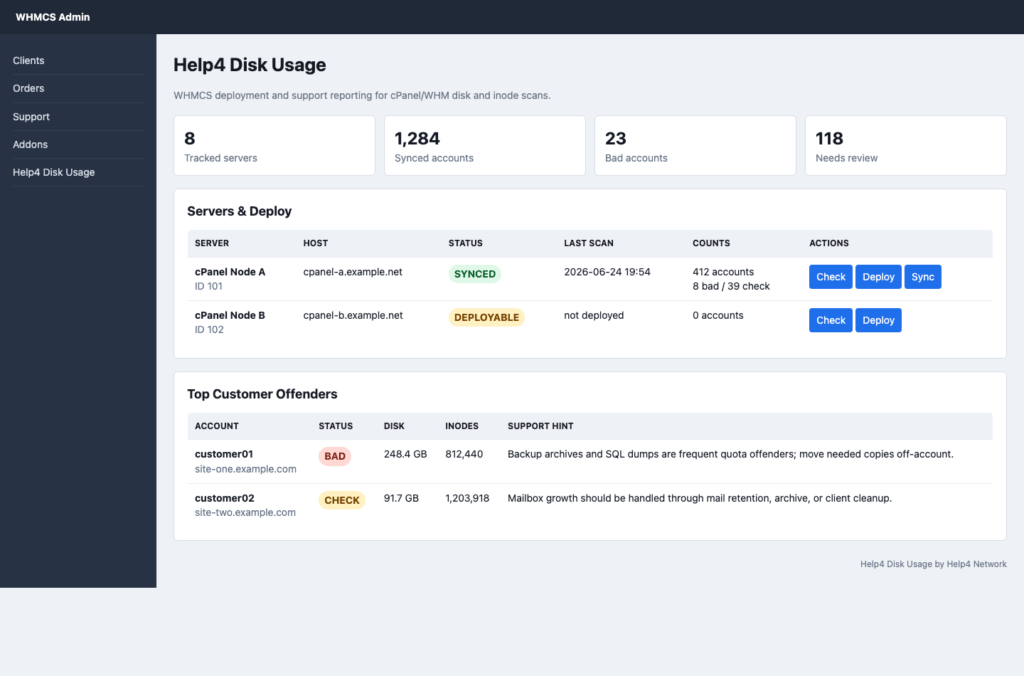
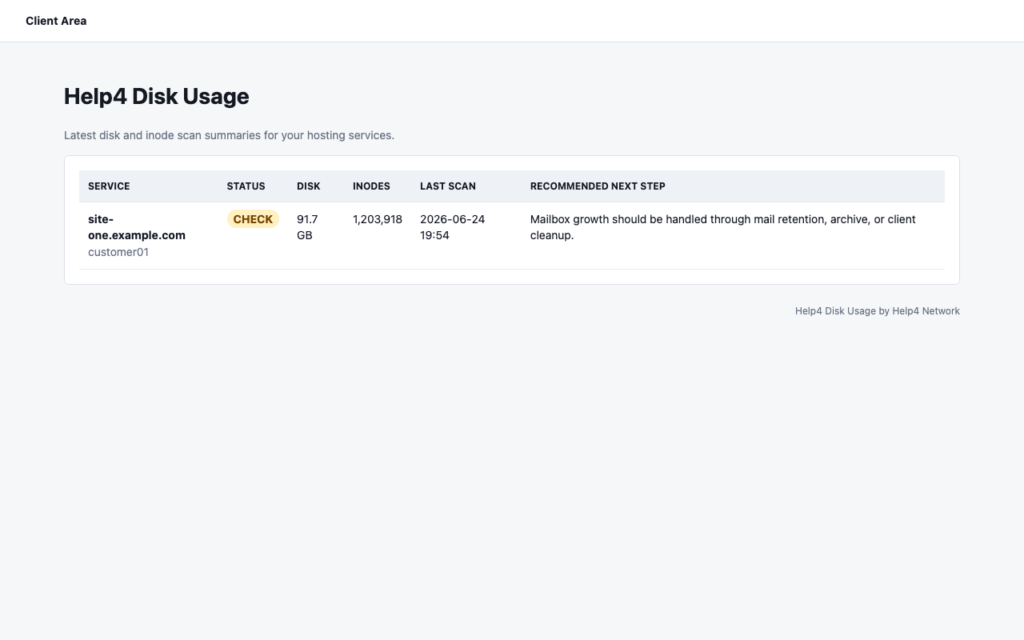
In WHMCS, the addon can show synced servers, account scan state, top customer offenders, deploy/check/update/sync status, a health widget, and an event log for administrator visibility. The current release channel also supplies a separate checksummed WHMCS package and expanded activation, upgrade, removal, verification, and troubleshooting guidance. Supported automation uses a verified server identity, bounded execution, and a checked exit result; otherwise, teams can use the documented manual process and sync trusted report data.
If those requirements are not available, the addon still provides a manual deployment command and can report synced scan data from another trusted workflow.
Customer reports
When enabled, WHMCS customer reporting maps scan rows to hosting services by WHMCS server ID and cPanel username. Logged-in customers see only their own mapped services at:
index.php?m=help4_disk_usage
Support workflow
- Deploy the WHM/cPanel plugin to a cPanel server.
- Run or wait for a scan so the report has fresh timestamps.
- Use WHM to identify bad or check accounts by disk and inode pressure.
- Sync to WHMCS when customer-service mapping is needed.
- Use the category hints to explain whether the likely issue is backups, logs, cache, mail, temp files, uploads, dependencies, stale large files, disk, or inodes.
- Ask the customer to review or remove only files they understand, or handle cleanup through a managed support process.
How this differs from a raw shell script
The older Fix I.T. Phill guide, Find Large Files and Inodes on cPanel/WHM Servers, is still useful for direct admin investigation. Help4 Disk Usage turns that kind of scan into a repeatable workflow with WHM views, cPanel account visibility, WHMCS reporting, timestamps, limits, and customer-safe summaries.
Practical recommendation
Test it on a non-critical cPanel server or a small account group first. Confirm the AppConfig behavior, cPanel Jupiter page behavior, WHMCS SSH handling, scan runtime limits, and the customer report copy before exposing reports broadly.
For production release management, prefer the immutable tagged package named by the current update manifest. The 0.3.6 WHM dashboard uses cPanel's native master template so normal WHM navigation remains available, and it includes regression coverage for nested documents and unscoped CSS. Mirror the manifest and package into operator-controlled infrastructure when your change-control policy requires it, and keep the visible Help4 Network builder credit.
Project link: https://github.com/Help4Network/help4-disk-usage
2026 SEO Refresh: Help4 Disk Usage for cPanel, WHM, and WHMCS Reports
Admin action path: The best disk report is one that support can act on without exposing private paths or deleting the wrong account data.
What to verify before changing production
- Capture disk and inode evidence before deleting anything.
- Separate logs, cache, backups, staging copies, email, and uploads.
- Avoid removing account files without a restore point and a ticket note.
Source-backed references and next reads
- Official reference: cPanel Disk Usage documentation.
- Official reference: cPanel hard drive space guidance.
- Related FixItPhill guide: WordPress backup restore point check.
- Related FixItPhill guide: test a WordPress backup restore.
- Related FixItPhill guide: cPanel full account backup migration.
- Related FixItPhill guide: Plesk Backup Manager restore.
Ticket evidence should include the tool used, backup timestamp, restore target, changed DNS or SSL state, visible public URL, and the exact verification steps completed after the change.

