
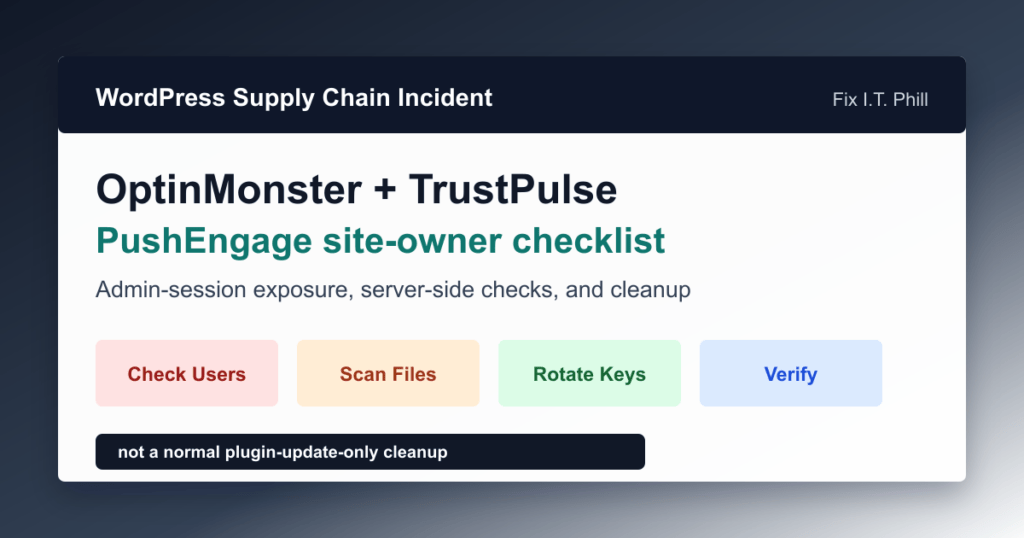
June 18, 2026 update: OptinMonster, TrustPulse, and PushEngage have all been tied to a WordPress supply-chain incident where tampered vendor-hosted JavaScript was served from a CDN for a limited window. This was not a normal plugin vulnerability where the answer is simply "update and move on."
Plain-English impact: according to the vendor disclosures and independent security writeups, the malicious script only activated for logged-in WordPress administrators. On an affected site, it could use that administrator session to create an unauthorized administrator account and install a concealed malicious plugin. Regular visitors were not the intended trigger, but a site that was hit should be treated as compromised until checked.
Who should check first
- WordPress sites that used OptinMonster or TrustPulse during the June 12, 2026 UTC exposure window described by OptinMonster.
- WordPress sites that used PushEngage during June 12-14, 2026 UTC, especially where a WordPress administrator was logged in.
- Agencies, web hosts, ecommerce teams, and maintenance vendors that manage many WordPress installs and cannot quickly prove which admins were logged in.
- Sites where unknown administrators, unusual plugin folders, unexpected file changes, or strange redirects appeared after June 12, 2026.
If you are not sure whether an administrator was logged in during the affected window, check the site. The vendor notices are clear that dashboard-only checks are not enough because the unwanted plugin could be hidden from normal admin screens.
Do not rely on plugin version alone
The WordPress.org plugin pages were checked during this pass. They listed OptinMonster 2.16.24, TrustPulse 1.2.5, and PushEngage 4.2.5 as current published versions at the time of review. Keep installed plugins current, but do not use the version number as your only proof that the site is clean. This incident involved vendor-hosted script delivery, not only the PHP plugin package installed in WordPress.
Safe site-owner checklist
- Preserve a backup first. Save files and database before deleting anything suspicious so you have evidence and a rollback point.
- Review administrator accounts. Look for accounts you did not create, accounts with unfamiliar email addresses, and recently created admins.
- Inspect the filesystem, not only the dashboard. Check the plugin directory and recent file changes on disk. A normal plugin list can miss files that hide themselves from WordPress admin screens.
- Run a server-side malware scan. Use your host, security provider, or a trusted scanner that can inspect files directly on the account.
- Review logs around the exposure window. Check admin logins, file changes, plugin installs, and security-plugin alerts around June 12-14, 2026 UTC.
- Rotate credentials if anything is suspicious. Change WordPress administrator passwords, hosting passwords, application keys, API keys, database credentials, and WordPress salts where compromise is suspected.
- Force WordPress sessions to expire. Log out existing sessions after password and salt rotation so old cookies stop working.
- Recheck after cleanup. Confirm unknown users are gone, unwanted files stay removed, the site still loads, forms work, checkout works, and search engines still see indexable pages.
Agency and hosting workflow
For managed WordPress fleets, build a short inventory instead of handling this one site at a time from memory. Track the domain, plugin presence, administrator activity during the exposure window, scan status, suspicious users, suspicious files, credential-rotation status, customer contact status, and final verification.
If a site is ecommerce, membership, lead-generation, or support-ticket focused, verify business workflows after cleanup. Check orders, forms, leads, subscriptions, outbound email, payment settings, webhooks, and analytics integrations. Supply-chain cleanup is not complete just because the public homepage loads.
When to disable or replace the tool temporarily
If you cannot inspect the site promptly, temporarily disable the affected marketing or push-notification integration until someone can check it properly. For sites that depend on these tools for sales, plan a short maintenance note and a replacement capture path so leads or abandoned-cart workflows are not silently lost.
Do not install random "fixed" copies from search results. Use WordPress.org, the vendor dashboard, or a trusted managed-hosting update system. If a vendor response does not satisfy your risk tolerance, choose a maintained alternative after testing forms, popups, subscription flows, and WooCommerce automation on staging.
Fix I.T. Phill recommendation
If you used one of these tools and can prove no WordPress administrator was logged in during the affected window, normal hygiene may be enough: keep plugins updated, enforce two-factor authentication, and keep backups current. If an administrator may have been active, treat the site as a real incident until server-side checks prove otherwise.
Related Fix I.T. Phill reading
- How to back up a WordPress site in cPanel
- How to check WordPress backups and restore points
- Gravity SMTP mail key patch and rotation guide
- CloudLinux WHM/cPanel security patch walkthrough
Sources checked
- OptinMonster and TrustPulse incident disclosure
- PushEngage incident disclosure
- Patchstack security analysis
- Sansec incident research
- WordPress.org OptinMonster plugin page
- WordPress.org TrustPulse plugin page
- WordPress.org PushEngage plugin page
Validation marker: fixitphill-optinmonster-trustpulse-pushengage-20260618.
