
How to Add a New User in WordPress (and Choose the Right Role)
August 6, 2026
Adding a new WordPress user should take a few minutes, but choosing the wrong role can create a much longer problem. Give each person their own account, select the smallest role that lets them do the work, and review the account after the job changes or ends.
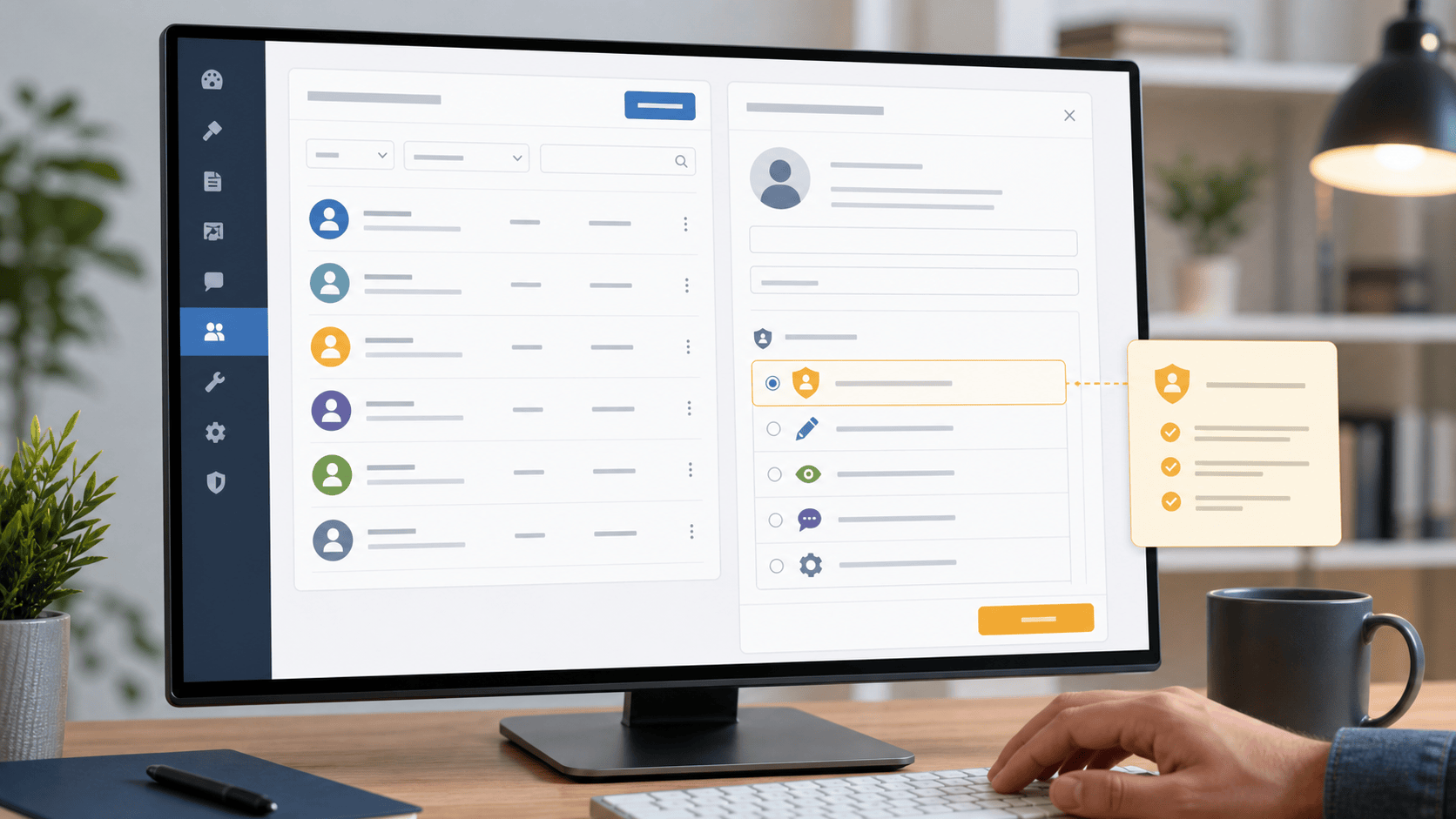
This guide covers the normal WordPress dashboard workflow for inviting a user, choosing a role, and checking the new access without sharing an administrator login. The visual uses a fictitious demo site, not a customer dashboard.
Before you add anyone
- Decide what work the person actually needs to do.
- Use the person’s own email address so password recovery and notifications go to the right person.
- Keep at least one owner-controlled administrator account available.
- Do not recycle a former employee’s account for someone new.
- Remember that ecommerce, membership, learning, and security plugins can add their own roles or permissions.
How to add a new user in WordPress
- Sign in with an account that can manage users.
- Open Users > Add New User.
- Enter the person’s username, email address, and name details.
- Choose a role based on the work they will perform.
- Send the new-user email so the person can set their own password.
- After they sign in, confirm that they can complete their real task and cannot reach settings they do not need.
For a single-site installation, WordPress includes the familiar Administrator, Editor, Author, Contributor, and Subscriber roles. A multisite network has additional network-level administration responsibilities, so use a separate review before granting that level of access.
Which WordPress role should you choose?
| Role | Good fit | Use caution when… |
|---|---|---|
| Administrator | Site owner or trusted technical maintainer | They only need to write, edit, or moderate content |
| Editor | Person who manages published pages and posts | They do not need site settings, plugins, themes, or user management |
| Author | Regular writer who publishes their own posts | They should not manage other people’s content |
| Contributor | Writer whose work needs review before publication | They need to publish independently |
| Subscriber | Basic account or member access | They need editorial or site-management privileges |
When a plugin offers a custom role, read its own documentation before assigning it. A role named for a store, course, booking system, or membership area can have capabilities that are different from the core WordPress roles.
Do not share the Administrator login
Shared credentials make it hard to tell who changed a page, reset a password, installed a plugin, or still has access after a project ends. Separate accounts let you change one person’s access without disrupting everyone else. They also make an access review practical instead of guesswork.
Use our WordPress users and admin-access checklist to review old accounts, unexpected administrators, and stale roles. If the task is only to change one person’s contact address, use the WordPress admin email guide to distinguish a site notification address from a user’s profile email.
Verify the new account
- The invitation went to the intended person’s mailbox.
- The person can sign in and do their expected task.
- Their role is no broader than the task requires.
- They cannot change plugins, themes, site settings, or other user accounts unless that is part of their job.
- The site owner knows who can restore access if the new user has trouble signing in.
When someone leaves or changes jobs
Do not leave the account untouched. Remove access or reduce the role, transfer any content ownership that needs to stay with the business, and review connected services such as forms, stores, courses, booking tools, and security plugins. A regular review is simpler and safer than waiting for an incident.
Keep the support path connected
User access is one part of everyday WordPress maintenance. The FixItPhill WordPress Support Guide connects user access with updates, backups, email, performance, and migrations.
