


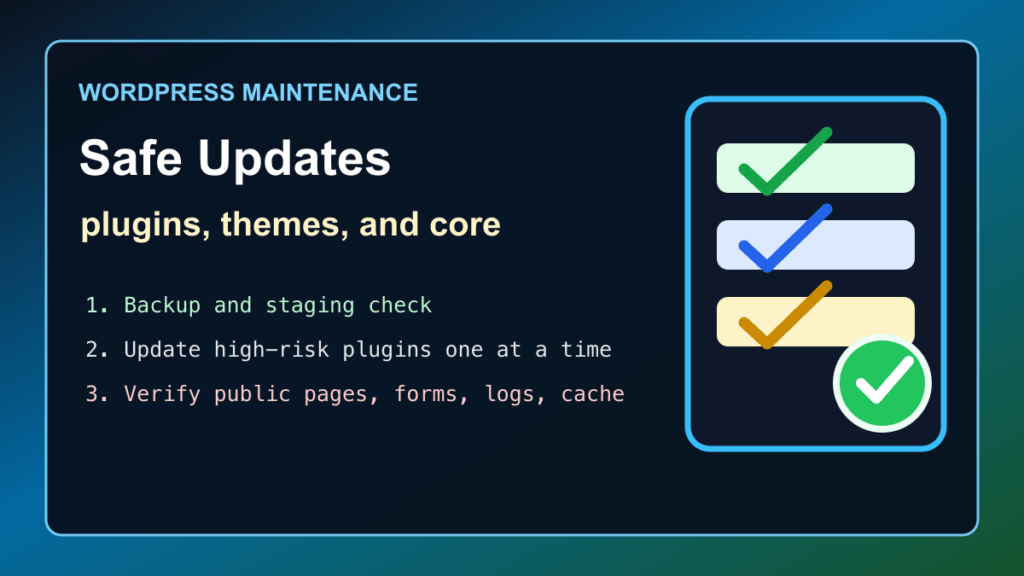
Keeping WordPress, plugins, and themes current is routine site maintenance, but the useful part is not clicking every available button at once. A focused update pass lets you apply the right changes from the Dashboard, test the visitor paths that matter, and spot a compatibility problem before it turns into a support queue.

Start at the WordPress Updates screen
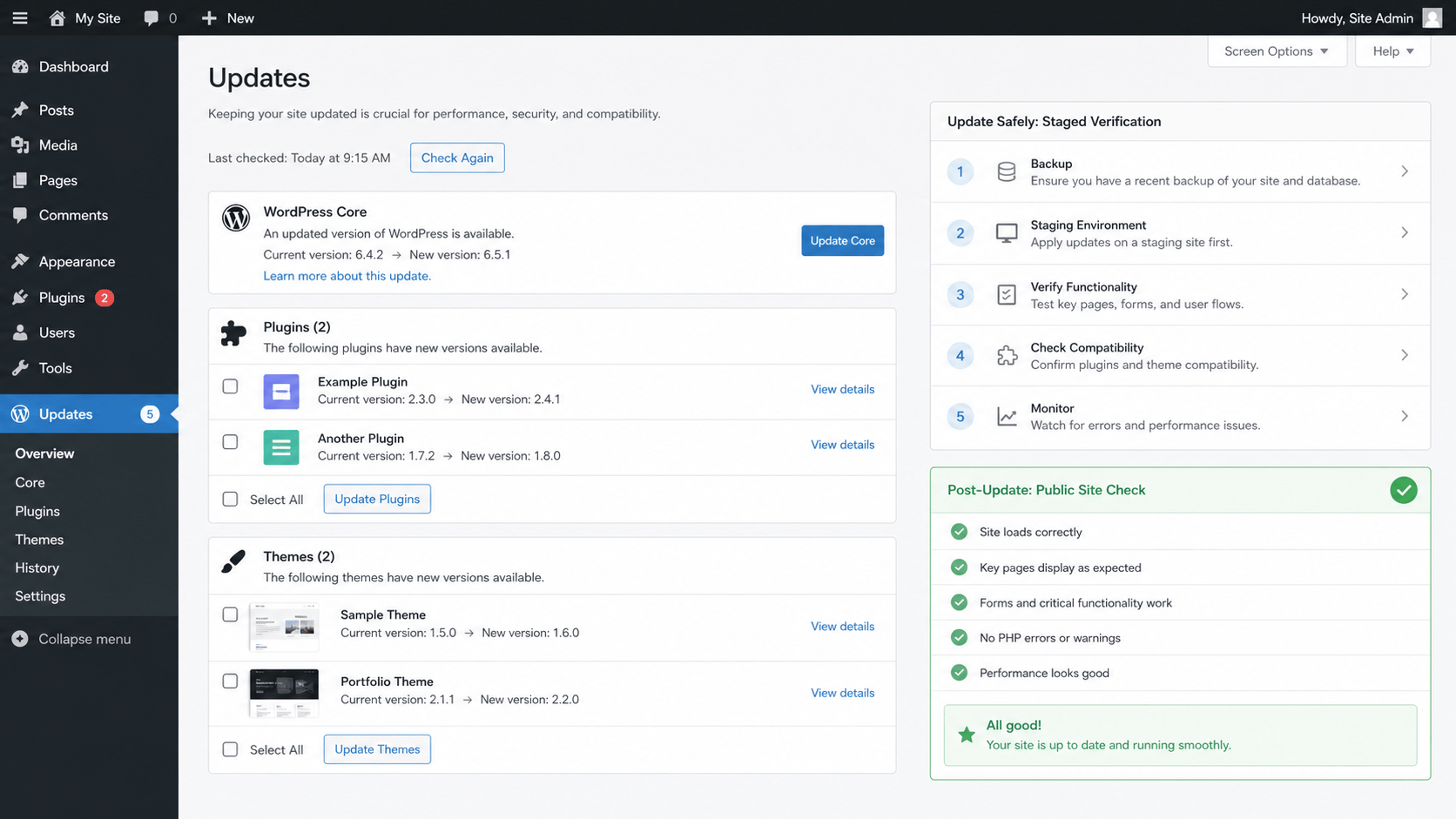
Open Dashboard » Updates. WordPress uses this screen to show available core, plugin, theme, and translation updates. Review the list before applying anything so you know whether the change affects a low-impact add-on, the active theme, a store or form plugin, or WordPress itself.
For a site with a current security update, follow the affected product's published urgency and fixed-version guidance. For normal maintenance, keep customer-critical changes separate from unrelated design, hosting, or configuration work. This makes the result easier to verify and easier to explain if a site owner notices a change later.
If the update is a WordPress core security release, use the current WordPress 7.0.2 security update checklist for its fixed-version and urgency guidance before returning to this routine maintenance process.
Choose an update order that fits the site
- Identify high-impact components. Mark the active theme, WooCommerce, payment and booking tools, form plugins, cache plugins, page builders, membership tools, and custom integrations. These deserve individual attention because they affect a visible customer journey.
- Apply small routine plugin updates first. In Plugins » Installed Plugins or Dashboard » Updates, review each available update. Use the vendor's update notes when the plugin controls money, logins, content editing, or a public form.
- Handle the active theme deliberately. Open Appearance » Themes, review the active theme and any child-theme relationship, then apply the parent-theme update without changing custom child-theme work. Check navigation, templates, and mobile presentation afterward.
- Update WordPress core as its own step. From Dashboard » Updates, use Update Now when the site is ready for the core update. Return to the Dashboard when it completes and confirm the expected version is displayed.
Use automatic updates with intent
WordPress lets administrators manage theme and plugin automatic updates from the Updates and installed-component screens. Automatic updates can be a good fit for a well-understood component with a reliable vendor history. Keep a human review for ecommerce, payment, booking, security, cache, builder, membership, and custom-functionality plugins, where a quick visitor-path check has more value than unattended convenience.
Verify what visitors and editors actually use
- Open the public site without an editor session. Check the home page, a key landing page, a recent post, and a contact page in a private browser window.
- Test one important journey. Choose the action that matters to the site: form submission, product and cart flow, checkout, account login, booking inquiry, member content, or a download.
- Check the editing path. Sign in and open one representative page or post. Confirm that the editor, media picker, templates, and the relevant plugin settings load normally.
- Clear only the site caches used by the site. Purge the page, object, or CDN cache through its normal interface, then repeat the public-page check. This avoids mistaking an old cached page for a failed update.
- Review Site Health. Open Tools » Site Health to look for critical issues or new recommendations. The information view also records the active theme, installed plugins, WordPress version, server details, and update communication status.
If the update reveals a problem
Pause additional updates and separate a public-site symptom from an admin-only symptom. Start by checking whether a cache is serving an older page and whether the same issue appears in a private browser window. For a fatal WordPress error, use the built-in Recovery Mode when it is available; it can identify the failing plugin or theme without sending you straight into code changes.
For a white screen or Error 500, use the WordPress white-screen and Error 500 guide. For healthy updates that need a broader public check, continue with WordPress performance monitoring after updates and the email-delivery checklist.
Keep the support handoff useful
When requesting help, provide the visible symptom, when it first appeared, the affected visitor path, and the names of the updates completed. That gives a WordPress or hosting technician a clean starting point without turning a routine update into trial-and-error work. The WordPress Support hub collects the next guides for performance, email, migrations, cPanel, and Plesk.

