
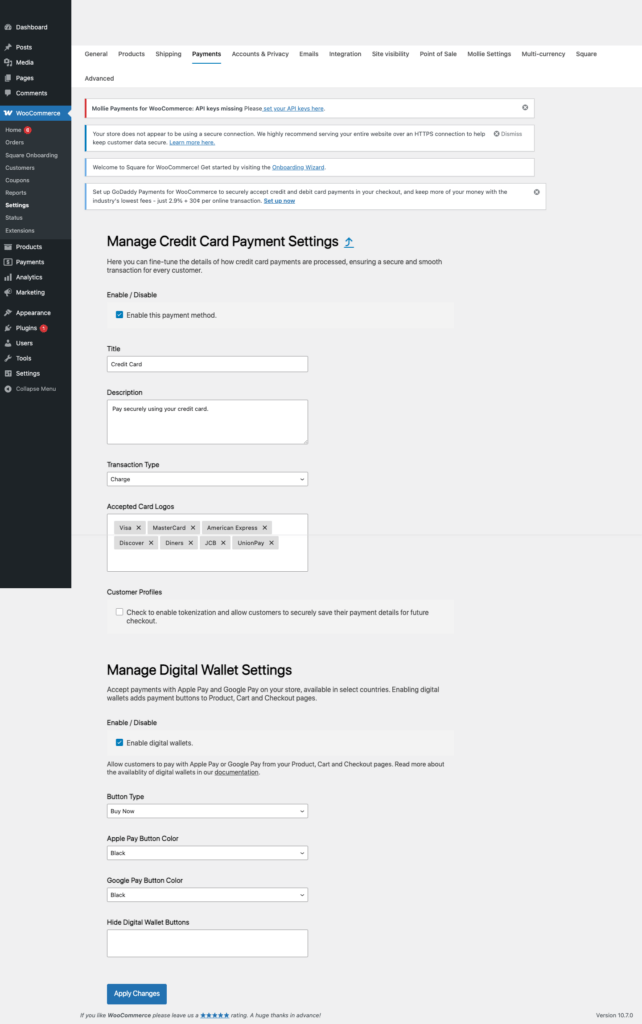
Payment keys are where a lot of WordPress store launches quietly go wrong. The beginner mistake is simple: people paste live credentials into a store they have not tested yet, or they leave test credentials in place after launch. This Square guide walks through the clean path: create the test or sandbox keys first, put them into the WooCommerce payment plugin, run a safe test order, then switch to live credentials only when the checkout flow is confirmed.
Open the official docsPayment tutorial hub
What You Are Setting Up
- Square separates sandbox testing from production processing.
- The WooCommerce Square extension uses a Square connection and sandbox settings rather than a single shared live key.
- For API-level setups, Square also uses sandbox access tokens, production access tokens, application IDs, and location IDs.
- Square sandbox cards work only in the Square sandbox and should not be used on live merchant checkout pages.
Before You Touch Any Keys
- Update WordPress, WooCommerce, and the payment gateway plugin first. Key problems are harder to debug on an outdated plugin.
- Make one low-priced test product, such as a one dollar checkout product, so you can test without disturbing the real catalog.
- Use a staging site or maintenance window if the store already takes orders.
- Keep secret keys in the WordPress admin field or a proper secret manager. Do not paste live secret keys into tickets, chats, screenshots, or public docs.
- Confirm the checkout page, cart page, SSL certificate, permalinks, and transactional emails before going live.
Create Test Or Sandbox Credentials
- Log in to the Square Developer Console.
- Create or select the application for the WooCommerce store.
- Open the application credentials and copy the sandbox application details required by the plugin.
- Open Sandbox test accounts if you need a test seller dashboard.
- Confirm the sandbox location that WooCommerce should use for test orders.
Add The Test Keys In WordPress
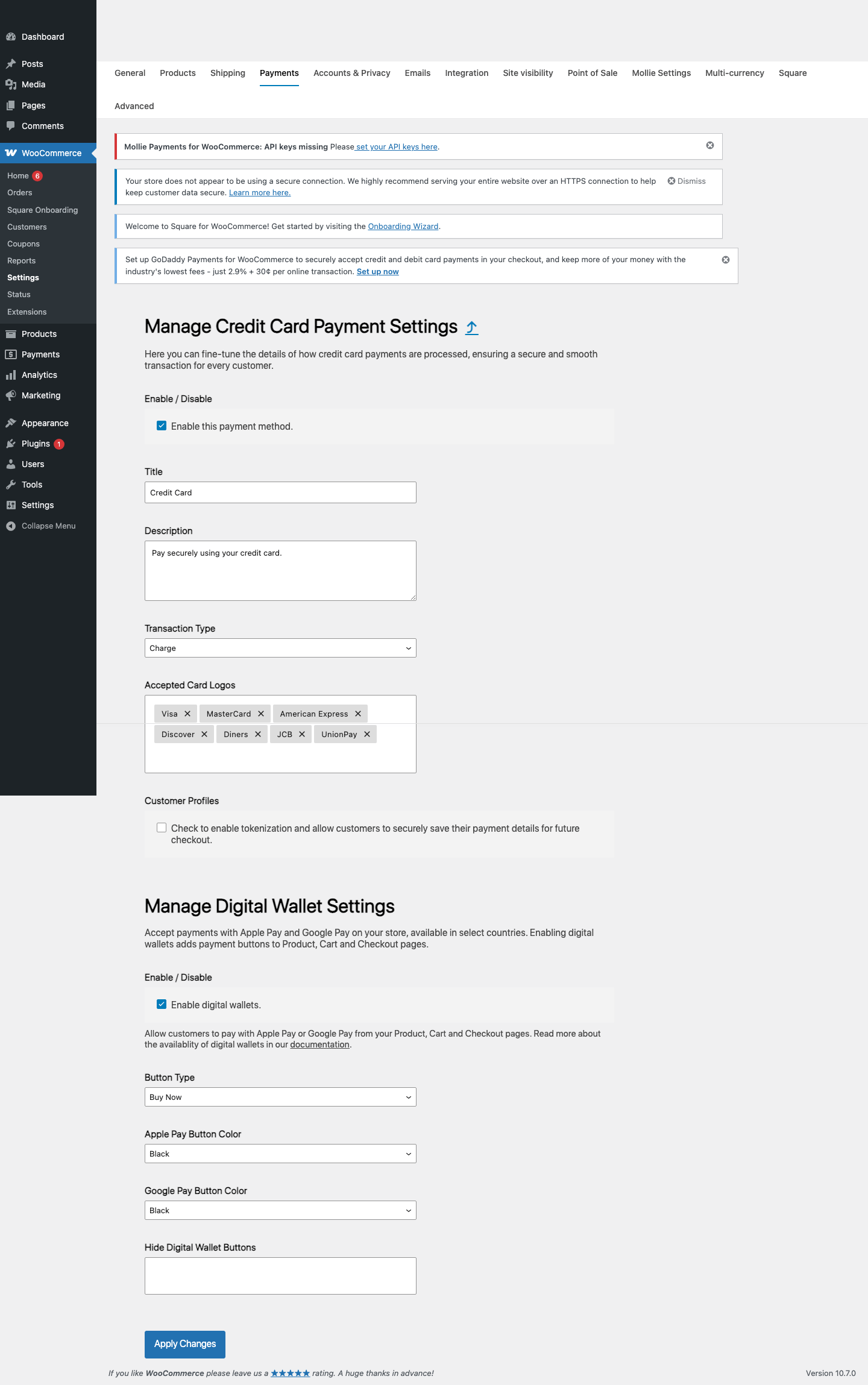
- In WordPress, open WooCommerce > Settings > Square.
- Set Environment Selection to Sandbox.
- Connect or paste the sandbox credentials the extension asks for.
- Confirm the sandbox location and payment settings.
- Save changes and confirm Square appears during checkout.
Run A Safe Test Order
- Create a test product and place a checkout order.
- Use one of the Square sandbox cards below.
- For USD, CAD, or GBP tests, include a valid postal code.
- Confirm WooCommerce shows the expected order status.
- Open the Square sandbox dashboard and confirm the sandbox payment record.
Demo Cards And Test Values
| Scenario | Test value | Use it for |
|---|---|---|
| Successful Visa | 4111 1111 1111 1111 / CVV 111 |
Normal successful Square sandbox checkout. |
| Successful Mastercard | 5105 1051 0510 5100 / CVV 111 |
Alternative successful card brand test. |
| Bad CVV trigger | CVV 911 |
Confirm the store handles a CVV failure. |
| Bad postal trigger | Postal code 99999 |
Confirm the store handles postal-code validation failure. |
| Declined card | 4000 0000 0000 0002 |
Confirm the checkout handles a declined card. |
Switch To Live Payments
- Confirm the real Square seller account is approved and ready to process online payments.
- Switch WooCommerce Square from Sandbox to Production.
- Connect the production Square account or add the production credentials required by the extension.
- Select the correct production location.
- Run a controlled live verification and confirm the order, transaction, receipt, and payout reporting paths.
Common Mistakes To Avoid
- Using sandbox credentials while the store is supposed to be live.
- Selecting the wrong Square location.
- Testing Square sandbox with real card numbers.
- Forgetting to test refunds or voids from WooCommerce.
- Assuming Square catalog sync and payment processing are the same setting.
Quick Launch Checklist
- Test checkout succeeds with a demo payment method.
- Test checkout failure shows a useful error and does not create a paid order.
- Order notes show the correct processor transaction ID or sandbox transaction ID.
- Refund or void testing has been checked if the processor supports it from WooCommerce.
- Live credentials are active, test credentials are removed from production, and the store owner can see live transactions in the processor dashboard.
