
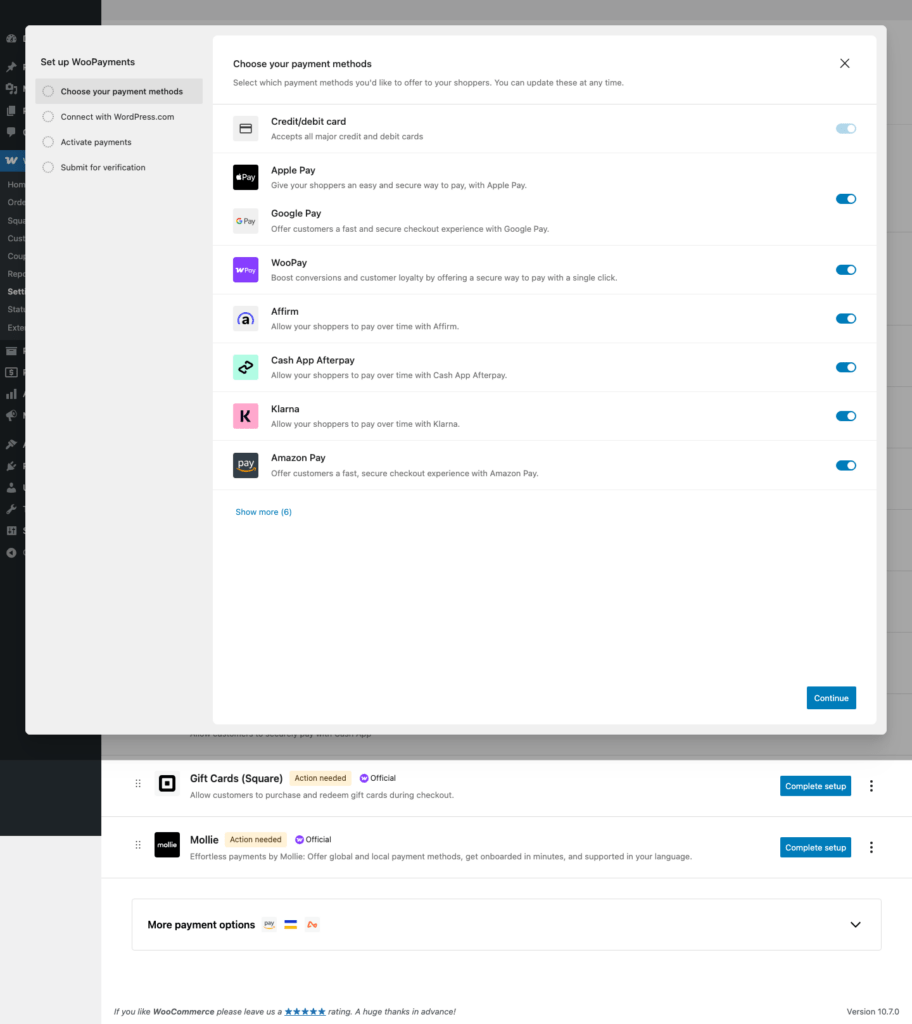
Payment keys are where a lot of WordPress store launches quietly go wrong. The beginner mistake is simple: people paste live credentials into a store they have not tested yet, or they leave test credentials in place after launch. This WooPayments guide walks through the clean path: create the test or sandbox keys first, put them into the WooCommerce payment plugin, run a safe test order, then switch to live credentials only when the checkout flow is confirmed.
Open the official docsPayment tutorial hub
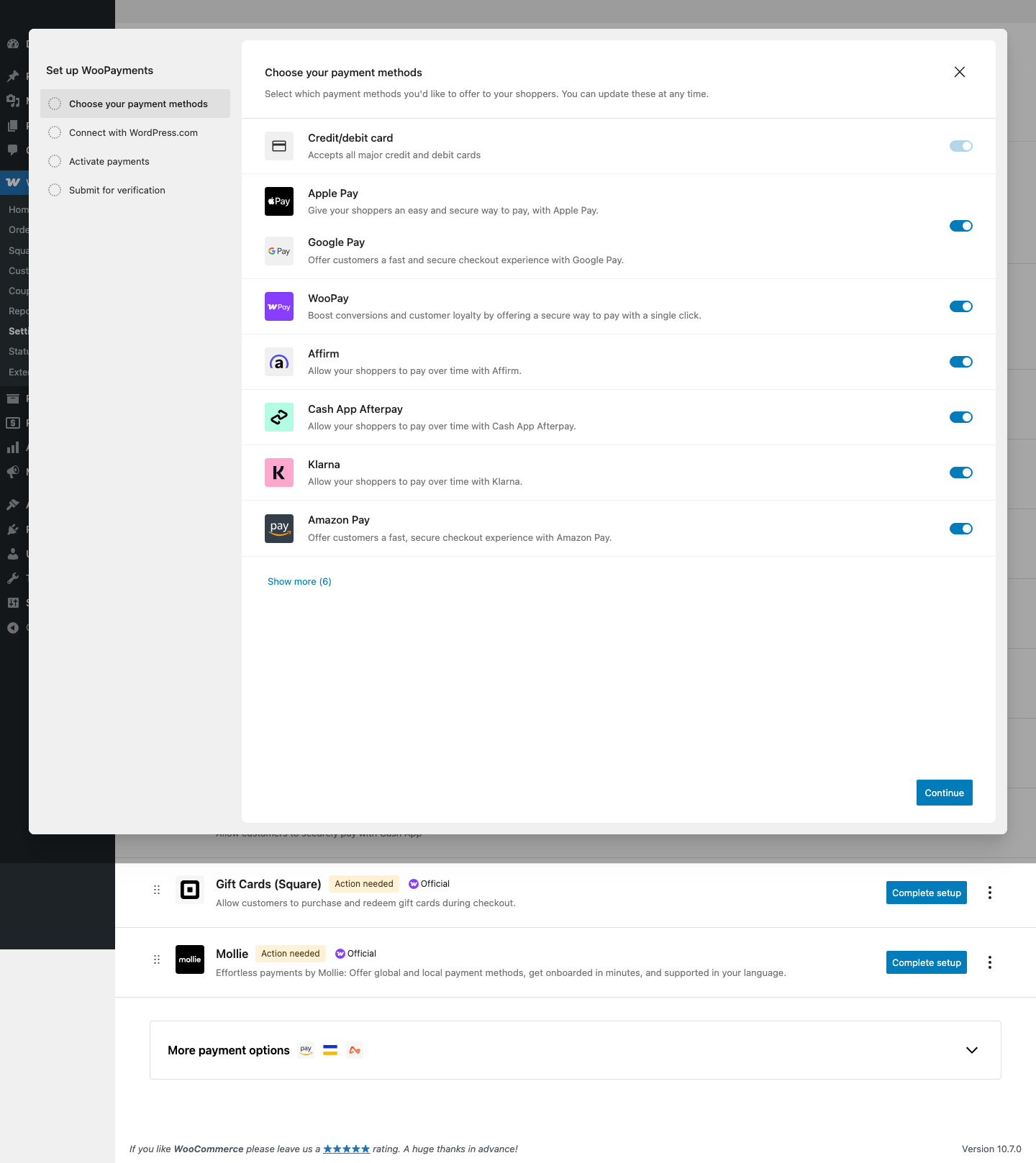
What You Are Setting Up
- WooPayments is managed from the WordPress dashboard under Payments.
- Instead of manually pasting normal API keys, you connect a WooPayments account and then enable or disable test mode.
- WooPayments test orders and test transactions are visible in WooCommerce/WooPayments admin screens.
- Live mode can charge real cards, so test mode should be used for all setup testing.
Before You Touch Any Keys
- Update WordPress, WooCommerce, and the payment gateway plugin first. Key problems are harder to debug on an outdated plugin.
- Make one low-priced test product, such as a one dollar checkout product, so you can test without disturbing the real catalog.
- Use a staging site or maintenance window if the store already takes orders.
- Keep secret keys in the WordPress admin field or a proper secret manager. Do not paste live secret keys into tickets, chats, screenshots, or public docs.
- Confirm the checkout page, cart page, SSL certificate, permalinks, and transactional emails before going live.
Create Test Or Sandbox Credentials
- Install and activate WooPayments.
- Connect WooPayments to the store owner account.
- Open Payments > Settings in the WordPress dashboard.
- Enable test mode.
- Save changes before placing test orders.
Add The Test Keys In WordPress
- In WordPress, open Payments > Settings.
- Confirm WooPayments is enabled for checkout.
- Enable test mode while building and testing.
- Check the payment methods you want to show at checkout.
- Save changes and reload the checkout page.
Run A Safe Test Order
- Add the test product to the cart.
- Use the WooPayments test card shown on the checkout form or one from the list below.
- Confirm the Order received page appears for successful cards.
- Check WooCommerce > Orders and Payments > Transactions for the test record.
- Use one decline card before launch so the store owner sees how failures behave.
Demo Cards And Test Values
| Scenario | Test value | Use it for |
|---|---|---|
| Successful Visa | 4242 4242 4242 4242 |
Normal successful card checkout. |
| Successful Mastercard | 5555 5555 5555 4444 |
Alternative card brand test. |
| Visa debit | 4000 0566 5566 5556 |
Debit card success path. |
| Generic decline | 4000 0000 0000 0002 |
Failed payment path. |
| Authentication required | 4000 0025 0000 3155 |
3D Secure style authentication test. |
Switch To Live Payments
- Complete WooPayments account setup and verification.
- Open Payments > Settings.
- Disable test mode.
- Confirm live payment methods, statement descriptor, deposit account, and fraud settings.
- Run a controlled live verification and check the order, transaction, and payout screens.
Common Mistakes To Avoid
- Testing live WooPayments orders and refunding yourself instead of using test mode.
- Forgetting that test-mode orders remain marked as test orders even after test mode is disabled.
- Skipping the failed-card test.
- Not checking Payments > Transactions after checkout.
- Launching before account verification and payout settings are complete.
Quick Launch Checklist
- Test checkout succeeds with a demo payment method.
- Test checkout failure shows a useful error and does not create a paid order.
- Order notes show the correct processor transaction ID or sandbox transaction ID.
- Refund or void testing has been checked if the processor supports it from WooCommerce.
- Live credentials are active, test credentials are removed from production, and the store owner can see live transactions in the processor dashboard.
