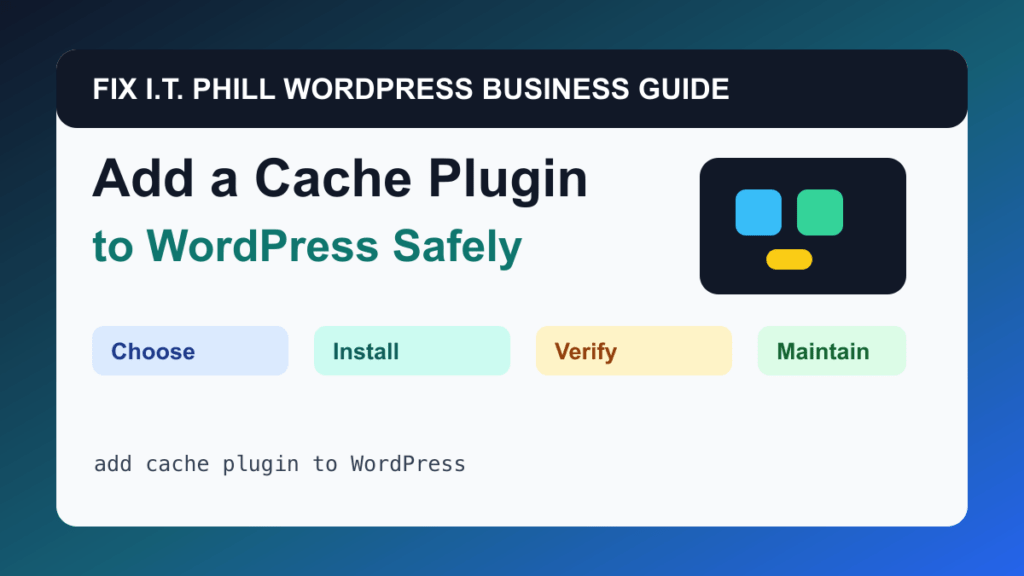
Add a Cache Plugin to WordPress Safely is a practical WordPress upgrade when the site has a clear business job. This guide focuses on setup, verification, rollback planning, and plugin choice instead of installing random add-ons because they looked useful in a list.
This workflow helps business websites, blogs, stores, and agencies that need better speed without breaking forms, carts, or logged-in areas. Common tools include LiteSpeed Cache, W3 Total Cache, WP Super Cache, WP Rocket, host cache, object cache, and CDN cache, but the right choice depends on maintenance status, support, hosting limits, budget, and how important the feature is to revenue or operations.
Before You Install
- Check whether the host already provides caching.
- Back up before enabling minification or database cleanup.
- Identify pages that should not be cached, such as cart, checkout, account, and some booking pages.
- Plan one change at a time.
Setup Steps
- Install the cache plugin that matches the server stack.
- Enable basic page cache first.
- Test the public site.
- Add CSS/JS optimization carefully.
- Configure exclusions for dynamic pages.
- Purge all caches after changes.
Verify It Works
Check logged-out pages, logged-in pages, forms, cart, checkout, booking, mobile menus, images, and analytics after cache is enabled.
Rollback And Maintenance Notes
- Take a backup before installing or replacing plugins on a live business site.
- Install one major feature at a time so failures are easy to identify.
- Remove unused plugins after testing; deactivated clutter still becomes maintenance debt.
- Check the plugin changelog, support status, and compatibility before major WordPress or PHP updates.
- For high-value sites, test the workflow on staging before changing production.
Related Fix I.T. Phill Guides
- How to Add Business Features to WordPress: Complete Plugin Setup Guide
- How to Install WordPress: Complete Methods Guide
- How to Back Up WordPress: Complete Methods Guide
- How to Restore WordPress: Complete Recovery Methods Guide
- How to Migrate WordPress: Complete Hosting Move Guide
- How to Update WordPress Plugins, Themes, and Core Safely
- Help4 Network hosting and website support