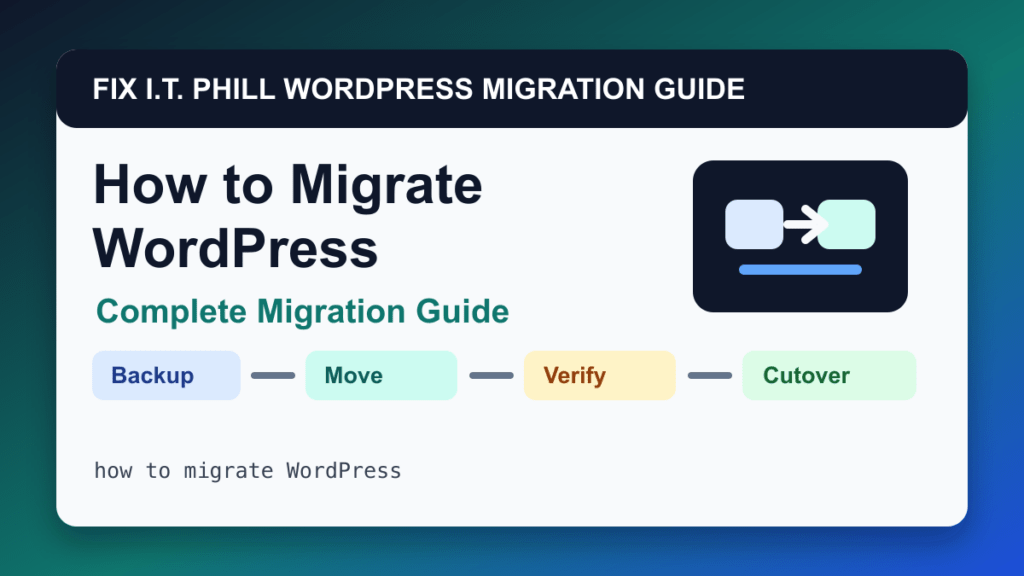
A WordPress migration is not just copying files. A good move protects the database, uploads, email, DNS, SSL, cache, cron jobs, redirects, plugin licenses, payment callbacks, and the backup plan you will need after launch.
This guide maps the main WordPress migration paths: cPanel and WHM, Plesk, Softaculous, Installatron, DirectAdmin, JetBackup, Duplicator, WPvivid, All-in-One WP Migration, Migrate Guru, ManageWP, WP-CLI, manual SFTP and phpMyAdmin moves, LocalWP, managed hosts, WooCommerce, multisite, DNS/email cutover, and staging-to-production launches.
Choose the safest migration path
If the source and destination use the same control panel, a panel-level migration is often cleaner because it can include databases, mail, DNS zones, SSL, cron jobs, and account metadata. If the destination is a managed WordPress host, use the host-supported migration path first. If the site is small and healthy, a migration plugin can be efficient. If the site is large, damaged, custom, or mission critical, use staging, WP-CLI, or a manual method with a rollback plan.
WordPress migration methods covered
- How to Migrate WordPress by cPanel Full Account Backup: moving a complete cPanel account when the destination host can restore the account or import the backup
- How to Migrate WordPress by WHM Transfer Tool: moving multiple cPanel accounts or server-to-server WordPress hosting accounts under admin control
- How to Migrate WordPress by Plesk Migrator: moving subscriptions, websites, databases, mail, and WordPress installs into Plesk-managed hosting
- How to Migrate WordPress by Plesk WP Toolkit Clone: moving WordPress between domains or staging and production within Plesk-managed hosting
- How to Migrate WordPress by Softaculous Clone or Import: same-account clones, new-domain moves, and importing an existing WordPress install into Softaculous management
- How to Migrate WordPress by Installatron Clone or Import: same-panel clones, app imports, and managed WordPress moves where Installatron will track backups and updates afterward
- How to Migrate WordPress by DirectAdmin Backup and Restore: DirectAdmin-to-DirectAdmin account moves and migrations where account data, files, databases, and mail must stay together
- How to Migrate WordPress by JetBackup Restore Point: moving from a provider backup when direct panel transfer is unavailable or when a granular database and file restore is safer
- How to Migrate WordPress by Duplicator: packaging a complete WordPress site for a new host, new domain, staging copy, or recovery target
- How to Migrate WordPress by WPvivid: plugin-based migration when WordPress still loads and you want a controlled backup or transfer workflow
- How to Migrate WordPress by All-in-One WP Migration: simple plugin-based exports and imports where WordPress remains accessible
- How to Migrate WordPress by Migrate Guru or BlogVault: offloaded migration workflows where the migration service handles much of the transfer process
- How to Migrate WordPress by ManageWP Clone: controlled client-site clone or migration workflows inside a centralized management platform
- How to Migrate WordPress with WP-CLI: repeatable migrations, staging refreshes, domain changes, and scripted validation on servers with shell access
- How to Migrate WordPress Manually with SFTP and phpMyAdmin: moving one WordPress site when panel transfer or migration plugins are not available
- How to Migrate WordPress from LocalWP to a Live Site: launching a local build to production or pushing a local redesign to hosting
- How to Migrate WordPress to Managed Hosting: using host-provided migration plugins, concierge migration, or platform tooling to move WordPress with support
- How to Migrate WooCommerce Without Losing Orders: moving a live store while protecting orders, customers, payments, subscriptions, downloads, bookings, and webhooks
- How to Migrate a WordPress Multisite Network: moving a full multisite network or carefully separating subsites with domain and upload-path awareness
- WordPress Migration DNS and Email Cutover Checklist: avoiding downtime, split traffic, broken email, and SSL surprises during a WordPress host change
- How to Move WordPress from Staging to Production Safely: launching redesigns, plugin changes, theme builder work, and content updates without damaging live business data
- How to Migrate WordPress from One Host to Another: deciding whether to use panel transfer, managed-host migration, plugin migration, WP-CLI, or manual migration
Before you move the site
- Take a fresh backup and confirm you can restore it.
- Lower DNS TTL early if you control DNS.
- Inventory email, DNS, SSL, redirects, cron jobs, cache, CDN, security rules, uploads, private files, and plugin licenses.
- Freeze or final-sync WooCommerce, membership, booking, forum, LMS, and lead-generation data.
- Preview the destination before public DNS changes.
Fix I.T. Phill recommendation
For simple brochure sites, choose the fastest supported tool and verify every public workflow. For business-critical sites, pick the method that gives you a clean preview, a final sync plan, and a fast rollback. A migration is only done when the new host is serving traffic, forms work, email works, SSL works, backups are configured, and the old host can be retired without losing data.
Related Fix I.T. Phill Guides
- How to Back Up WordPress: Complete Methods Guide
- How to Restore WordPress: Complete Recovery Methods Guide
- How to Back Up WooCommerce Without Losing Orders
- How to Restore WooCommerce Without Losing Orders
- How to Test a WordPress Backup Restore Before an Emergency
- Help4 Network hosting and website support