Payment keys are where a lot of WordPress store launches quietly go wrong. The beginner mistake is simple: people paste live credentials into a store they have not tested yet, or they leave test credentials in place after launch. This PayPal Payments guide walks through the clean path: create the test or sandbox keys first, put them into the WooCommerce payment plugin, run a safe test order, then switch to live credentials only when the checkout flow is confirmed.
Open the official docsPayment tutorial hub
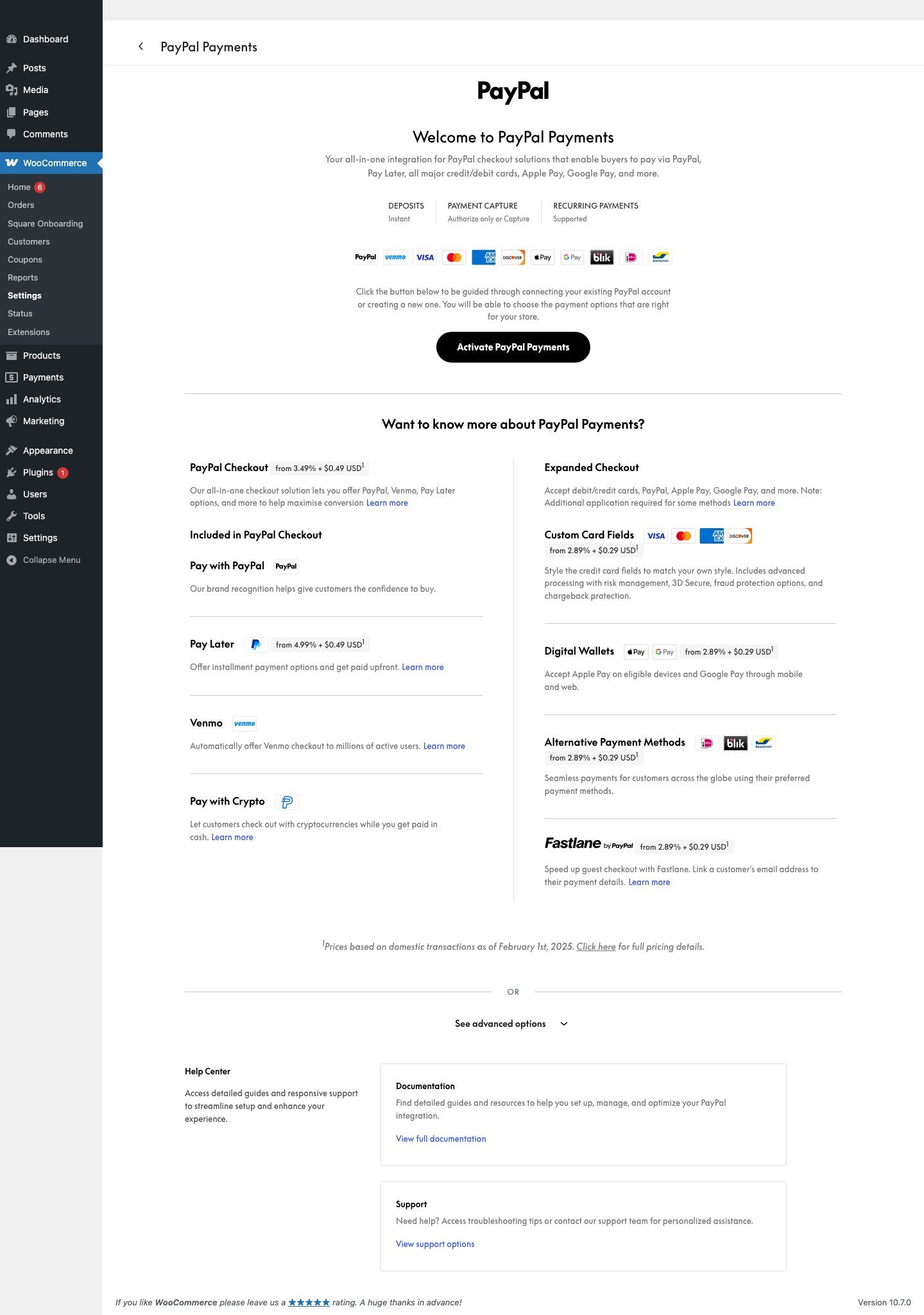
What You Are Setting Up
- PayPal testing uses sandbox accounts and sandbox app credentials.
- The WooCommerce PayPal Payments plugin can connect through onboarding or manual credential entry, depending on configuration.
- PayPal sandbox buyer and seller accounts are separate from live PayPal accounts.
- Live launch requires switching from sandbox credentials and endpoints to live credentials.
Before You Touch Any Keys
- Update WordPress, WooCommerce, and the payment gateway plugin first. Key problems are harder to debug on an outdated plugin.
- Make one low-priced test product, such as a one dollar checkout product, so you can test without disturbing the real catalog.
- Use a staging site or maintenance window if the store already takes orders.
- Keep secret keys in the WordPress admin field or a proper secret manager. Do not paste live secret keys into tickets, chats, screenshots, or public docs.
- Confirm the checkout page, cart page, SSL certificate, permalinks, and transactional emails before going live.
Create Test Or Sandbox Credentials
- Log in to the PayPal Developer site.
- Open Sandbox > Accounts and create or confirm a sandbox business seller account.
- Open Apps & Credentials and switch to Sandbox.
- Create or select the app for the WooCommerce store.
- Copy the sandbox Client ID and Secret, or use the plugin onboarding flow if it is available.
Add The Test Keys In WordPress
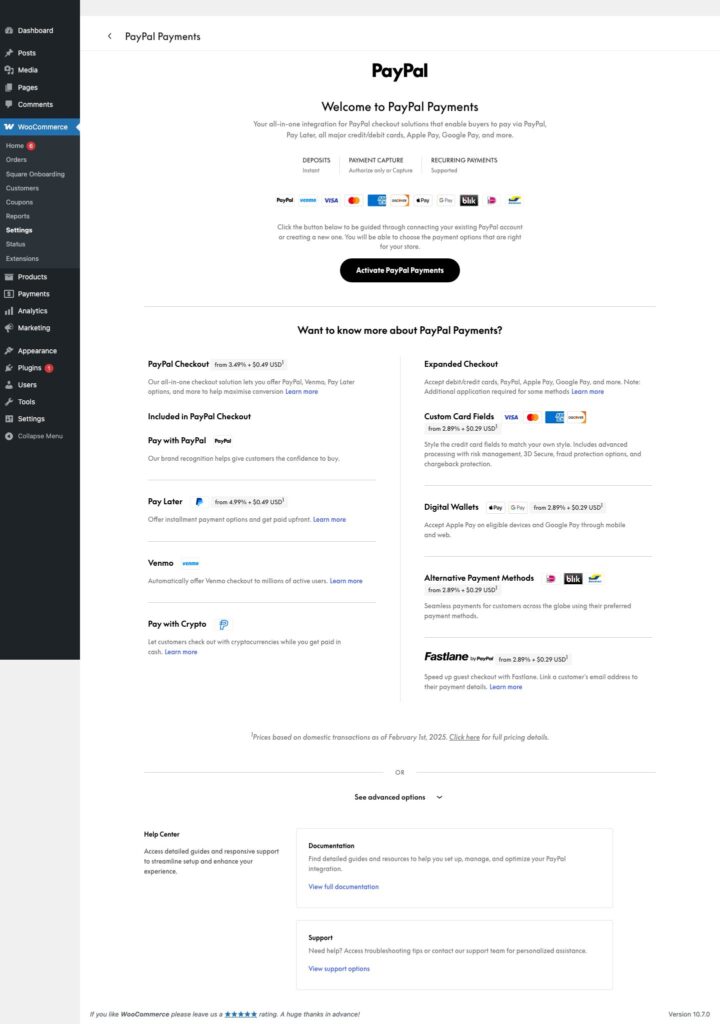
- In WordPress, open WooCommerce > Settings > Payments.
- Open PayPal Payments.
- Enable sandbox mode before testing.
- Connect the sandbox account or paste the sandbox Client ID and Secret.
- Save changes and confirm the PayPal button appears on the cart or checkout page.
Run A Safe Test Order
- Create a PayPal sandbox buyer account or use a PayPal sandbox card test flow.
- Add the test product to the cart and choose PayPal at checkout.
- Log in as the sandbox buyer or use an approved sandbox card value.
- Confirm WooCommerce creates the order and PayPal sandbox shows the mock transaction.
- Test a failed card path with PayPal rejection triggers if your checkout accepts direct card fields.
Demo Cards And Test Values
| Scenario | Test value | Use it for |
|---|---|---|
| Visa sandbox card | 4005 5192 0000 0004 | Successful PayPal sandbox card testing. |
| Visa sandbox card | 4012 8888 8888 1881 | Successful card test and rejection trigger testing. |
| Mastercard sandbox card | 2223 0000 4840 0011 | Alternative card brand test. |
| American Express sandbox card | 371449635398431 | AmEx test card. Use a four-digit CVV. |
| Expiration and CVC | Any future date, 3-digit CVC or 4-digit AmEx CVC | Use with PayPal sandbox mode only. |
Switch To Live Payments
- Confirm the live PayPal business account is verified and approved for the payment methods you plan to use.
- Open Apps & Credentials and switch to Live.
- Copy or connect the live Client ID and Secret.
- Disable sandbox mode in WooCommerce and save the live connection.
- Run a controlled live verification and confirm the order in both WooCommerce and PayPal activity.
Common Mistakes To Avoid
- Trying to log into live PayPal with sandbox buyer credentials.
- Using sandbox credentials while the WooCommerce gateway is in live mode.
- Skipping PayPal business account verification.
- Testing card errors without reading PayPal rejection trigger rules.
- Not checking whether Pay Later, card fields, and wallet buttons are enabled for the merchant account.
Quick Launch Checklist
- Test checkout succeeds with a demo payment method.
- Test checkout failure shows a useful error and does not create a paid order.
- Order notes show the correct processor transaction ID or sandbox transaction ID.
- Refund or void testing has been checked if the processor supports it from WooCommerce.
- Live credentials are active, test credentials are removed from production, and the store owner can see live transactions in the processor dashboard.
Sources
June 2026 update: PayPal Standard is sunsetting
WooCommerce published a June 24, 2026 advisory telling merchants to move away from PayPal Standard. PayPal Standard has been on the way out for years, and the maintained path is now WooCommerce PayPal Payments.
The important operational detail is that the move is designed to be controlled. Updating PayPal Payments to version 4.1.0 does not disable PayPal Standard by itself. The change is triggered when the store connects a PayPal account to the modern PayPal Payments integration. WooCommerce also says stores with active or pending-cancel subscriptions still tied to PayPal Standard are protected rather than abruptly disabled.
If your store still relies on PayPal Standard, use this guide as the migration runbook: test the modern PayPal Payments plugin on staging, confirm sandbox checkout, check subscriptions and recurring payments, connect the live PayPal account only during a planned window, and verify a controlled live transaction before removing old gateway workarounds.
PayPal Standard migration checklist
- Confirm whether the store is using PayPal Standard, PayPal Checkout, PayPal Pro, or WooCommerce PayPal Payments.
- Update WordPress, WooCommerce, and WooCommerce PayPal Payments on staging before touching production.
- Run the WooCommerce Upgrade Readiness Tool or equivalent preflight checks before changing the live gateway.
- Check WooCommerce Subscriptions, renewal orders, saved payment methods, and any customer support notes tied to PayPal billing.
- Run sandbox checkout and refund tests, then schedule a live connection window.
- After connecting the modern PayPal account, verify PayPal buttons, Pay Later, Venmo where eligible, card fields, taxes, shipping, order notes, webhooks, and email receipts.
- Keep the old gateway configuration available until live orders and renewals are confirmed clean.
Source: WooCommerce Developer Blog: PayPal Standard is Sunsetting. Current plugin metadata checked against WooCommerce PayPal Payments on WordPress.org.