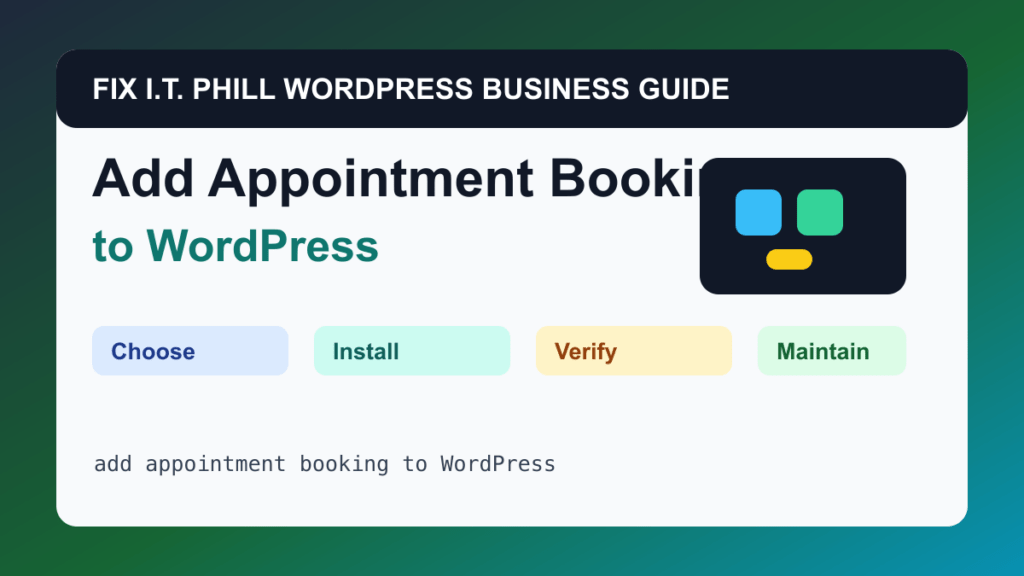
Add Appointment Booking to WordPress is a practical WordPress upgrade when the site has a clear business job. This guide focuses on setup, verification, rollback planning, and plugin choice instead of installing random add-ons because they looked useful in a list.
This workflow helps salons, clinics, repair shops, consultants, trainers, photographers, and service teams that need scheduled time slots. Common tools include Simply Schedule Appointments, Amelia, Bookly, Booking Calendar, WooCommerce Bookings, or a hosted scheduling embed, but the right choice depends on maintenance status, support, hosting limits, budget, and how important the feature is to revenue or operations.
Before You Install
- List services, durations, staff, locations, buffer time, and cancellation policy.
- Decide whether payment is required at booking.
- Confirm the site time zone.
- Prepare a backup before adding booking/payment plugins.
Setup Steps
- Install the booking plugin or embed tool.
- Create services and availability windows.
- Connect notification email and calendar sync if supported.
- Add payment settings only after basic booking works.
- Place the booking form on a dedicated page.
- Run test bookings for normal and edge cases.
Verify It Works
Check booking creation, confirmation emails, calendar sync, payment status, cancellation links, mobile layout, and reminder timing.
Rollback And Maintenance Notes
- Take a backup before installing or replacing plugins on a live business site.
- Install one major feature at a time so failures are easy to identify.
- Remove unused plugins after testing; deactivated clutter still becomes maintenance debt.
- Check the plugin changelog, support status, and compatibility before major WordPress or PHP updates.
- For high-value sites, test the workflow on staging before changing production.
Related Fix I.T. Phill Guides
- How to Add Business Features to WordPress: Complete Plugin Setup Guide
- How to Install WordPress: Complete Methods Guide
- How to Back Up WordPress: Complete Methods Guide
- How to Restore WordPress: Complete Recovery Methods Guide
- How to Migrate WordPress: Complete Hosting Move Guide
- How to Update WordPress Plugins, Themes, and Core Safely
- Help4 Network hosting and website support