
How to Delete a WordPress User Safely (and Reassign Content)
August 6, 2026
Removing an old WordPress account is routine maintenance, but it deserves a short review first. The important decision is what happens to work that person created. This guide shows how to remove the account through the WordPress dashboard, reassign content when it should stay published, and confirm the former user no longer has access.
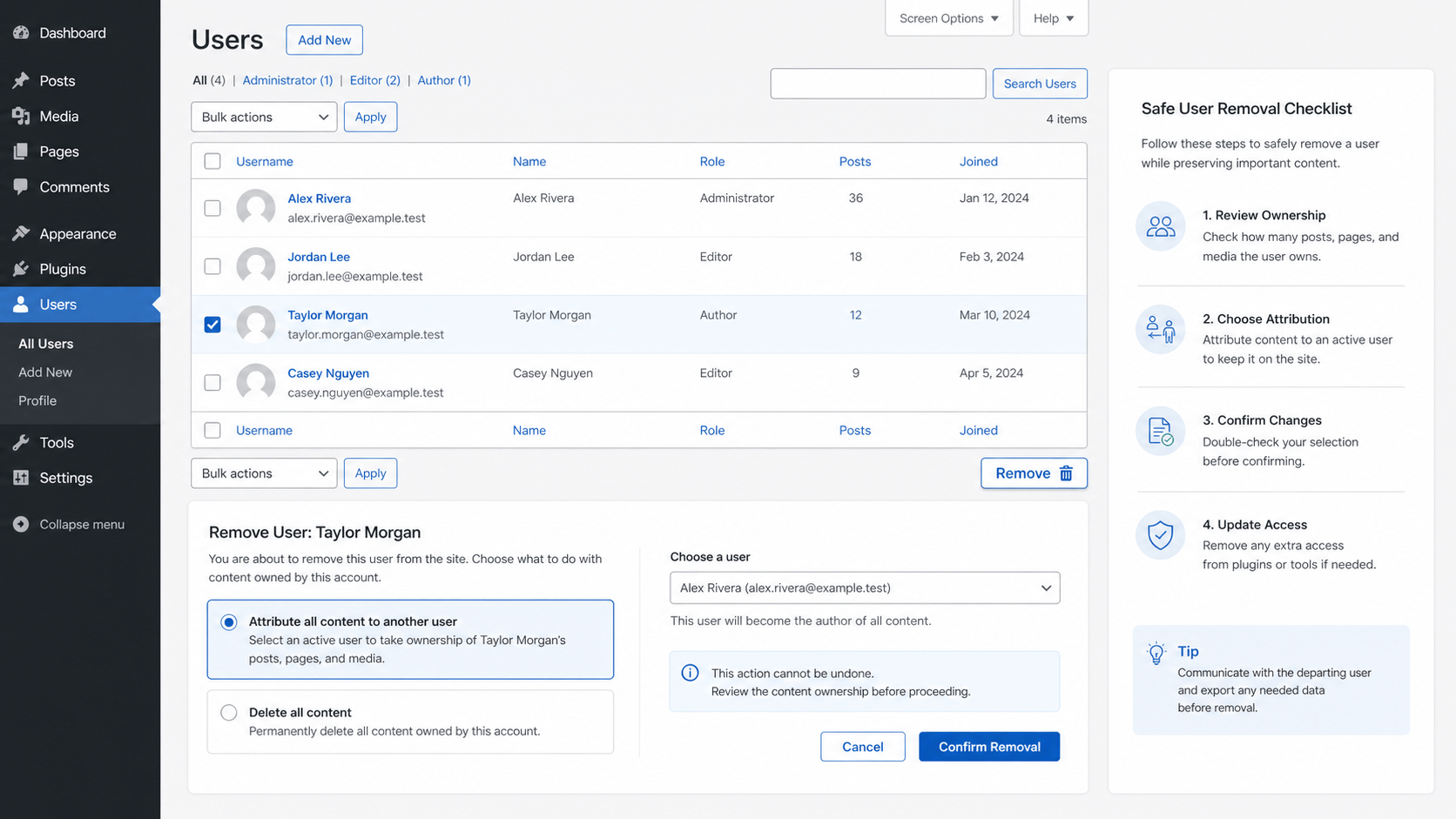
Before you delete the account
- Confirm that the person no longer needs access. For a contractor, staff change, or emergency cleanup, first make sure there is another active administrator who can manage the site.
- Review what the account owns. Posts, pages, media, and other content can be connected to a user, so identify anything business-critical before removing the account.
- Choose the active account that should own content going forward. Pick a real current editor or administrator with the right responsibility, not a shared login.
For a wider access review, use our WordPress user and administrator access checklist. When a replacement needs access, create a separate account with the smallest practical role using our new WordPress user and role guide.
Delete a WordPress user and keep their content
- Sign in to WordPress with an administrator account.
- Open Users, then find the account you intend to remove.
- Open the user’s removal option. Pause here to verify the username and email address before continuing.
- When WordPress asks what to do with their content, choose the option to attribute it to another active user if the posts or pages should remain on the site.
- Select the correct current owner, then confirm the deletion.
If WordPress offers a choice to delete all content, treat it as permanent content removal. Use that only when you have reviewed the work and are certain it should disappear. Reassigning ownership is the safer choice for articles, pages, or media that should remain available.
Verify the result
- Return to Users and confirm the former account is no longer listed.
- Open a few important pages and posts that belonged to the former user to make sure they still publish normally.
- Check the assigned user on a representative post if author ownership matters on your site.
- Keep the new owner’s role limited to the access they actually need.
When you should not delete the user yet
Hold off when ownership is unclear, the account may still be needed for a live workflow, or no active administrator can safely take over the content. Resolve the handoff first. If the change is part of an access concern, change the relevant administrator email only through the normal verification process described in our WordPress admin email guide.
Why reassignment matters
A user cleanup should reduce unnecessary access without creating missing pages or confused content ownership. Reassigning content gives the site a clear current owner and lets visitors keep reaching the pages that are still useful. It also makes future maintenance, updates, and support handoffs easier to review.
For the underlying dashboard behavior, see WordPress’s official Users screen documentation and its guidance on roles and capabilities.
Need a hand with user access, content handoff, or a careful WordPress cleanup? Start with our WordPress support hub.
