
How to Reset Your WordPress Password Safely
August 6, 2026
When you cannot sign in to WordPress, use the normal password-reset flow before trying anything more invasive. It protects the account, keeps the change tied to the right email address, and leaves a clear next step if the reset message does not arrive.
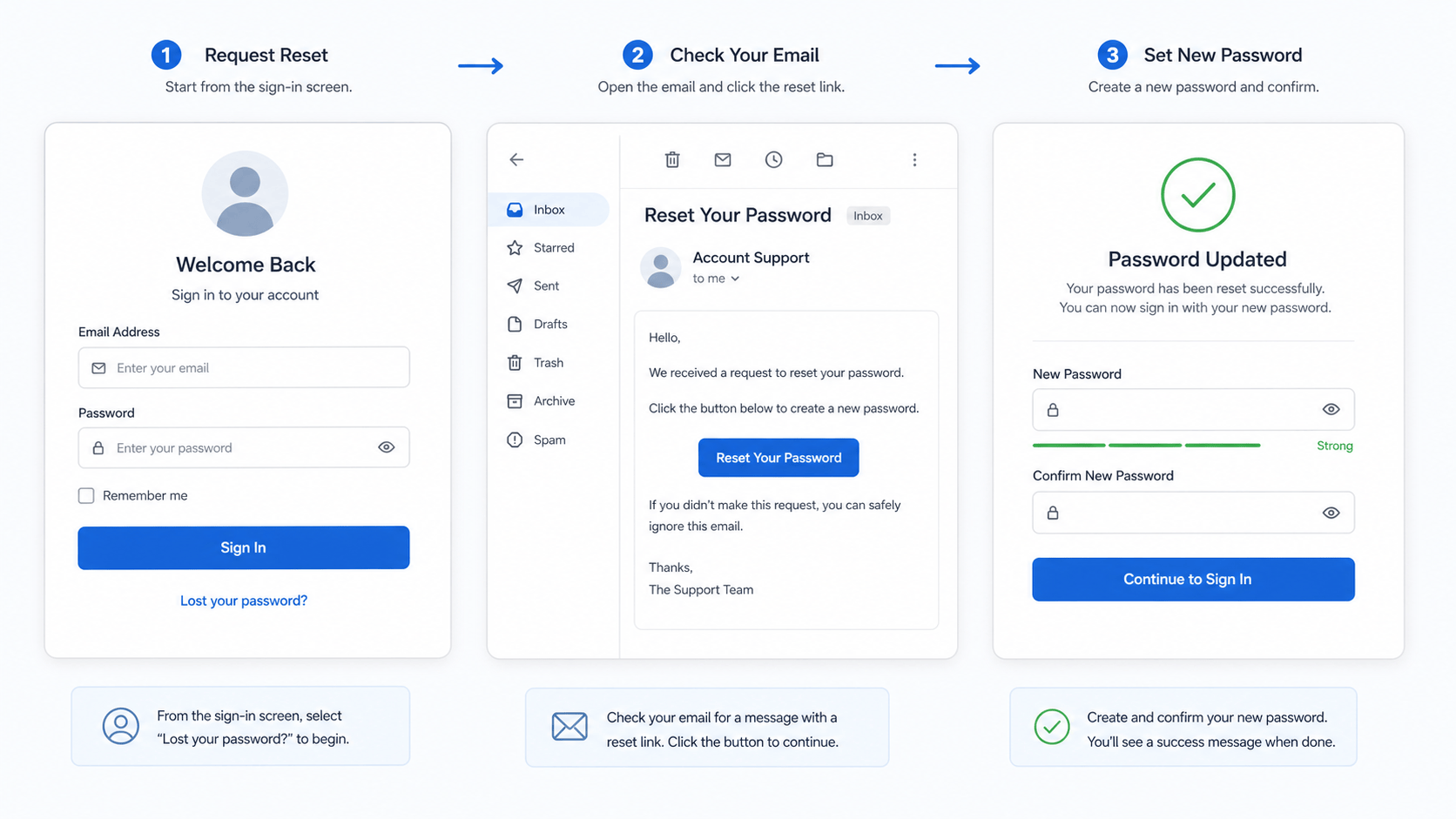
Reset your password from the sign-in screen
- Open your usual WordPress sign-in page.
- Select Lost your password?.
- Enter the username or email address connected to the account, then request a reset.
- Open the reset message in the mailbox for that account and use its link to set a new password.
- Choose a new unique passphrase and sign in with it.
Do not reuse a password from another service. Store the new passphrase in an approved password manager rather than sending it by email or chat.
If the password-reset email does not arrive
- Check the correct mailbox and its spam or junk folder.
- Make sure you are using the username or email that belongs to the WordPress account.
- Wait briefly before sending another request so the mailbox is easier to review.
- Check site email delivery with our WordPress email delivery verification guide.
If the site’s messages are not reaching inboxes reliably, work through the normal configuration checks in our WordPress SMTP support guide. Restore dependable email delivery before relying on another reset attempt.
What to do after you regain access
- Confirm your profile email address is current and belongs to the right person.
- Review the user list for accounts you do not recognize or no longer need.
- Keep administrator access limited to people who actively maintain the site.
- Use individual accounts instead of sharing an administrator login.
Our WordPress access review guide helps with that check. If you need to update the site’s administrator contact after access has been restored, follow the verified process in our admin email guide.
When a password reset needs extra attention
Treat an unexpected reset message or a sign-in you did not initiate as a reason to review account access promptly. Reset the affected password, confirm the recovery email is correct, and check privileged accounts for anything unfamiliar. Avoid changing unrelated settings while you are still identifying who owns the account and mailbox.
WordPress documents the standard process in its official password reset guide and profile screen documentation.
For calm, practical help with WordPress sign-in, account access, and site maintenance, visit our WordPress support hub.
