


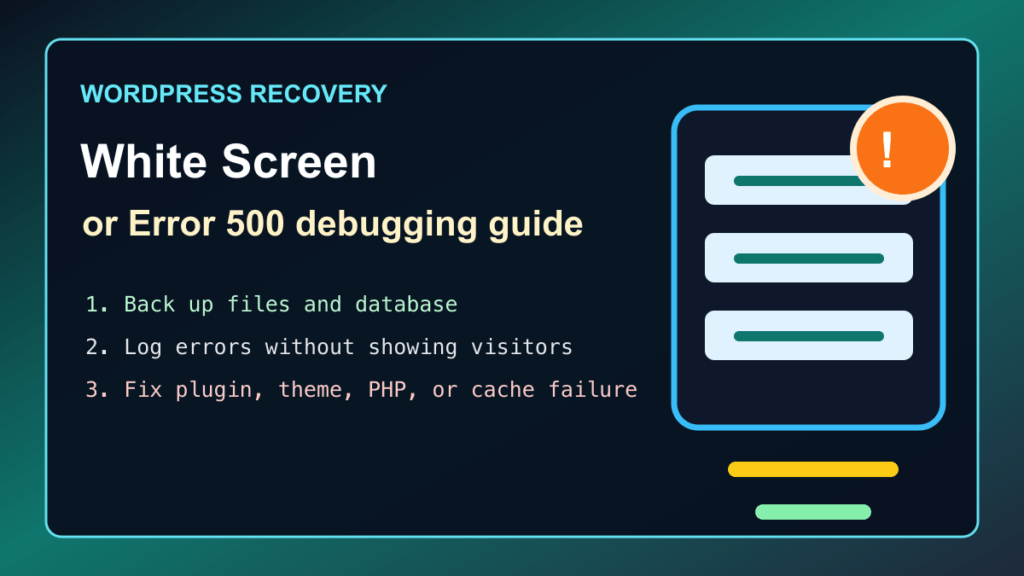
A blank WordPress page, a critical-error message, and an HTTP 500 response can look alike to a visitor, but they do not always have the same cause. Treat the symptom as an incident to narrow down: identify where it appears, preserve a clear timeline, and make one controlled change at a time.
Identify the Scope Before Changing Anything
Open the affected page in a private browser window and record what fails. Is it one page, the whole public site, the dashboard, checkout, a contact form, or only a task running in the background? Note when it started and what changed shortly before it: a plugin or theme update, a PHP change, a cache or CDN adjustment, a migration, or a hosting maintenance event.
An HTTP 500 means the web server could not complete an otherwise valid request, while blank pages and WordPress critical errors often point to a PHP failure in a plugin, theme, or custom code. A 502, 503, or 504 has a different upstream or availability meaning, so do not apply a WordPress-only fix until the public response is clear.
Use Recovery Mode When WordPress Offers It
For detected fatal errors, WordPress Recovery Mode may send the site administrator an email with a special sign-in link. It can temporarily pause a faulty plugin or theme for that administrator session, allowing a safe return to the dashboard. Use the notice to identify the affected component, make the smallest appropriate change, exit Recovery Mode, and then test the site normally.
Recovery Mode is useful, not universal. It may not activate for background failures or when the notification email cannot be delivered. If no recovery email arrives, move to the hosting evidence rather than repeatedly refreshing the broken page.
Collect Evidence Through Your Hosting Panel
In cPanel, open Metrics > Errors and look for recent entries that line up with the failed page and time. The interface shows recent web-server errors for the account. Capture a short, redacted summary for support, such as the time, the failing workflow, and the component named by the message. Do not post full error output, file paths, customer information, or credentials into a ticket, chat, or public page.
Hosting panels may expose different views depending on their web-server stack. If the issue appears only through a proxy, CDN, or managed host, the visible response may originate upstream. Compare the public page, the WordPress dashboard, and the panel's recent error view before deciding whether to work in WordPress or escalate to the host.
Keep Debugging Contained
WordPress provides debugging tools, but its own documentation recommends using them on local or staging copies rather than a live site. Detailed notices can reveal implementation information when displayed publicly, and persistent diagnostic output can create avoidable storage and privacy problems. Prefer Recovery Mode and your hosting panel first. When technical staff must use deeper debugging, keep it temporary, keep the output private, and remove the diagnostic state once the cause is understood.
Isolate One Change at a Time
- Start with the most recent plugin, theme, PHP, cache, or configuration change.
- Use the dashboard or Recovery Mode to disable only the suspect component where possible.
- Check the same public URL and one key customer path after each change.
- Record the result before testing the next possibility.
- Once the cause is confirmed, update, replace, or escalate the component instead of leaving a workaround undocumented.
If the dashboard is unavailable, use an established support process with the least disruptive control you have. The plugin troubleshooting guide and the WordPress Support hub can help decide when a hosting or development handoff is safer than continued trial and error.
Check Resource and Cache Signals
Look for recent resource-limit notices, full storage, PHP compatibility changes, or a failed update before making broad changes. A site that works in the dashboard but fails for visitors can also be serving stale or inconsistent content through a page cache or CDN. Once a specific repair is made, clear the relevant page and CDN cache, then test again from a private browser window.
For a slow or intermittently failing site, the WordPress hosting resource-limit guide helps separate account pressure from a component failure. If the error follows a stuck update, use the maintenance-mode recovery guide before trying unrelated changes.
Verify the Repair From a Visitor's View
- Open the previously failing public URL and the final destination directly.
- Test login, navigation, forms, checkout, booking, or any other affected customer workflow.
- Confirm that the WordPress dashboard still loads for an administrator.
- Check a private browser window after the appropriate caches have been cleared.
- Review Site Health for warnings about visible debugging or other technical problems before closing the incident.
When to Escalate
Escalate promptly when the issue affects checkout, authentication, email delivery, several sites on the same account, or every request after a hosting change. Share the affected URLs, start time, recent changes, panel observations, and the exact visitor workflow that must work again. This gives the host or developer enough context to investigate safely without circulating sensitive output.
Related Fix I.T. Phill Guides
- WordPress Support
- Troubleshoot WordPress Plugins Safely
- Fix Slow WordPress Hosting Resource Limits
- Fix a Stuck WordPress Maintenance Mode
- cPanel and WHM Guides

