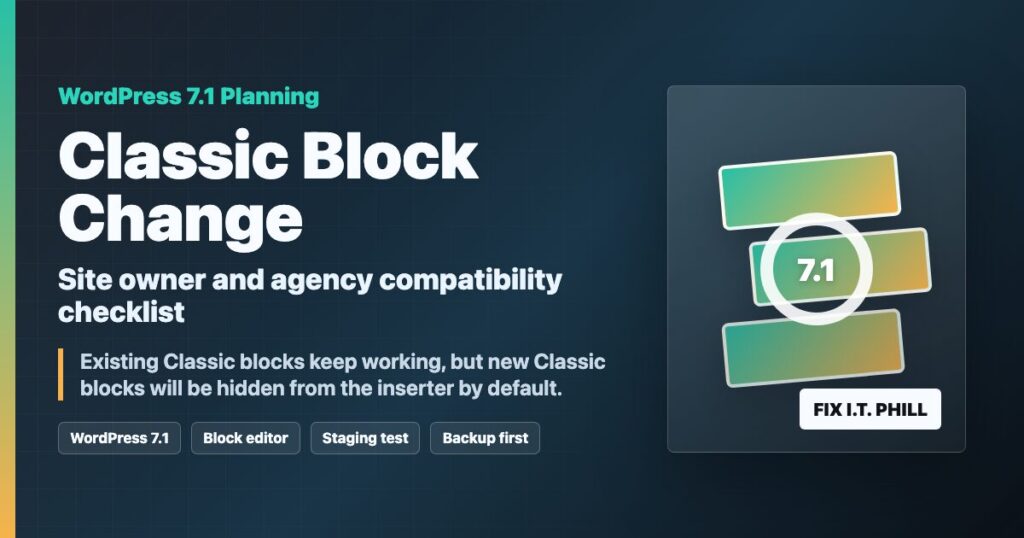
June 24, 2026 planning note: the WordPress Core team says WordPress 7.1 will hide the Classic block from the block inserter by default. Existing Classic blocks are not being removed. They continue to render, stay editable, and are not automatically migrated.
That is still worth planning for if you manage older WordPress sites, agency client sites, shortcode-heavy layouts, builder handoffs, or staff workflows that still rely on adding new Classic blocks.
What is changing
- New Classic blocks become harder to add. The Classic block will no longer appear in the inserter, the block library, or slash-command flow by default.
- Existing Classic blocks keep working. The block remains registered, so current content using the Classic block stays editable.
- No automatic content migration happens in this change. WordPress is not converting old Classic blocks into paragraph, heading, image, or Custom HTML blocks for you.
- There is an official opt-in path. WordPress Core documents the
wp_classic_block_supports_inserterfilter for sites that intentionally need to restore the Classic block in the inserter.
Who should check this before WordPress 7.1
- Sites with old landing pages, posts, or service pages that were moved from the pre-block editor.
- Agencies training staff or customers to paste formatted content into a Classic block.
- WooCommerce stores with older product descriptions, email snippets, shortcodes, or builder-managed content.
- Theme and plugin developers that still special-case the Classic block or TinyMCE behavior.
- Sites using the Classic Editor plugin, custom editor restrictions, or role-based editing workflows.
Site owner checklist
- Find pages that still use Classic blocks. Review older posts, landing pages, legal pages, product content, and shortcode-heavy sections before a major editor update.
- Decide whether new Classic blocks are still part of your workflow. If staff only edit existing Classic blocks, the change may be low-risk. If they add new ones regularly, document the replacement workflow now.
- Test conversion on copies, not live pages. Try converting a few representative Classic blocks to normal blocks or Custom HTML in staging before changing production content.
- Check shortcodes and embeds after conversion. Some older shortcode layouts depend on exact markup or spacing. Test the public page, not only the editor.
- Update staff instructions. If your documentation says to insert a Classic block, rewrite that step before customers or editors run into a missing block in 7.1.
- Keep a rollback path. Take a full site backup before major WordPress updates and record which pages were changed during cleanup.
Plugin and theme notes
If a plugin, theme, or internal snippet restores the Classic block in the inserter, treat that as an intentional compatibility decision. Keep the code small, documented, and tested against staging. If the site depends on the Classic Editor plugin, confirm the current WordPress.org plugin status, active version, and tested-up-to value before the maintenance window.
For most sites, the better long-term path is to reduce new Classic block usage and clean up older content gradually. Keep the Classic block available only where there is a clear business reason, such as a legacy shortcode workflow that has not been replaced yet.
Safe update path for agencies and business sites
- Stage first. Clone the site or use a staging copy before testing WordPress 7.1 beta, release candidate, or final builds.
- Back up before editing content. Back up files and database before converting Classic blocks or changing editor behavior.
- Test the public page. Check desktop and mobile views, forms, product pages, checkout, embeds, and any custom CSS tied to old markup.
- Review editor permissions. Confirm which roles can change templates, reusable blocks, patterns, and shortcode-heavy content.
- Schedule customer communication. If the site has active editors, tell them what changed and what they should use instead of adding a new Classic block.
Related Fix I.T. Phill reading
- WordPress 7.0 publishing panel hotfix and Classic Editor 1.7.0 notes
- How to back up WordPress with UpdraftPlus
- How to restore WordPress with UpdraftPlus
Sources
- Make WordPress Core: Hiding the Classic block from the inserter in WordPress 7.1
- Make WordPress Core: Roadmap to WordPress 7.1
- WordPress Developer Blog: What’s new for developers, June 2026
- WordPress.org Plugin Directory: Classic Editor
Need help cleaning up older WordPress content before a major editor change? Fix I.T. Phill can audit Classic blocks, shortcode-heavy pages, builder-managed content, backups, staging checks, and staff editing workflows before the update window.