
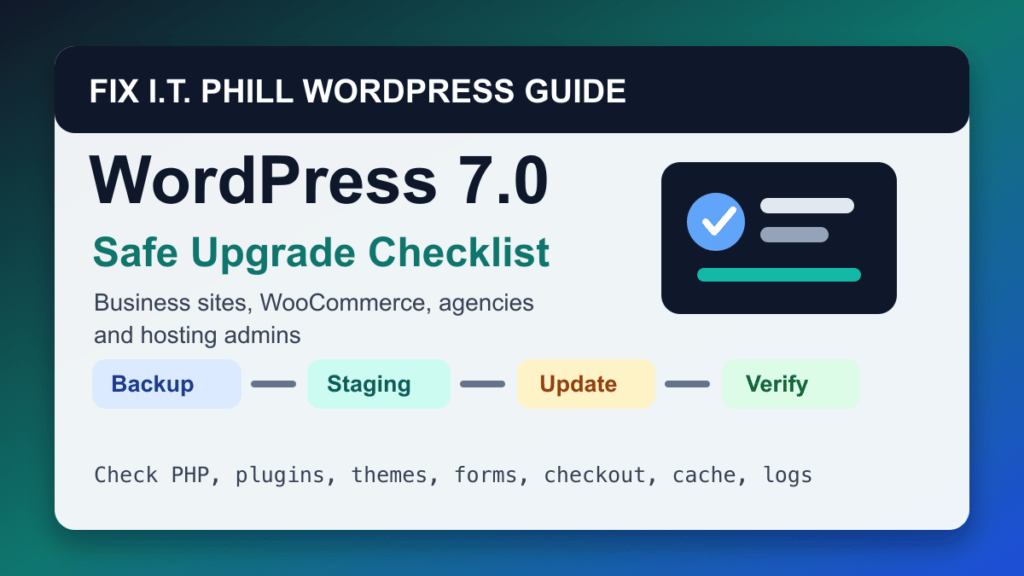
As of May 31, 2026, the latest major WordPress release listed by WordPress.org is WordPress 7.0 "Armstrong". If your site is still on WordPress 6.9 or older, do not treat the upgrade as a casual click just because the button is friendly. A good upgrade is boring because the risky work happened before anyone touched production.
This guide is the practical path for business sites, agency clients, WooCommerce stores, membership sites, schools, nonprofit sites, and WordPress multisite networks. The same habit applies whether you update from the WordPress dashboard, cPanel WP Toolkit, Plesk WP Toolkit, a managed host, MainWP, ManageWP, or WP-CLI.
Before you click update
- Confirm the current latest release from the official WordPress versions page or your dashboard.
- Take a full backup that includes files, database, uploads, plugins, themes, and any custom code.
- Know how you would restore the site before the update starts.
- Update PHP, database, and server packages through the host or panel path when they are below current support expectations.
- Update critical plugins and themes on staging first, especially builders, security plugins, WooCommerce, payment plugins, LMS plugins, and form plugins.
- Disable page cache, object cache, and CDN cache only as needed, then plan to turn them back on after verification.
Best upgrade order
- Back up production and download or verify the backup off the web root.
- Copy production to staging or a temporary clone.
- Update plugins and themes on staging.
- Update WordPress core on staging.
- Test login, editor, forms, search, checkout, account pages, media uploads, cron, and email.
- Repeat the same sequence on production during a low-traffic window.
- Clear caches and verify from a logged-out browser.
Dashboard update path
WordPress documents the normal one-click update path through Dashboard > Updates. Minor and security updates can often happen automatically in the background, but major feature releases still deserve a human maintenance window.
- Log in as an administrator.
- Open Dashboard > Updates.
- Confirm the available WordPress version.
- Click Update Now only after your backup and staging checks are done.
- Stay on the page until the update completes.
- If WordPress asks for database updates, run them and then verify the site.
WP-CLI path for admins
On servers where you have SSH access and WP-CLI installed, you can use WP-CLI for controlled maintenance. Run commands as the site user, not as a random privileged account that will create file ownership trouble.
wp core version
wp core check-update
wp plugin list --update=available
wp theme list --update=available
After backups and staging checks, the production flow is usually:
wp plugin update --all
wp theme update --all
wp core update
wp core update-db
wp cache flush
Multisite upgrade note
For WordPress multisite, update core from Network Admin and then run Upgrade Network. WordPress documents that the network upgrade process steps through the network sites and applies database changes after a core upgrade. Do not skip that step on networks with many subsites.
Rollback plan
If the site breaks, do not keep clicking random updates while visitors are staring at errors. Put the site in maintenance mode if needed, capture the symptom, and choose one rollback path:
- Restore the pre-upgrade backup from cPanel, Plesk, JetBackup, WP Toolkit, Softaculous, Installatron, or your managed host.
- Disable the plugin that broke the site if the core upgrade succeeded but one plugin failed.
- Switch to a default theme only when the active theme is the problem.
- Remove a stuck
.maintenancefile if the update was interrupted and the site is otherwise healthy.
Post-upgrade verification
- Check the homepage, a page, a post, search, contact forms, media uploads, sitemap, and robots status.
- For WooCommerce, test product pages, cart, checkout, payment method display, transactional emails, webhooks, and order creation on staging first.
- For builders, open a real page in the editor and save a low-risk change.
- For agencies, record the old version, new version, backup time, changed plugins, and post-upgrade notes in the client ticket.
Related Fix I.T. Phill guides
- How to Back Up WordPress
- How to Restore WordPress
- WordPress Multisite Backup Guide
- Help4 Network hosting and website support
