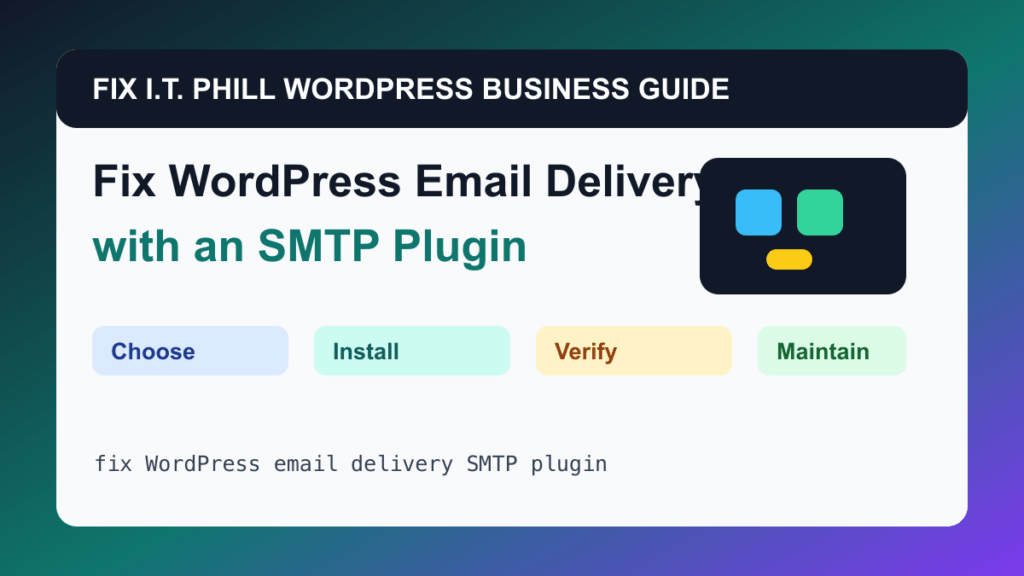
Fix WordPress Email Delivery with an SMTP Plugin is a practical WordPress upgrade when the site has a clear business job. This guide focuses on setup, verification, rollback planning, and plugin choice instead of installing random add-ons because they looked useful in a list.
This workflow helps any site that sends form notifications, password resets, WooCommerce receipts, booking confirmations, or membership emails. Common tools include WP Mail SMTP, FluentSMTP, Post SMTP, Mailgun, SendGrid, Brevo, SMTP.com, Google Workspace, or Microsoft 365, but the right choice depends on maintenance status, support, hosting limits, budget, and how important the feature is to revenue or operations.
Before You Install
- Identify which emails are business critical.
- Choose a sending service that supports the domain.
- Confirm SPF, DKIM, and DMARC can be configured.
- Take note of existing mail settings before changing them.
Setup Steps
- Install a maintained SMTP plugin.
- Connect the sending service using its recommended method.
- Set the from address and sender name.
- Send a test email from the plugin.
- Test forms, checkout, booking, and password reset emails.
- Watch delivery logs after launch.
Verify It Works
Check inbox delivery, spam placement, sender alignment, bounce handling, and whether business-critical emails arrive reliably.
Rollback And Maintenance Notes
- Take a backup before installing or replacing plugins on a live business site.
- Install one major feature at a time so failures are easy to identify.
- Remove unused plugins after testing; deactivated clutter still becomes maintenance debt.
- Check the plugin changelog, support status, and compatibility before major WordPress or PHP updates.
- For high-value sites, test the workflow on staging before changing production.
Related Fix I.T. Phill Guides
- How to Add Business Features to WordPress: Complete Plugin Setup Guide
- How to Install WordPress: Complete Methods Guide
- How to Back Up WordPress: Complete Methods Guide
- How to Restore WordPress: Complete Recovery Methods Guide
- How to Migrate WordPress: Complete Hosting Move Guide
- How to Update WordPress Plugins, Themes, and Core Safely
- Help4 Network hosting and website support
Sources Checked
Email authentication maintenance note
Email DNS changes should be handled like a launch task, not a quick copy-and-paste job. Before changing SPF, DKIM, DMARC, MX, or SMTP settings, record the current DNS values, confirm who sends mail for the domain, and keep a rollback note in case forms, invoices, password resets, or customer replies stop flowing.
Safe verification checklist
- Confirm there is only one SPF TXT record for the domain.
- Check that every active sender is included before tightening SPF or DMARC policy.
- Verify DKIM signing from the actual mail provider, not only that a DNS selector exists.
- Start DMARC in monitoring mode when you are not sure all senders are aligned.
- Send test messages to multiple mailbox providers and review headers before declaring the change finished.
Related email and DNS guides
- SPF Record For G-Suite
- SPF Record For MailChimp
- How to Create DMARC Records for Your Domain and Cross-Domain DMARC Records: A Comprehensive Guide
- Comprehensive Guide to Configuring WHM/cPanel with SendGrid for Email Delivery
- Migrating cPanel Email Accounts Without Website Data: A Niche Yet Essential Guide
- How to Set Up DMARC and SPF Records for Your Domain
- Unleash the Power of Email Deliverability with Our SPF Generator
- DMARC Demystified—Secure Your Emails with Our DMARC Generator
- Double Trouble for Spammers—Using SPF and DMARC Generators Together
- WordPress Migration DNS and Email Cutover Checklist