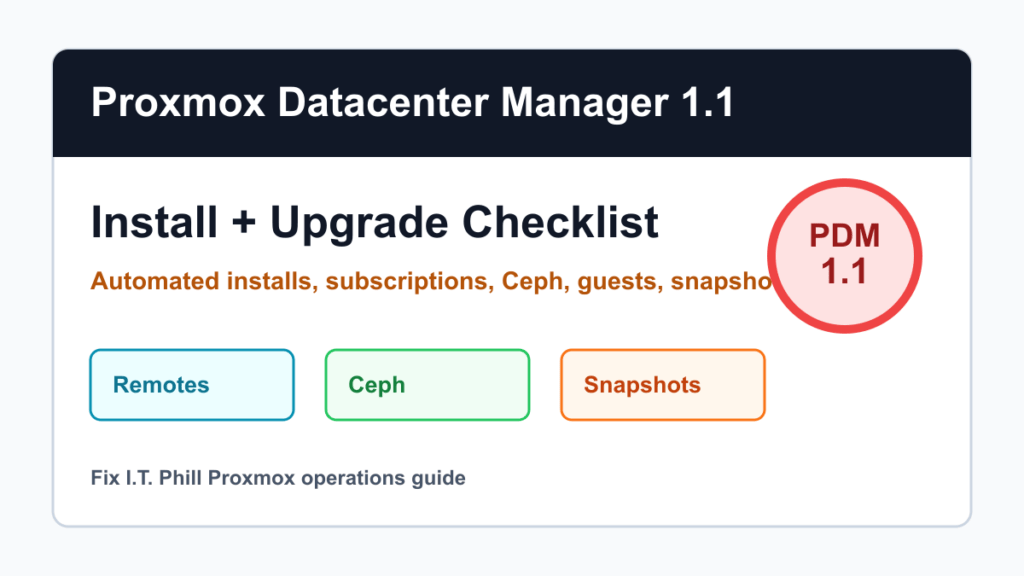
Proxmox Datacenter Manager 1.1 is not just another dashboard update. Proxmox announced the release on May 28, 2026, and the new point release adds practical fleet-management work that matters for homelabs, MSPs, web hosts, school districts, agencies, and any team running more than one Proxmox VE or Proxmox Backup Server environment.
The big changes are automated installation workflows, a central subscription registry, unified Ceph monitoring, dashboard and map improvements, and the first phase of central guest and snapshot management. That makes this a planning item, not just a news item. If Proxmox Datacenter Manager is going to see your clusters, remotes, certificates, subscription keys, and snapshots, install and upgrade it like infrastructure.
What Changed In PDM 1.1
- Automated installations: PDM can act as a central configuration server for unattended host provisioning using prepared answer files and token-based access.
- Subscription registry: Administrators can keep a central pool of subscription keys, assign keys to remotes, clear assignments, and include a subscription key in a prepared installation answer file.
- Ceph visibility: PDM adds consolidated Ceph monitoring for connected clusters, including health, capacity, performance, OSDs, monitors, managers, MDS, pools, CephFS, and cluster flags.
- Infrastructure visualization: New dashboard widgets include map views for remotes and gauge-style CPU, memory, and storage utilization views.
- Guest and snapshot management: PDM now shows QEMU virtual machines and LXC containers across connected remotes, with snapshot actions and a Resume action for paused or suspended QEMU guests.
- Updated base stack: Proxmox says PDM 1.1 is based on Debian 13.5 “Trixie” with Linux kernel 7.0 as the stable default and ZFS 2.4.
Who Should Upgrade First
Move early if you already run PDM, manage more than one Proxmox VE cluster, operate Proxmox Backup Server in more than one place, or need a cleaner way to see Ceph and guest status across remotes. This is especially useful for hosting providers, consultants, MSPs, labs with multiple sites, and admins who are standardizing new Proxmox installs.
Wait for a maintenance window if your current process depends on custom scripts, API integrations, or fragile remote-management assumptions. The release history notes remote-management and API changes, so custom tooling deserves a dry run before production.
Fresh Install Checklist
- Choose the role of the PDM host. Treat it as management infrastructure, not a casual utility VM. Put it on a trusted admin network with predictable DNS and backups.
- Download from Proxmox. Use the current Proxmox Datacenter Manager ISO or the documented Debian install path. Keep the downloaded ISO and checksums with your change record.
- Size for the fleet. For evaluation, modest resources may be enough. For production, budget CPU, memory, storage, and backup capacity for remote polling, dashboards, task history, notes, logs, and RRD data.
- Harden access before adding remotes. Set strong admin passwords, enable two-factor authentication for human admins, restrict management access by firewall or VPN, and decide who can manage remotes, subscriptions, snapshots, and automated installs.
- Prepare certificates. Use a trusted certificate for the PDM web interface when possible. Document remote certificate fingerprints before accepting or re-pinning them.
- Add remotes deliberately. Start with one non-critical Proxmox VE cluster or PBS instance, verify the certificate, confirm the token or credential scope, and check that inventory, tasks, and dashboards populate correctly.
- Turn on Ceph views only after permissions are understood. PDM can help centralize visibility, but Ceph health still needs local cluster runbooks and storage-specific escalation steps.
- Test snapshot actions safely. Use a lab VM or test container before allowing operators to create, roll back, delete, or edit snapshot descriptions from a central view.
- Document rollback. Know how to remove a remote, rotate a PDM token, restore the PDM host, and return to direct Proxmox VE or PBS administration if PDM is unavailable.
Upgrade Checklist For Existing PDM Installs
- Read the Proxmox release notes first. Check the PDM 1.1 release history and any known issues that affect remotes, custom API clients, automated installations, and snapshot workflows.
- Back up the PDM host. Snapshot or back up the PDM VM before the package upgrade. Also export or document remote inventory, admin users, tokens, certificates, and notes that would slow down a rebuild.
- Schedule the change. PDM is a management plane. It may not run workloads directly, but losing it during a busy change window can still make troubleshooting harder.
- Patch from the correct repository. Use the enterprise repository when you have a subscription, or the documented no-subscription repository where appropriate. Avoid mixing test repositories into production unless that is a deliberate lab decision.
- Verify the version after reboot or service restart. Confirm the web UI and command-line tools report the expected PDM 1.1 series and that the host is healthy.
- Check every remote. Make sure Proxmox VE and PBS remotes reconnect, certificate pins are still valid, tasks update, dashboards populate, and failed connections are reviewed rather than ignored.
- Review permissions. New central guest, snapshot, subscription, and automated-installation workflows can widen what an operator can do from one place. Keep roles tight.
- Test one safe workflow. Confirm one dashboard, one remote task view, one Ceph overview if applicable, and one lab snapshot action before declaring the upgrade done.
- Update runbooks. Add PDM 1.1 to your normal Proxmox patch cadence, backup plan, certificate renewal process, and admin-access review.
Automated Installations Need Extra Control
The new automated installation workflow is useful, but it also deserves guardrails. Answer files can contain important infrastructure decisions: networking, storage, subscription assignment, target matching, and other first-boot details. Keep prepared answers under change control, limit who can create or edit them, and expire or rotate installation tokens that are no longer needed.
For hosting providers and MSPs, this can become a clean standardization tool: build a known-good install profile, test it on lab hardware, then use PDM to prepare new nodes consistently. For everyone else, resist the urge to automate before you have manually proven the install path.
Ceph And Snapshot Safety Notes
Central visibility is helpful, but it does not remove the need for local cluster discipline. Before relying on PDM for Ceph or snapshots, confirm quorum, time sync, storage health, backup success, and per-cluster maintenance windows. A central button is still acting on a real cluster with real production workloads.
Snapshot rollback is also not a backup strategy. Use Proxmox Backup Server or another verified backup path for recoverability, especially for databases, mail servers, control panels, and ecommerce workloads.
Post-Upgrade Verification
- Main PDM web UI loads over trusted HTTPS.
- Admin login and two-factor authentication work.
- All Proxmox VE and PBS remotes show the expected online/offline state.
- Certificate re-pin prompts are reviewed and documented instead of blindly accepted.
- Ceph dashboards match the local cluster view for health, capacity, and flags.
- Guest lists show the expected QEMU and LXC inventory.
- Snapshot actions are tested only on a disposable lab guest first.
- Subscription assignments match the customer, node, or cluster record.
- Automated installation answer files and tokens are limited to the right operators.
- PDM itself is included in monitoring, backups, and certificate renewal reminders.
Fix I.T. Phill Recommendation
If you manage more than one Proxmox environment, PDM 1.1 is worth planning now. Put it in staging or a low-risk management VM first, connect one remote, prove certificate handling and permissions, then expand. The release is strongest when it is used as a controlled fleet-management layer, not as a shortcut around backups, RBAC, Ceph discipline, or maintenance windows.
Related Fix I.T. Phill Guides
- Proxmox VE 9.2: Upgrade and Hosting Cluster Checklist
- Proxmox May 2026: PBS 4.2, StorPool, Kasm, and Fleet Checks
- Proxmox VE 9.2 Fresh Install Checklist
- Proxmox VE 9.2 Upgrade Chain Checklist
- How to Back Up WordPress: Complete Methods Guide
- Help4 Network hosting and infrastructure support
Sources Checked
- Proxmox: Proxmox Datacenter Manager 1.1 available
- Proxmox Datacenter Manager 1.1.1 documentation
- Proxmox Datacenter Manager installation documentation
- Proxmox Datacenter Manager roadmap and release history
- Proxmox Datacenter Manager remotes documentation
- Proxmox Datacenter Manager Ceph documentation
- Proxmox Datacenter Manager automated installations documentation
- Proxmox Datacenter Manager subscription registry documentation
2026 SEO Refresh: Proxmox Datacenter Manager 1.1 Install and Upgrade Checklist
Admin action path: Datacenter management tools should be introduced with least-privilege access and a clear inventory rollback path.
What to verify before changing production
- Inventory clusters and credentials before connecting management tooling.
- Use least privilege and document service accounts.
- Verify dashboards, permissions, backup visibility, and rollback path.
Source-backed references and next reads
- Official reference: Proxmox Datacenter Manager documentation.
- Official reference: Proxmox VE administration guide.
- Related FixItPhill guide: WordPress backup restore point check.
- Related FixItPhill guide: test a WordPress backup restore.
- Related FixItPhill guide: cPanel full account backup migration.
- Related FixItPhill guide: Plesk Backup Manager restore.
Ticket evidence should include the tool used, backup timestamp, restore target, changed DNS or SSL state, visible public URL, and the exact verification steps completed after the change.