Proxmox Hardware Sizing for VMs and WHM/cPanel Hosting
Size Proxmox hosts for WHM/cPanel hosting VMs with CPU, RAM, storage, backup, HA, and restore-test checks.
Learn More
Size Proxmox hosts for WHM/cPanel hosting VMs with CPU, RAM, storage, backup, HA, and restore-test checks.
Learn MoreAdminister a WordPress multisite network with super admin roles, site controls, staged updates, recovery planning, and cPanel disk and inode checks.
Learn MoreBacktrack safely after enabling WordPress multisite by mistake, from simply removing WP_ALLOW_MULTISITE to restoring a pre-network backup or migrating subsites.
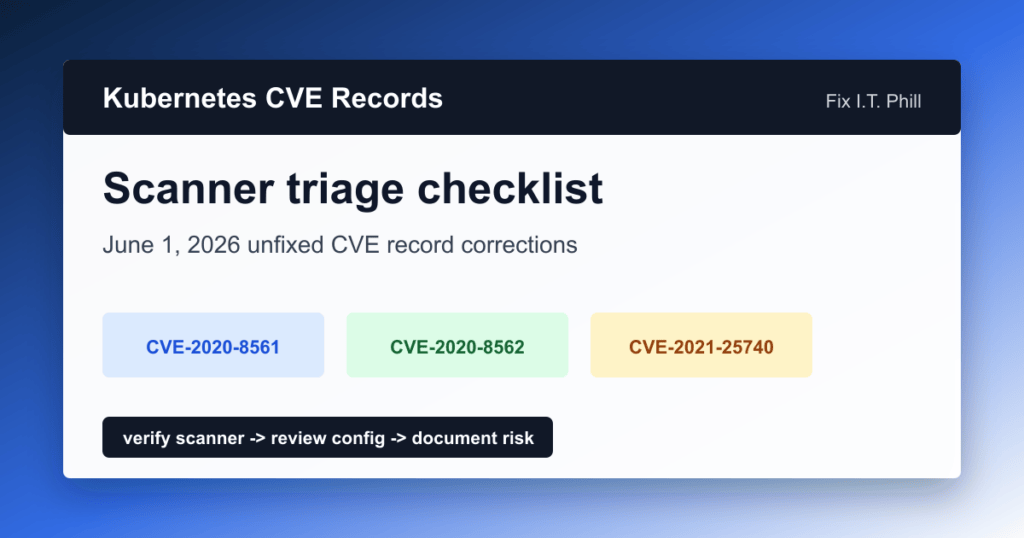
Learn MoreKubernetes will correct older unfixed CVE records on June 1, 2026. Use this checklist to triage scanner alerts without mistaking configuration risks for simple patch gaps.
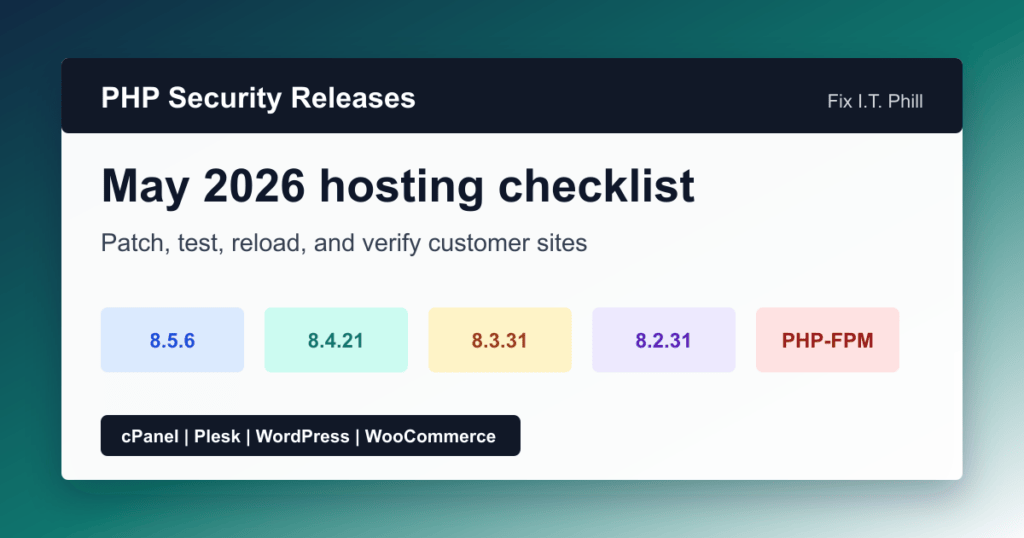
Learn MorePHP 8.5.6, 8.4.21, 8.3.31, and 8.2.31 are security releases. Use this hosting checklist for cPanel, Plesk, WordPress, WooCommerce, and PHP-FPM updates.
Learn MoreEasyApache 4 25.71 through 25.74 update ModSecurity, OWASP CRS, and Nginx. Prioritize the cPanel-listed 25.74 Nginx security fixes through WHM and verify hosted paths.
Learn MoreServe HLS playlists and video segments with Nginx, set the right MIME types, plan cache behavior, and understand when NGINX Plus or a streaming module is needed.
Learn MoreInstall Certbot for Nginx, request a Let's Encrypt certificate, test renewal, reload safely, and avoid common hosting-panel mistakes.
Learn MoreCISA added PAN-OS CVE-2026-0257 to KEV after limited exploit attempts. Check GlobalProtect authentication override cookies, mitigate, patch, and verify VPN logs.
Learn MoreWooCommerce AI Product Advisor is available as a public beta. Use this install, privacy, review, and rollback checklist before testing it on a store.
Learn More