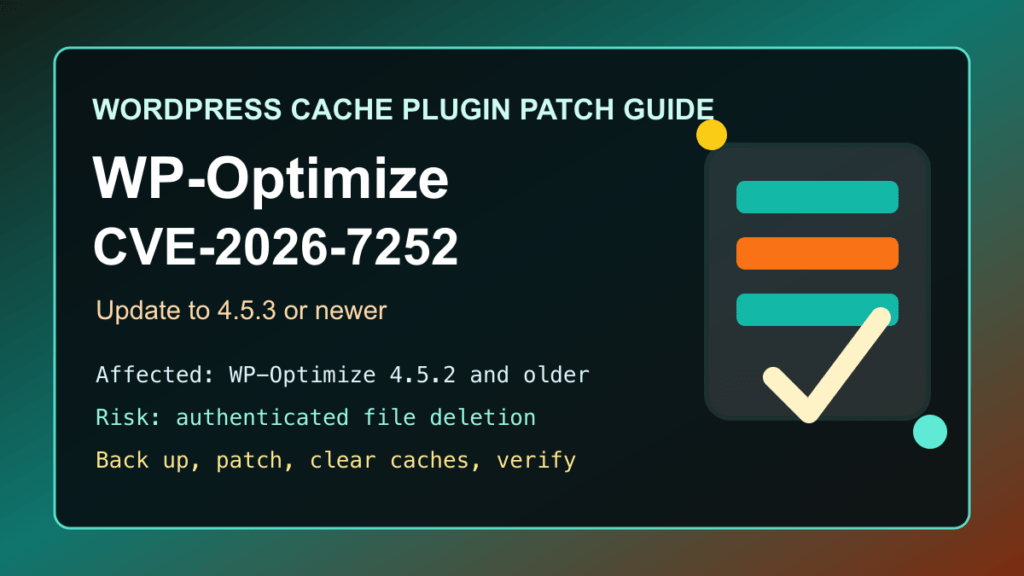
Impact statement: CVE-2026-7252 is a high-severity WP-Optimize vulnerability affecting WordPress sites that still run WP-Optimize 4.5.2 or older. Wordfence rates it CVSS 8.1 High. The practical risk is that a logged-in user with author-level access or higher could cause unintended file deletion, which can break a site and may open a path to deeper compromise depending on what is removed.
This is a protect-only guide. We are not publishing the low-level abuse details, field names, proof steps, scanner checks, or internal test material. The useful answer for site owners and hosting providers is to update WP-Optimize, review who can publish content, confirm backups are usable, and check for unexpected site changes.
Who Is Affected
- WordPress sites running WP-Optimize versions up to and including 4.5.2.
- Sites that allow authors, editors, shop staff, vendors, instructors, or other non-admin users to upload or manage media.
- WooCommerce, membership, course, marketplace, and agency sites where many trusted users can create content.
- Managed WordPress, cPanel, Plesk, DirectAdmin, and agency fleets where WP-Optimize is installed for caching, image compression, minification, or database cleanup.
WordPress.org currently lists WP-Optimize at 4.5.3, with more than 1 million active installations. The WordPress.org changelog for 4.5.3 says the release prevents a path traversal security risk and credits Wordfence for responsible disclosure. Wordfence lists 4.5.3 as the patched version for CVE-2026-7252.
Patch First
Update WP-Optimize to 4.5.3 or newer. If WordPress offers a newer release than 4.5.3, install the current release instead of stopping at the minimum fixed version.
- Confirm you have a current, restorable backup before changing a caching or cleanup plugin.
- Update WP-Optimize through the WordPress dashboard, WordPress Toolkit, Plesk, cPanel, your managed WordPress platform, or your normal maintenance tool.
- Confirm the installed plugin version is 4.5.3 or newer after the update finishes.
- Clear WP-Optimize cache, any object cache, host cache, and CDN cache.
- Test the home page, key landing pages, checkout or forms, logged-in user pages, and image-heavy pages.
Because WP-Optimize touches caching, minification, images, and database cleanup, check the front end after updating. A security fix is still the priority, but you want to catch cache or minify side effects before customers do.
Temporary Protection If You Cannot Patch Today
- Disable WP-Optimize temporarily if the site cannot be updated and the plugin is not required for the site to function.
- Reduce author, editor, shop staff, vendor, instructor, and contributor access to only the users who need it.
- Do not create shared author or editor accounts for maintenance work.
- Require stronger account security at the hosting, WordPress, SSO, and administrator-workstation level.
- Use a reputable WAF, managed WordPress security service, or CDN security layer to increase scrutiny around unusual authenticated WordPress file and media-management behavior while you patch.
Temporary mitigation is only a bridge. Because a fixed version is available, the long-term answer is to update WP-Optimize or replace it with a maintained performance stack that fits the site.
Post-Update Review
During this pass, I did not find a credible active-exploitation notice from Wordfence, CISA KEV, or WordPress.org. Even so, file-deletion issues deserve a quick integrity review after patching, especially on sites with many content users.
- Review administrator, editor, author, shop manager, instructor, vendor, and contributor accounts.
- Remove stale users, shared users, and accounts that no longer need publishing permissions.
- Check recent plugin, theme, media, and user-account changes.
- Look for unexpected missing or changed core, configuration, plugin, theme, and media files.
- Review PHP, web server, WordPress security plugin, and host logs for unusual authenticated activity.
- Restore from backup only when you understand what changed, otherwise you may restore the vulnerable plugin version too.
Plesk, cPanel, And Hosting Provider Notes
For hosting providers and agencies, treat this as a fleet inventory item. WP-Optimize has a large install base and the safe version check is straightforward.
- Use Plesk WordPress Toolkit, cPanel WordPress Toolkit, Softaculous, Installatron, WP-CLI inventory, or your RMM platform to find WP-Optimize installs below 4.5.3.
- Prioritize public production sites, stores, membership sites, learning sites, and sites with many content users.
- Update during a maintenance window when the site depends heavily on caching, minification, image compression, or database cleanup.
- After updating, clear caches and verify that pages, forms, checkout, logins, and image galleries still work.
- Tell customers whether WP-Optimize was patched, whether privileged users were reviewed, and whether any backup or file-integrity review is needed.
Replacement Guidance
A fixed version exists, so the first recommendation is to update. If the site is pinned below 4.5.3 because of compatibility, licensing, or maintenance problems, plan a replacement instead of leaving an outdated performance plugin in place.
- Stay with WP-Optimize: update to 4.5.3 or newer, then retest caching, images, minification, and database cleanup.
- Use host-level performance tools: many managed WordPress, LiteSpeed, Nginx, and CDN stacks can handle page cache, object cache, image optimization, and compression outside this plugin.
- Choose a maintained replacement: test any replacement cache or optimization plugin in staging first, especially on WooCommerce, membership, LMS, and multilingual sites.
- Reduce plugin overlap: avoid running multiple caching, minification, and image-optimization plugins that compete for the same files and cache rules.
Related Fix I.T. Phill Guides
- How to update WordPress plugins, themes, and core safely
- Disabling WordPress plugins with phpMyAdmin
- cPanel WordPress hosting security checklist
- WordPress plugin security roundup: BookingPress, Easy Elements, WP ERP
Fix I.T. Phill CDN Virtual Patching Note
We are handing a sanitized signal to the CDN/WAF side for review. The goal is to help identify and prioritize sites running old WP-Optimize versions, then raise temporary scrutiny around abnormal authenticated WordPress media and file-management behavior while site owners patch. Public guidance stays at the defensive-control level.