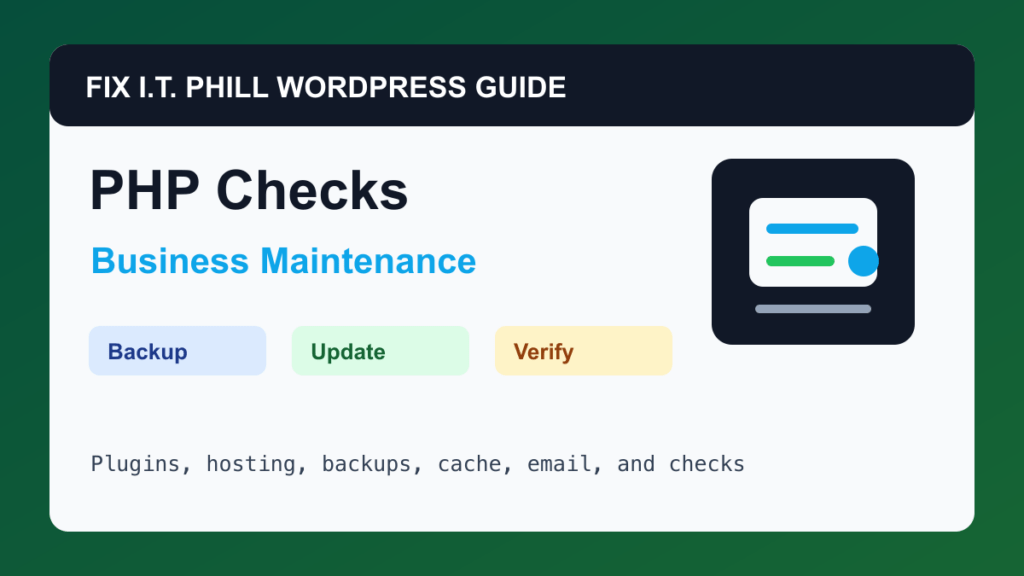
Check WordPress PHP Version and Extensions is a practical maintenance workflow for site owners, hosts, and agencies preparing for plugin updates, performance work, or WordPress version changes.
A WordPress maintenance plan should prove the site still works after updates. That means checking the business workflow, hosting layer, plugins, backups, cache, email, and access before a small issue becomes an outage.
When To Run This Check
Run this quarterly and before major WordPress, WooCommerce, builder, security plugin, or PHP upgrades.
Before You Start
- Check the PHP version currently used by the site, not only the server default.
- Review plugin and theme requirements before changing PHP.
- Back up the site before changing PHP versions or PHP settings.
- Pick a rollback path in the hosting panel before switching.
Maintenance Steps
- Use Site Health, hosting panel tools, or WP Toolkit to record current PHP status.
- Check for missing extensions that plugins require.
- Change PHP on staging first when available.
- Retest admin, public pages, forms, checkout, cache, and scheduled tasks after switching.
- Keep notes about the old version, new version, and plugins that forced the change.
Hosting And Control Panel Notes
- cPanel MultiPHP Manager, Plesk PHP settings, CloudLinux Selector, and managed WordPress dashboards may all control PHP differently.
- Do not assume command-line PHP and web PHP are the same version.
- Some older plugins may only fail under specific pages or scheduled tasks.
Verify It Works
Confirm Site Health does not show a new PHP warning, error logs are quiet, admin loads, and business workflows still work.
Backup And Rollback Notes
- Take a backup before changing plugins, themes, PHP, cache, DNS, checkout, forms, email, or user access.
- Use staging for risky changes on ecommerce, membership, booking, LMS, high-lead, or high-traffic sites.
- Keep rollback ownership clear: who restores, who approves, and how the site is verified afterward.
- Document the maintenance window and preserve version notes for future troubleshooting.
Related Fix I.T. Phill Guides
- WordPress Maintenance Checklist Hub
- How to Back Up WordPress: Complete Methods Guide
- How to Restore WordPress: Complete Recovery Methods Guide
- How to Migrate WordPress: Complete Hosting Move Guide
- How to Install WordPress: Complete Methods Guide
- How to Add Business Features to WordPress: Complete Plugin Setup Guide
- How to Build a WordPress Website for Any Business: Industry Setup Guide
- WordPress 7.0 Safe Upgrade Checklist for Business Sites
- Help4 Network hosting and website support