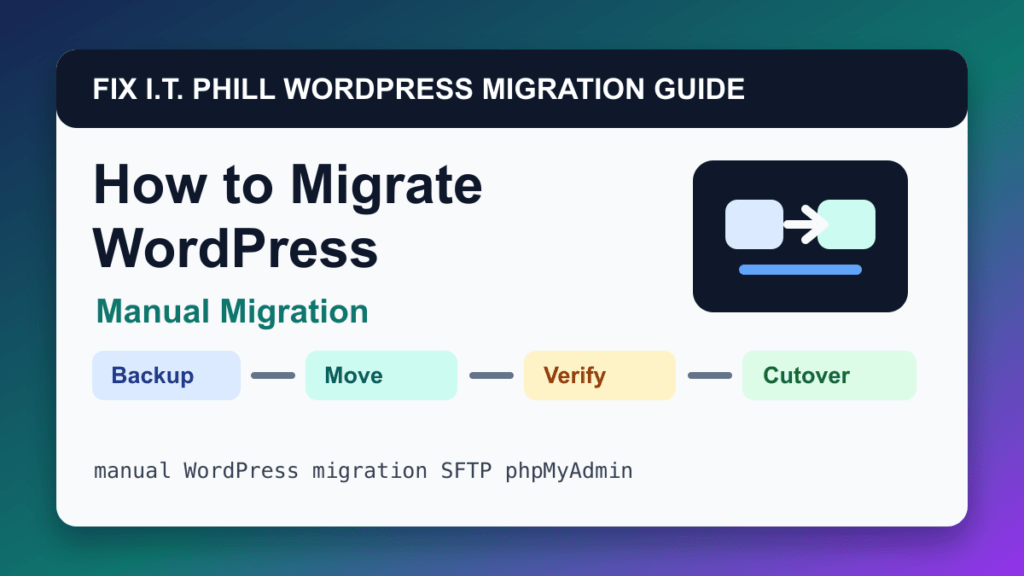
SFTP or File Manager plus phpMyAdmin can move WordPress safely when it matches the source, destination, and risk level. This method is best for moving one WordPress site when panel transfer or migration plugins are not available.
Audience: site owners, support teams, and developers who need a tool-independent migration path. Before using this path, decide whether the move changes hosts, domains, DNS, email, PHP versions, database versions, cache layers, or business data. Those details matter more than the migration button itself.
Before migration
- Download all WordPress files including hidden files.
- Export the correct database.
- Create a destination database and user.
- Lower DNS TTL and plan a maintenance window.
- Avoid plain text URL replacement in SQL dumps.
Migration steps
- Upload WordPress files to the destination document root.
- Import the database with phpMyAdmin or the destination database tool.
- Edit wp-config.php for the destination database credentials.
- Update URLs with a tool that preserves serialized data.
- Set correct permissions and file ownership.
- Preview before DNS cutover.
Post-migration verification
Check front-end pages, wp-admin, media, permalinks, forms, checkout, SSL, redirects, cron, error logs, and that backup archives are not public.
Also check server logs, PHP errors, WordPress Site Health, cache behavior, CDN routing, redirects, robots/indexing state, cron jobs, and whether a new backup job exists on the destination.
Migration risks
- Moving files one directory too deep.
- Importing the wrong database.
- Breaking serialized plugin data with unsafe replacement.
- Leaving SQL or zip files accessible in the web root.
Rollback and cutover planning
Keep the old site online until the new site is proven. For stores, memberships, bookings, LMS sites, directories, and lead-generation sites, plan a final data freeze or sync so records do not split between servers. Keep DNS rollback notes, old-host access, and a verified backup until traffic and logs are stable.
Fix I.T. Phill recommendation
Use SFTP or File Manager plus phpMyAdmin when it gives you the cleanest preview and rollback path. If the site makes money or stores customer records, treat the final cutover as a maintenance window, not a casual copy job.
Related Fix I.T. Phill Guides
- How to Migrate WordPress: Complete Hosting Move Guide
- How to Migrate WordPress by cPanel Full Account Backup
- How to Migrate WordPress by WHM Transfer Tool
- How to Migrate WordPress by Plesk Migrator
- How to Migrate WordPress by Plesk WP Toolkit Clone
- How to Migrate WordPress by Softaculous Clone or Import
- How to Migrate WordPress by Installatron Clone or Import
- How to Migrate WordPress by DirectAdmin Backup and Restore
- How to Back Up WordPress: Complete Methods Guide
- How to Restore WordPress: Complete Recovery Methods Guide
- How to Back Up WooCommerce Without Losing Orders
- How to Restore WooCommerce Without Losing Orders
- How to Test a WordPress Backup Restore Before an Emergency
Sources Checked
- WordPress advanced administration: migrating WordPress
- WordPress database backup documentation
- cPanel phpMyAdmin import/export documentation
- WP-CLI search-replace documentation
2026 SEO Refresh: Manual WordPress Migration with SFTP and phpMyAdmin Checklist
Admin action path: Manual migration is safest when files, database, wp-config, URL references, DNS, and SSL are verified as separate layers.
What to verify before changing production
- Take a file and database backup before changing URLs or DNS.
- Record the exact migration method and rollback path.
- Verify wp-admin, public pages, media, permalinks, SSL, forms, email, REST, sitemap, and cache after launch.
Source-backed references and next reads
- Official reference: WordPress installation handbook.
- Official reference: cPanel File Manager documentation.
- Official reference: cPanel MySQL Databases documentation.
- Related FixItPhill guide: host-to-host WordPress migration checklist.
- Related FixItPhill guide: WordPress migration DNS and email cutover.
- Related FixItPhill guide: cPanel WP Toolkit WordPress install checklist.
- Related FixItPhill guide: Plesk WP Toolkit WordPress install checklist.
- Related FixItPhill guide: WordPress backup restore point check.
Ticket evidence should include the method used, backup timestamp, destination URL, DNS or SSL state, mail-delivery result where relevant, and the public verification steps completed after the change.