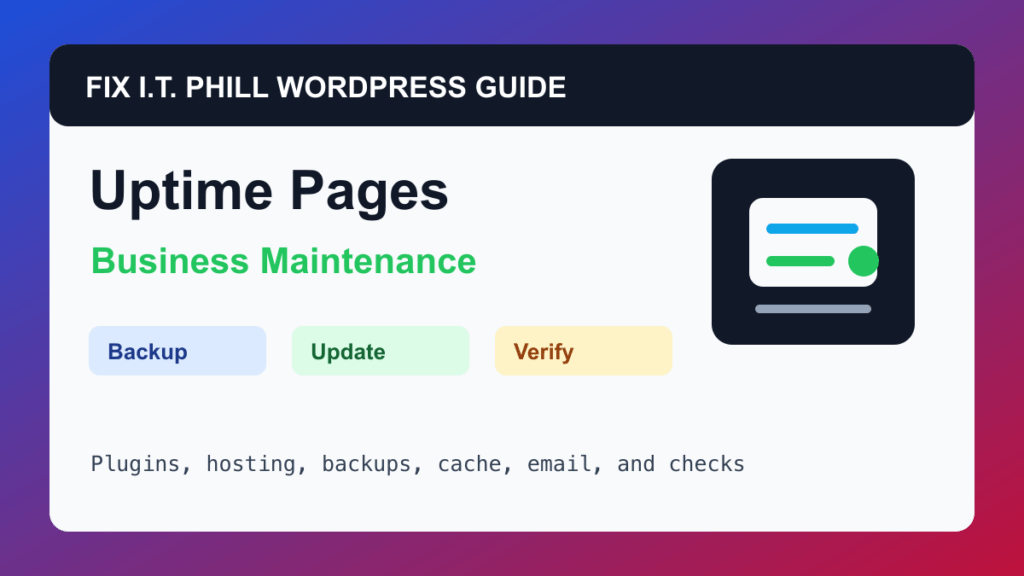
Monitor WordPress Uptime and Broken Pages is a practical maintenance workflow for small businesses, agencies, ecommerce teams, and hosts that need to notice downtime before customers do.
A WordPress maintenance plan should prove the site still works after updates. That means checking the business workflow, hosting layer, plugins, backups, cache, email, and access before a small issue becomes an outage.
When To Run This Check
Run this monthly and after migrations, DNS changes, redirect cleanup, permalink changes, plugin updates, and design launches.
Before You Start
- List the pages that matter most: home, contact, quote, checkout, login, booking, service pages, and landing pages.
- Confirm who gets uptime alerts and who is allowed to act.
- Back up before redirect, permalink, or SEO plugin changes.
- Do not remove old redirects until important old URLs have been checked.
Maintenance Steps
- Check the home page and top business pages from a normal browser.
- Review uptime monitor status for recent downtime or slow responses.
- Check key URLs for 404, 500, redirect loop, and mixed-content problems.
- Review Google Search Console coverage for new indexing or crawl issues.
- Fix broken internal links that affect leads, checkout, booking, or trust pages first.
Hosting And Control Panel Notes
- Downtime can come from hosting, DNS, SSL, CDN, plugin errors, database issues, resource limits, or expired domains.
- Control panels may show resource limits that explain intermittent problems.
- CDN cache can mask origin errors until cache expires.
Verify It Works
Confirm priority pages return public 200 responses, redirects make sense, uptime alerts route to the right person, and Search Console is not showing a new systemic issue.
Backup And Rollback Notes
- Take a backup before changing plugins, themes, PHP, cache, DNS, checkout, forms, email, or user access.
- Use staging for risky changes on ecommerce, membership, booking, LMS, high-lead, or high-traffic sites.
- Keep rollback ownership clear: who restores, who approves, and how the site is verified afterward.
- Document the maintenance window and preserve version notes for future troubleshooting.
Related Fix I.T. Phill Guides
- WordPress Maintenance Checklist Hub
- How to Back Up WordPress: Complete Methods Guide
- How to Restore WordPress: Complete Recovery Methods Guide
- How to Migrate WordPress: Complete Hosting Move Guide
- How to Install WordPress: Complete Methods Guide
- How to Add Business Features to WordPress: Complete Plugin Setup Guide
- How to Build a WordPress Website for Any Business: Industry Setup Guide
- WordPress 7.0 Safe Upgrade Checklist for Business Sites
- Help4 Network hosting and website support