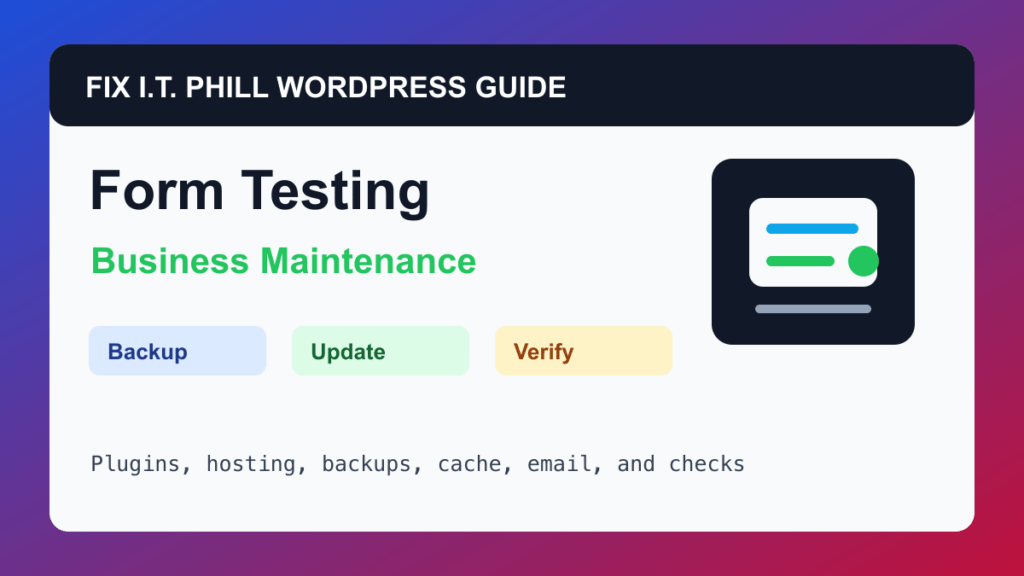
Test WordPress Forms Every Month is a practical maintenance workflow for local businesses, nonprofits, medical offices, law firms, ecommerce stores, and agencies that depend on contact forms for leads.
A WordPress maintenance plan should prove the site still works after updates. That means checking the business workflow, hosting layer, plugins, backups, cache, email, and access before a small issue becomes an outage.
When To Run This Check
Run this monthly and after form plugin, SMTP, cache, CDN, DNS, or theme changes.
Before You Start
- List every business-critical form: contact, quote, appointment, donation, newsletter, checkout, support, and upload forms.
- Confirm who should receive each notification.
- Check spam protection and privacy wording before sending test submissions.
- Take a backup before changing form plugin settings or replacing a form plugin.
Maintenance Steps
- Submit each form from a private browser window on desktop and mobile.
- Confirm the success message or redirect is correct.
- Check that staff receive notifications and that the sender name is recognizable.
- Review entries inside the form plugin when entries are stored.
- Check analytics or conversion tracking only after the basic form delivery works.
Hosting And Control Panel Notes
- Cache plugins and CDN rules should not cache form responses.
- If mail is unreliable, use authenticated SMTP instead of default web-server mail.
- For forms with file uploads, review storage, permissions, and retention policy.
Verify It Works
Confirm the site owner receives the message, the visitor sees the expected result, spam protection still works, and any CRM or email list handoff is correct.
Backup And Rollback Notes
- Take a backup before changing plugins, themes, PHP, cache, DNS, checkout, forms, email, or user access.
- Use staging for risky changes on ecommerce, membership, booking, LMS, high-lead, or high-traffic sites.
- Keep rollback ownership clear: who restores, who approves, and how the site is verified afterward.
- Document the maintenance window and preserve version notes for future troubleshooting.
Related Fix I.T. Phill Guides
- WordPress Maintenance Checklist Hub
- How to Back Up WordPress: Complete Methods Guide
- How to Restore WordPress: Complete Recovery Methods Guide
- How to Migrate WordPress: Complete Hosting Move Guide
- How to Install WordPress: Complete Methods Guide
- How to Add Business Features to WordPress: Complete Plugin Setup Guide
- How to Build a WordPress Website for Any Business: Industry Setup Guide
- WordPress 7.0 Safe Upgrade Checklist for Business Sites
- Help4 Network hosting and website support