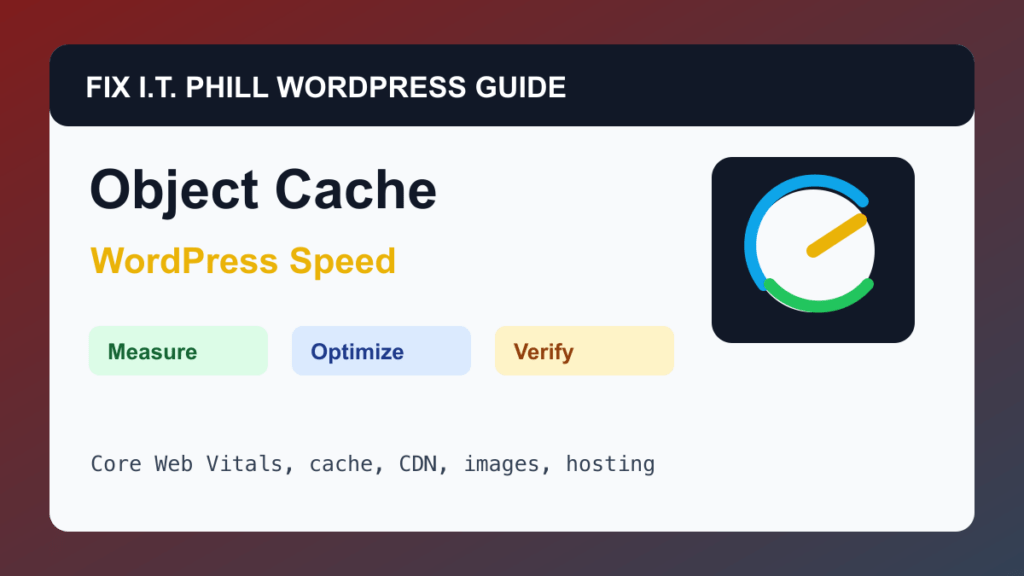
Use Object Cache for WordPress is for dynamic WordPress, WooCommerce, membership, LMS, directory, and publishing sites with repeated database work.
WordPress speed work should start with measurement and end with verification. A faster score is not useful if forms stop sending, checkout breaks, admin becomes unstable, or the site owner cannot repeat the maintenance process.
Before You Start
- Confirm the host supports Redis, Memcached, or another persistent object cache.
- Back up before enabling object-cache plugins or drop-ins.
- Check whether the site already has object cache active.
- Plan how to flush object cache after updates, migrations, and option changes.
Performance Steps
- Use Site Health or the hosting panel to identify current object-cache status.
- Enable object cache through the host-supported method.
- Test wp-admin, public pages, search, cart, checkout, membership pages, and scheduled tasks.
- Flush object cache after major plugin, theme, migration, or domain changes.
- Monitor for stale settings or plugin conflicts after activation.
Hosting And Control Panel Notes
- Object cache helps repeated database lookups, but it is not a substitute for page cache or good hosting.
- On shared hosting, object-cache availability may depend on the plan.
- Incorrect flush behavior can make settings look unchanged even after edits.
Verify It Works
Confirm the site remains correct after cache flush, admin pages load, and dynamic workflows show current data.
Backup And Rollback Notes
- Take a fresh backup before changing cache, CDN, image, database, PHP, theme, or plugin behavior.
- Use staging for WooCommerce, membership, LMS, booking, high-lead, and high-traffic sites.
- Change one performance layer at a time so rollback is possible.
- After every speed change, retest forms, checkout, booking, login, search, admin, mobile layout, and email where relevant.
Related Fix I.T. Phill Guides
- WordPress Performance Optimization Hub
- How to Maintain a WordPress Website: Complete Business Checklist
- How to Add Business Features to WordPress: Complete Plugin Setup Guide
- How to Install WordPress: Complete Methods Guide
- How to Back Up WordPress: Complete Methods Guide
- How to Restore WordPress: Complete Recovery Methods Guide
- How to Migrate WordPress: Complete Hosting Move Guide
- How to Build a WordPress Website for Any Business: Industry Setup Guide
- WordPress 7.0 Safe Upgrade Checklist for Business Sites