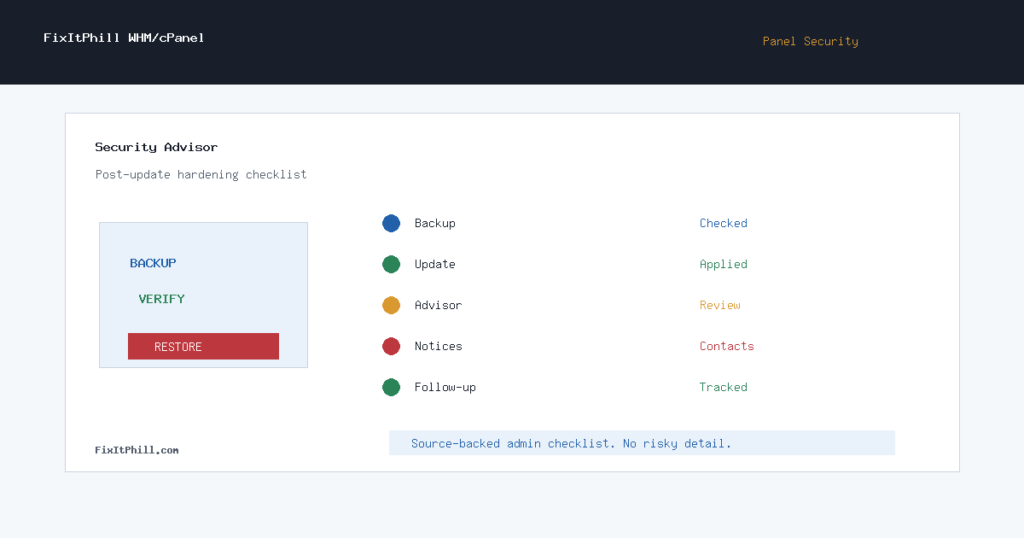
WHM Security Advisor is a practical post-update check after cPanel security releases, EasyApache changes, PHP maintenance, kernel work, or malware-scan tooling changes. It is not a replacement for patch management, but it is a fast way to catch common server hardening drift after maintenance.
This checklist is for cPanel and WHM hosting admins who need a repeatable review after panel updates. It pairs well with backup verification, EasyApache testing, and customer-impact checks.
Run it after the backup and update checks
Security Advisor should not be the first step. First confirm that backups exist, the maintenance window completed, and representative sites still load. Then use Security Advisor to catch configuration warnings, security-center items, malware-scan recommendations, kernel-care notices, and other WHM hardening prompts that can appear or change after an update.
For VPS-based cPanel servers, some operating-system-level suggestions may be controlled by the provider. Record those as provider-dependent instead of treating them as ignored failures.
Capture the result categories
Do not turn the Security Advisor screen into a vague note that says “looks fine.” Classify the findings. Mark which items are fixed now, which require a reboot window, which require a license decision, which are provider-controlled, and which are accepted risk. That makes the next maintenance pass faster and prevents the same warning from being re-triaged every week.
For hosting servers, the useful categories are usually backups, malware scanning, kernel patching, service exposure, SSH and login posture, Apache or PHP hardening, mail security, and notification health.
Check notification coverage
Security findings are less useful if nobody receives them. WHM Contact Manager controls many server notifications, including Security Advisor state changes. After a security update, confirm that notifications still go to monitored mailboxes and that server contacts are not stale. This is especially important on older cPanel fleets where an alert may still point at a former admin, a closed ticket queue, or a mailbox nobody reads.
Review malware and kernel prompts carefully
Security Advisor can surface options tied to malware scanning and kernel patch tooling. Treat these as operational prompts, not automatic purchase decisions. If ImunifyAV, Imunify360, KernelCare, or a similar tool is already in use, verify that the installed state and license state match the server’s policy. If the server relies on host-managed kernel updates, document that dependency and make sure the provider’s patch path is known.
For customer-facing shared hosting, malware scanning and kernel patching are not cosmetic. They affect incident response, customer trust, and how quickly you can reduce exposure after a disclosed issue.
Connect the check to recent cPanel releases
cPanel release notes and EasyApache change logs often explain why a maintenance window mattered. If a release included DNS, PHP, Apache, Roundcube, or service security updates, the post-update checklist should verify the affected services and then run Security Advisor as a final configuration pass.
The workflow is simple: verify backups, apply the update, test public sites, review service status, run Security Advisor, classify findings, update the maintenance record, and submit discovery for any public content changes.
FixItPhill post-update order
- Confirm WHM backups and retention.
- Apply the cPanel, WHM, EasyApache, or PHP maintenance window.
- Test representative public sites and admin logins.
- Review Security Advisor findings.
- Verify notification recipients in Contact Manager.
- Record accepted risks and provider-controlled items.
- Schedule a follow-up if a reboot, license, or provider ticket is needed.
Related FixItPhill checks
- WHM Backup Configuration: Preflight Checklist Before EasyApache and PHP Updates
- cPanel EasyApache 4 25.70: PHP and curl Security Updates
- cPanel and WHM Version 136 Upgrade and Security Update Checklist
- WHMCS 9.0.6 and 8.13.5 Security Maintenance Update