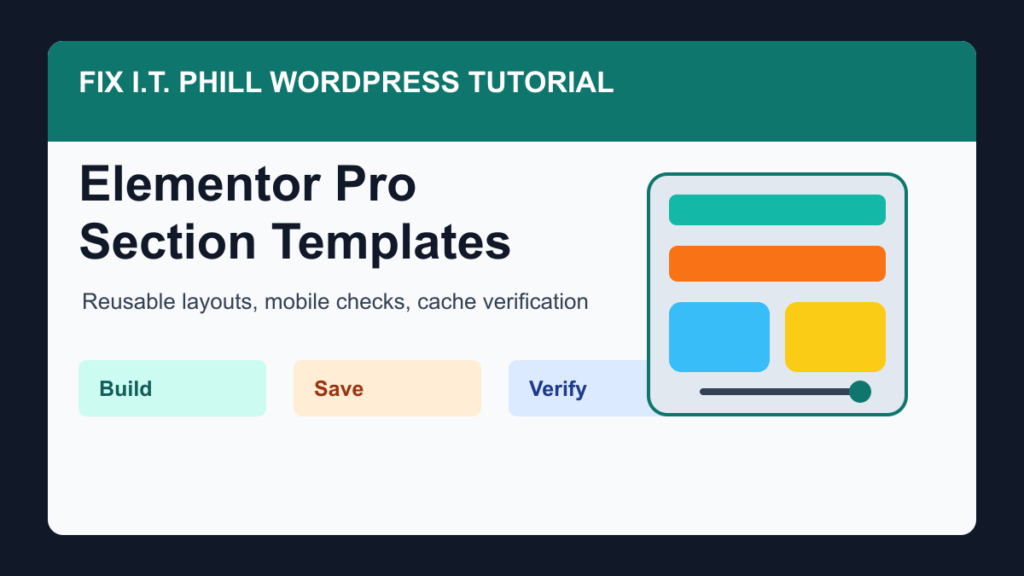
Reviewed June 15, 2026: Elementor Pro section templates are still useful when you need the same callout, service block, testimonial row, pricing strip, FAQ group, or contact section on more than one page. The trick is to treat the template like a reusable design asset, not a shortcut for skipping backups, mobile testing, or cleanup.
This guide keeps the original idea intact: build a section in Elementor Pro, save it as a template, reuse it where it makes sense, and verify the site afterward so the shortcut does not create layout drift, slow pages, or confusing edits later.
Before you save a section
Do the boring checks first. They are not glamorous, but they are what keep a five-minute design change from becoming a late-night rollback.
- Back up the site. At minimum, make sure you have a recent file and database backup before changing shared design pieces.
- Use staging for important pages. If the section appears on service pages, landing pages, checkout paths, lead forms, or WooCommerce pages, test it away from the live site first.
- Update Elementor carefully. Check Elementor, Elementor Pro, your active theme, and any Elementor addon plugins before building new reusable layouts.
- Decide whether a section template is the right tool. A section template is best for reusable page pieces. Use an archive template, product archive template, header, footer, or single-post template when the layout controls a whole site area.
- Keep the section lean. Avoid stacking too many sliders, forms, third-party widgets, animations, and nested templates into one reusable block.
Create the section
- Open the page in Elementor. Choose a page that already uses the right width, typography, global colors, and spacing.
- Add a clean section. Build the row, columns, containers, widgets, images, and buttons you want to reuse.
- Name the content clearly. Use button labels, image alt text, and headings that will still make sense when the section is inserted on another page.
- Check tablet and mobile. Do not save the template until the spacing, order, button wrapping, and images work at smaller sizes.
- Save it as a template. In Elementor, save the finished section or page element to your template library and give it a plain name such as “Service CTA – blue” or “Homepage testimonial strip”.
Elementor’s own template documentation is worth keeping nearby because the interface changes over time. The important habit is the same: save a finished layout, name it clearly, and reuse it from the template library only where it fits the page.
Reuse it without making a mess
When you insert a saved section template into another page, review it like a new design element. Do not assume it belongs everywhere just because it is available.
- Confirm the heading level still makes sense on the new page.
- Swap page-specific copy, images, phone numbers, buttons, and form destinations when needed.
- Check that global colors and fonts still match the rest of the site.
- Watch for duplicate IDs, repeated form blocks, or scripts added by addon widgets.
- Test the page while logged out, especially if cache, CDN, or optimization plugins are active.
If the same section must change everywhere at once, pause before duplicating it onto ten pages. A global widget, site-wide template, theme-builder area, block pattern, or a small custom component may be easier to maintain than copied page sections.
Section template or something else?
Use a section template when you want to reuse a piece of a page. Use another tool when the scope is bigger.
- Use a section template for reusable CTAs, feature rows, staff blocks, testimonial strips, pricing bands, and service summaries.
- Use an archive template when you are changing how blog archives, category pages, or post listings display.
- Use a product archive template when WooCommerce shop, category, tag, or product listing pages need a consistent layout.
- Use WordPress block patterns when the site is mostly block-editor based and you want reusable patterns without relying on Elementor.
- Use a builder stack such as Help4 Builder Suite when the goal is a more controlled, supportable WordPress build with starter templates, layout tools, and fewer one-off plugin choices.
Verification checklist
After publishing a page that uses the section template, run a quick check from the visitor side of the site.
- Open the page in a private or logged-out browser window.
- Check desktop, tablet, and mobile widths.
- Click every button, phone link, email link, form, product link, and menu item inside the section.
- Confirm image alt text and captions make sense where the section appears.
- Clear page cache, CDN cache, and optimization cache when the site uses them.
- Look for layout shifts, missing icons, broken images, strange spacing, and duplicate content.
- For WooCommerce or lead-generation pages, test the full customer path after the design change.
Common problems
If a saved section looks different after you insert it, check the receiving page first. Page width, theme styles, global typography, parent containers, optimization plugins, and addon widgets can all change the final result.
If the template is hard to maintain, simplify it. A reusable section should be obvious when another admin opens the page. If it depends on a pile of custom CSS, hidden widgets, or old addon plugins, it may be time to rebuild it as a cleaner block or retire it.
Related Fix I.T. Phill reading
- How to update WordPress plugins, themes, and core safely
- What to do after installing a WordPress builder plugin
- How to create an archive template in Elementor Pro
- How to create a product archive template in Elementor Pro
- WordPress white screen or error 500 debugging guide
Sources
- Elementor: make a template from an existing page
- Elementor: how to use the template library
- WordPress.org documentation: block patterns
- Help4 Builder Suite product page
Need help cleaning up Elementor templates before they sprawl across the site? Fix I.T. Phill can review the pages, simplify the reusable sections, check mobile layouts, and make sure the cache/CDN layer serves the updated design correctly.