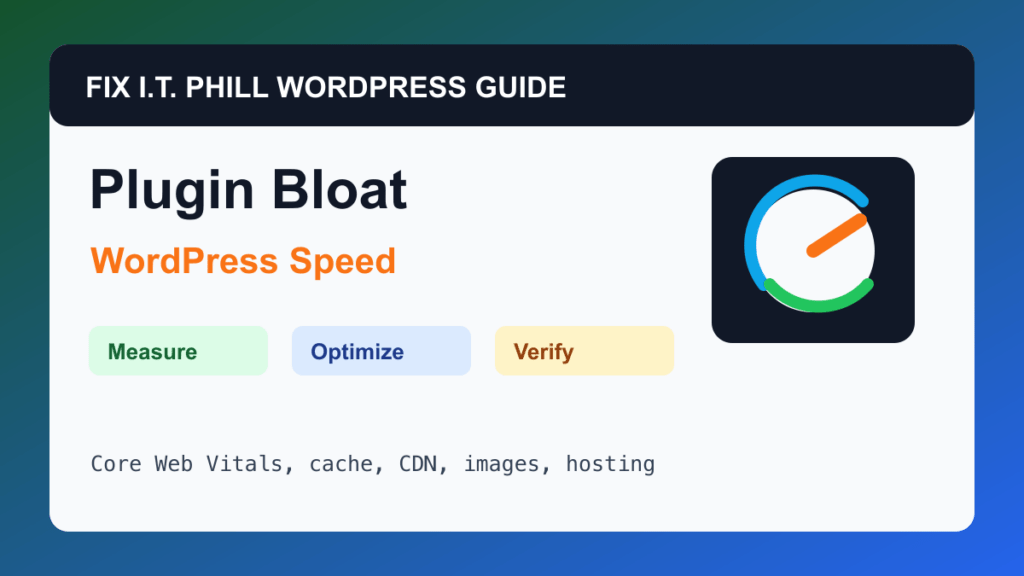
Reduce WordPress Plugin Bloat for Better Speed is for business sites that have accumulated overlapping builders, forms, sliders, SEO tools, analytics scripts, cache plugins, and abandoned add-ons.
WordPress speed work should start with measurement and end with verification. A faster score is not useful if forms stop sending, checkout breaks, admin becomes unstable, or the site owner cannot repeat the maintenance process.
Before You Start
- Back up before deactivating or deleting plugins.
- Identify which business feature each plugin supports.
- Check whether shortcodes, widgets, blocks, forms, custom fields, or templates depend on the plugin.
- Do not remove payment, security, backup, or email plugins without replacement planning.
Performance Steps
- List active plugins by function: forms, SEO, cache, security, builder, analytics, ecommerce, membership, booking, and backups.
- Remove duplicate tools that do the same job after testing.
- Replace abandoned plugins with maintained alternatives when the feature is still needed.
- Move tracking scripts into one governed workflow where possible.
- Retest page speed and business workflows after each removal group.
Hosting And Control Panel Notes
- Too many plugins can affect PHP time, database queries, admin speed, cron jobs, and update risk.
- The number of plugins is less important than what each plugin loads on key pages.
- A staging site is the right place to test removals for stores and lead-generation sites.
Verify It Works
Confirm pages look right, forms and checkout work, no shortcodes are exposed, and performance metrics move in the right direction.
Backup And Rollback Notes
- Take a fresh backup before changing cache, CDN, image, database, PHP, theme, or plugin behavior.
- Use staging for WooCommerce, membership, LMS, booking, high-lead, and high-traffic sites.
- Change one performance layer at a time so rollback is possible.
- After every speed change, retest forms, checkout, booking, login, search, admin, mobile layout, and email where relevant.
Related Fix I.T. Phill Guides
- WordPress Performance Optimization Hub
- How to Maintain a WordPress Website: Complete Business Checklist
- How to Add Business Features to WordPress: Complete Plugin Setup Guide
- How to Install WordPress: Complete Methods Guide
- How to Back Up WordPress: Complete Methods Guide
- How to Restore WordPress: Complete Recovery Methods Guide
- How to Migrate WordPress: Complete Hosting Move Guide
- How to Build a WordPress Website for Any Business: Industry Setup Guide
- WordPress 7.0 Safe Upgrade Checklist for Business Sites