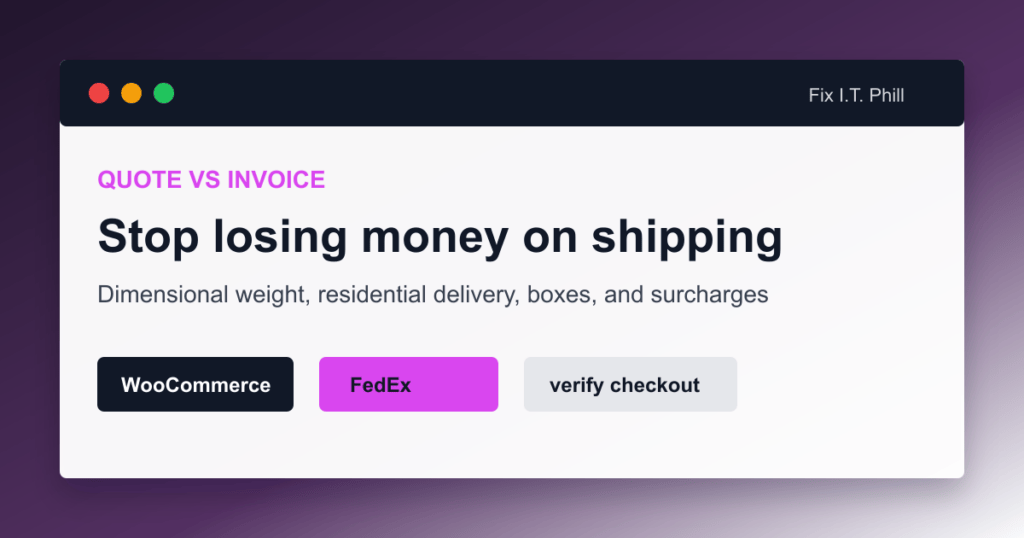
A FedEx quote in WooCommerce is only as accurate as the shipment data you give it. If the cart says one number and the FedEx invoice later says another, the fix is usually not a secret setting. It is product data, packing logic, service selection, address classification, account rate type, or a surcharge the store did not plan for.
This checklist is for store owners who are seeing FedEx at checkout but losing money after fulfillment.
Quote vs invoice: what changed?
WooCommerce asks for a rate before the package is shipped. FedEx invoices after the real shipment is processed. Between those two moments, several things can change:
- The warehouse used a bigger box than WooCommerce assumed.
- The product dimensions were wrong.
- Dimensional weight was higher than actual weight.
- The destination was residential.
- A delivery area, fuel, handling, signature, insurance, or pickup surcharge applied.
- The service selected at fulfillment was not the service quoted at checkout.
- The extension showed list rates when the invoice used account rates, or the other way around.
Start with one real order
Do not average ten messy orders. Pick one order with a clear mismatch and collect:
- Product SKUs, weights, and dimensions.
- Cart quantity and total package weight.
- WooCommerce FedEx service shown to the customer.
- Box size actually used by the person who packed it.
- FedEx service actually purchased.
- Residential or commercial destination status.
- Final FedEx invoice line items.
Once you can explain one order, the pattern usually becomes obvious.
Check product dimensions
A missing dimension can make a product look cheap to ship. A wrong dimension can push it into oversized pricing later. Audit your top 25 products first, then your most expensive mistakes.
- Open the product edit screen.
- Confirm weight, length, width, and height.
- Check variations separately.
- Measure the item as packed, not only the bare item.
- Update shipping classes if they are used for special handling.
Check box packing
The official FedEx extension can use predefined boxes. If your real packer uses a 16 x 12 x 8 box but WooCommerce thinks the order fits in a 10 x 8 x 4 box, the checkout rate will not survive contact with the packing table.
Enter common carton sizes, empty box weight, and max weight. Disable box sizes you do not actually stock. Then test common bundles and oversized items.
Dimensional weight matters
A light but bulky item can bill heavier than its scale weight. That is not a WooCommerce bug. It is how parcel rating often works. If the store sells pillows, signs, plastic bins, cases, framed items, or anything with empty air, dimensional weight needs attention.
Residential delivery and address validation
Residential delivery can change rates. WooCommerce’s FedEx settings include residential behavior, and the docs note that address validation can affect that flag. If customers commonly ship to homes, test with real residential addresses and compare the result to the final FedEx invoice.
Account rates vs list rates
The extension can expose choices around account rates and list rates. Account rates may reflect your FedEx agreement. List rates may not. Choose the one that matches your pricing strategy, then document it so the next person does not flip the setting because a single order looked odd.
Surcharges customers do not think about
- Fuel surcharge
- Delivery area surcharge
- Residential surcharge
- Additional handling
- Oversize charges
- Declared value or insurance
- Signature service
- Pickup-related charges
Some stores choose to pass these through. Others bake a buffer into shipping or product pricing. What you cannot do is ignore them and expect checkout to match the invoice forever.
Fix the business rule
After you find the mismatch, pick the policy:
- Use account rates and show the closest live quote.
- Use list rates to avoid undercharging.
- Add handling fees to specific FedEx services.
- Use table rates for products that never quote accurately.
- Require manual freight quotes for heavy or oversized items.
- Move complex fulfillment into a shipping platform that handles labels and rules better.
Verification after changes
Retest the original problem order as closely as possible. Then test three common carts: one simple order, one mixed order, and one oversized or heavy order. Save the results so you can compare the next invoice instead of arguing from memory.
More WooCommerce FedEx troubleshooting
- WooCommerce FedEx Shipping Setup Checklist
- WooCommerce FedEx Test Keys vs Live Keys
- WooCommerce FedEx on GoDaddy Managed WordPress
- WooCommerce FedEx Rates Not Showing at Checkout
- WooCommerce FedEx Rates Do Not Match the Invoice
- WooCommerce FedEx Labels and Tracking
- WooCommerce FedEx Test Label Creation Checklist
Related Fix I.T. Phill guides
- How to Install WooCommerce on a New WordPress Site
- How to Add an Online Store to WordPress with WooCommerce
- How to Back Up WooCommerce Without Losing Orders
- How to Restore WooCommerce Without Losing Orders
- How to Optimize WooCommerce Speed Without Breaking Checkout
Sources checked
- WooCommerce FedEx Shipping Method documentation
- WooCommerce shipping zones documentation
- FedEx Developer Portal getting started guide
- FedEx API Authorization documentation
- FedEx API guides and migration notes
- FedEx API integration best practices and API URI notes
- FedEx Ship API documentation
- FedEx Rates and Transit Times API documentation
- FedEx Basic Integrated Visibility tracking API documentation
- FedEx guide to creating and managing shipping labels
- GoDaddy Managed Hosting for WordPress overview
- GoDaddy Managed Hosting for WordPress SSH documentation
- GoDaddy Managed WordPress blocklisted plugins documentation
- PluginHive WooCommerce FedEx setup guide
- PluginHive WooCommerce FedEx activation and test label FAQ
- PluginHive WooCommerce FedEx API integration FAQ