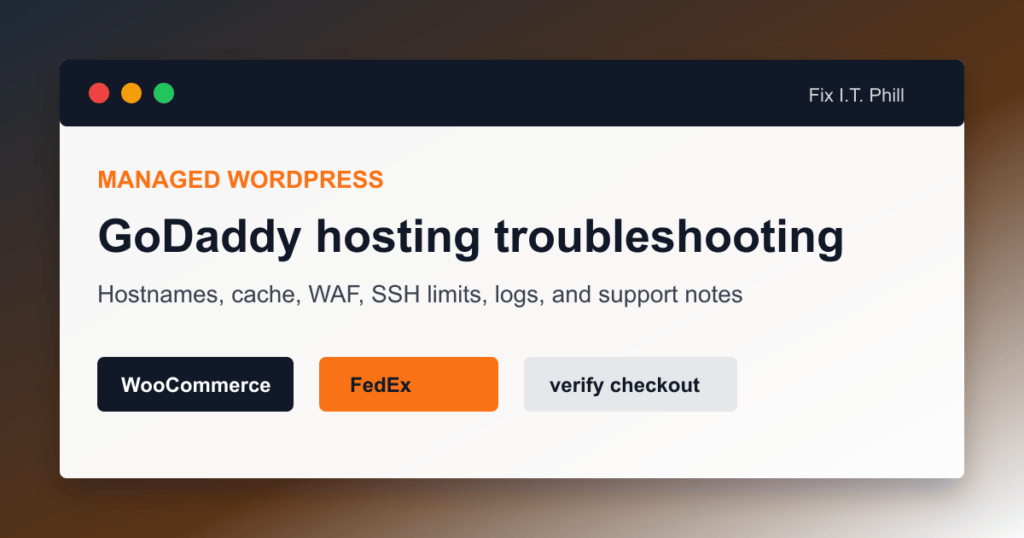
WooCommerce FedEx problems on GoDaddy Managed WordPress need a different troubleshooting path than a plain VPS. The store owner often does not have the same shell access, package control, log access, or caching control that a server admin expects. That does not make the problem impossible. It means the checklist has to be cleaner.
The common trap is blaming FedEx first. Sometimes it is FedEx credentials. Sometimes it is WooCommerce zones. Sometimes it is missing product dimensions. And sometimes managed hosting makes it harder to prove whether the store can reach the FedEx API from the server.
What GoDaddy Managed WordPress changes
GoDaddy’s own Managed Hosting for WordPress docs describe server-level caching, automatic backups, integrated SSL, enhanced security, restricted file access, WAF behavior, malware scanning, SFTP, phpMyAdmin, plugin limitations, and no WordPress multisite support. Their SSH documentation also notes that SSH is not available on Basic plans.
For WooCommerce FedEx troubleshooting, that means you may not be able to run the same quick command-line checks you would run on a self-managed server. You need to collect evidence from WooCommerce logs, plugin settings, browser behavior, and GoDaddy support when shell access is not available.
Start with the boring WooCommerce checks
- Confirm the FedEx extension is installed, active, licensed, and updated.
- Confirm WooCommerce itself is updated enough for the extension version.
- Confirm FedEx is added to the matching shipping zone.
- Confirm the customer test address matches that zone.
- Confirm the product is not virtual and has real weight and dimensions.
- Confirm the store currency and origin match the extension requirements.
- Confirm production FedEx credentials are being used when the extension requires them.
Hostname and outbound API checks
FedEx’s current REST API flow uses HTTPS calls to FedEx API services and OAuth authorization. A server-side WooCommerce extension needs to make outbound HTTPS requests from the WordPress host to FedEx. On a managed host, the store owner may not be able to test that directly without SSH.
When asking support for help, be specific. Do not just say “FedEx is broken.” Ask whether outbound HTTPS requests from the WordPress hosting environment to FedEx API hostnames are allowed and whether DNS resolution, TLS negotiation, or the WAF/security layer is blocking the plugin’s request. Include the timestamps from WooCommerce logs.
Hostnames to put in the support ticket
Start with the FedEx API hostname that matches the environment. FedEx documents apis.fedex.com for production and apis-sandbox.fedex.com for sandbox testing. For the official WooCommerce FedEx extension, WooCommerce’s current setup docs point store owners toward production credentials, so production traffic is the first thing to verify.
Also include the plugin vendor’s own support domains when relevant. WooCommerce.com extensions may need update and subscription communication with WooCommerce.com. PluginHive’s FedEx plugin has its own activation and registration workflow, so their setup and API integration documentation should go into the ticket when that is the plugin in use. The exact list can change by plugin version, so always ask the vendor for the current hostnames instead of copying an old forum answer.
What to ask GoDaddy support
Use wording like this:
We are troubleshooting the WooCommerce FedEx Shipping Method extension on this Managed WordPress site. The extension needs outbound HTTPS access to FedEx API services for rate authorization and quote requests. Can you confirm whether the hosting environment is allowing outbound HTTPS from WordPress to FedEx API hostnames, and can you check for WAF/security events at these timestamps?
Do not send FedEx secrets in the support ticket. If support needs to see an error, send the sanitized error message, timestamp, plugin version, and a screenshot with secrets hidden.
Cache and checkout warnings
Managed WordPress caching is good for pages, but checkout and cart behavior need to stay dynamic. GoDaddy lists performance-enhancing caching as a managed-hosting feature, so when rates seem stale or inconsistent, clear the host cache and test in a private browser window.
Do not cache cart, checkout, account, or payment pages with an extra caching plugin. GoDaddy also maintains a blocklisted plugin list and blocks or removes plugins in several categories, including caching and performance tools. If you migrated from another host with a pile of cache plugins still installed, clean that up before blaming FedEx.
Debug logs without making a mess
- Temporarily enable FedEx debug mode in WooCommerce if the extension provides it.
- Reproduce one checkout test with one product and one real address.
- Save the WooCommerce status log entry.
- Turn debug mode back off.
- Remove or redact keys, secrets, account numbers, names, and full addresses before sharing logs.
When Basic plan limits matter
If the site is on a GoDaddy Managed WordPress Basic plan, GoDaddy’s SSH documentation says SSH is not available there. That can make low-level API testing harder. You can still troubleshoot from WordPress, but if this is a serious WooCommerce store, the hosting plan should match the business. A store doing live shipping, taxes, payments, and order recovery needs support access and backups that fit production.
When to move the store
You do not need to move every store off managed hosting. But if the business depends on FedEx rates, label workflows, custom automation, warehouse integrations, or detailed logs, managed WordPress may be too tight. At that point, compare a better WooCommerce host, a cPanel/WHM VPS, or a managed WooCommerce provider where outbound API troubleshooting and log access are not a support battle.
Quick recovery path
- Keep flat-rate or table-rate shipping ready as a temporary fallback.
- Post a shipping notice if FedEx live rates are down.
- Do not keep taking orders with obviously wrong shipping rates.
- Export orders before major plugin or hosting changes.
- Test the checkout after every cache purge, plugin update, or credential change.
More WooCommerce FedEx troubleshooting
- WooCommerce FedEx Shipping Setup Checklist
- WooCommerce FedEx Test Keys vs Live Keys
- WooCommerce FedEx on GoDaddy Managed WordPress
- WooCommerce FedEx Rates Not Showing at Checkout
- WooCommerce FedEx Rates Do Not Match the Invoice
- WooCommerce FedEx Labels and Tracking
- WooCommerce FedEx Test Label Creation Checklist
Related Fix I.T. Phill guides
- How to Back Up WordPress by GoDaddy Managed WordPress
- How to Install WordPress on GoDaddy
- How to Restore WordPress on Managed Hosts
- How to Optimize WooCommerce Speed Without Breaking Checkout
- WordPress White Screen or Error 500 Debugging Guide
Sources checked
- WooCommerce FedEx Shipping Method documentation
- WooCommerce shipping zones documentation
- FedEx Developer Portal getting started guide
- FedEx API Authorization documentation
- FedEx API guides and migration notes
- FedEx API integration best practices and API URI notes
- FedEx Ship API documentation
- FedEx Rates and Transit Times API documentation
- FedEx Basic Integrated Visibility tracking API documentation
- FedEx guide to creating and managing shipping labels
- GoDaddy Managed Hosting for WordPress overview
- GoDaddy Managed Hosting for WordPress SSH documentation
- GoDaddy Managed WordPress blocklisted plugins documentation
- PluginHive WooCommerce FedEx setup guide
- PluginHive WooCommerce FedEx activation and test label FAQ
- PluginHive WooCommerce FedEx API integration FAQ