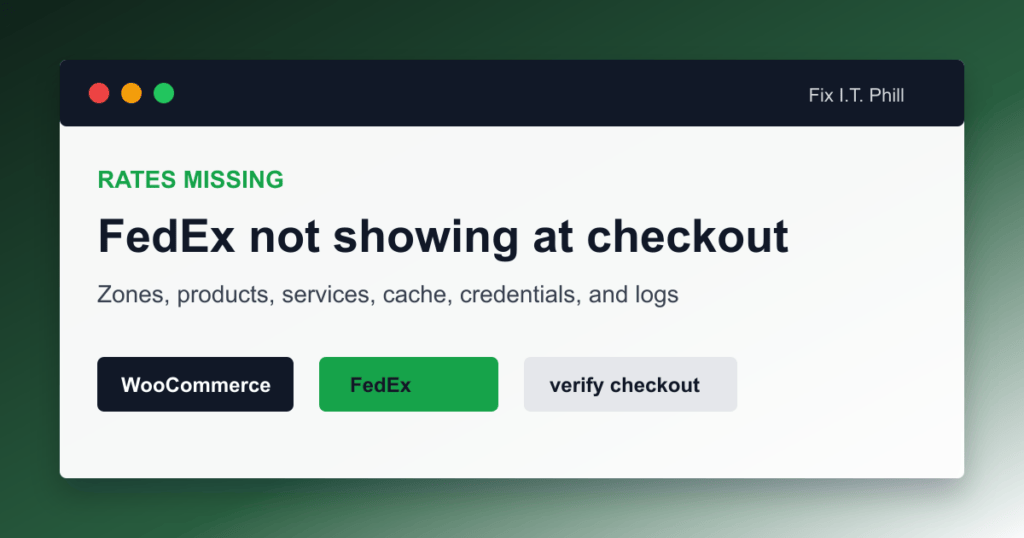
When FedEx rates do not show at WooCommerce checkout, do not start by reinstalling everything. Missing rates usually come from one of a few predictable breaks: the wrong shipping zone, missing product data, bad credentials, unsupported services, cache, or a host blocking the API call.
Work the list in order. It saves time and keeps you from breaking the part that was actually working.
1. Make sure the cart needs shipping
FedEx will not appear for a cart that WooCommerce thinks does not need shipping. Check the product first:
- The product is not marked virtual.
- The product has a shipping weight.
- The product has length, width, and height.
- For variations, the selected variation has shipping data or inherits it correctly.
WooCommerce’s FedEx documentation is clear that products intended for shipping need weights and dimensions for the API and box packer.
2. Confirm the shipping address matches a zone
WooCommerce shipping zones are matched from top to bottom, and the first matching zone wins. If the customer address matches a zone that does not contain FedEx, then FedEx will not appear even if it is configured somewhere else.
- Go to WooCommerce > Settings > Shipping > Shipping zones.
- Find the exact zone that should match your test address.
- Move narrow zones above broad zones.
- Add FedEx to that zone.
- Save changes and test with that same address again.
3. Check the origin postcode and ship-from address
The origin postcode is sent into the rate calculation. A wrong origin can remove services, create bad rates, or make the account look incompatible. Use the real shipping location, not the store owner’s home ZIP unless that is where packages actually leave.
4. Check credentials and production mode
For the current official WooCommerce FedEx extension flow, production credentials matter. If the extension is set to production but the key came from a test tab, or the account number belongs to a different FedEx organization, authorization can fail before a rate is ever calculated.
- Confirm the FedEx account number is correct.
- Confirm the API key and secret are from the same FedEx Developer project.
- Confirm the project has the correct shipping account attached.
- Confirm the production-key setting matches the credentials in use.
- Regenerate the secret if nobody saved it.
5. Enable only services the business can ship
If you disable every FedEx service in the extension, checkout has nothing to show. If you enable services that the account or destination cannot use, results may still be confusing. Start with a small set like Ground/Home Delivery and one express option, then add more after the base setup works.
6. Test with a clean cart
A cart full of weird product data can hide the real problem. Use one simple product:
- 1 pound
- 10 x 8 x 4 inches
- One quantity
- A real domestic destination address
- A shipping zone where FedEx is enabled
If that product works, the plugin is not simply broken. The remaining problem is likely product data, packaging, service eligibility, or destination rules.
7. Clear cache and test logged out
Checkout should not be cached, but managed hosts and cache plugins can still make troubleshooting weird. Clear host cache, CDN cache, and plugin cache. Then test in a private browser window while logged out.
On managed WordPress hosts, remember that server-level caching or WAF/security layers may exist even if you did not install a caching plugin.
8. Use WooCommerce logs
- Go to WooCommerce > Status > Logs.
- Select the FedEx log if one exists.
- Look for authorization, account, service, or destination errors.
- Redact secrets and customer details before sending the log to support.
If the log says nothing and the host gives you no shell access, ask the host whether outbound HTTPS to FedEx API services is allowed from the WordPress environment.
Temporary fallback
If the store is live and FedEx rates are missing, do not keep checkout broken. Add a temporary flat-rate, table-rate, or manual quote shipping method with clear customer-facing wording. Then fix FedEx away from the checkout fire.
More WooCommerce FedEx troubleshooting
- WooCommerce FedEx Shipping Setup Checklist
- WooCommerce FedEx Test Keys vs Live Keys
- WooCommerce FedEx on GoDaddy Managed WordPress
- WooCommerce FedEx Rates Not Showing at Checkout
- WooCommerce FedEx Rates Do Not Match the Invoice
- WooCommerce FedEx Labels and Tracking
- WooCommerce FedEx Test Label Creation Checklist
Related Fix I.T. Phill guides
- How to Install WooCommerce on a New WordPress Site
- How to Add an Online Store to WordPress with WooCommerce
- How to Back Up WooCommerce Without Losing Orders
- How to Restore WooCommerce Without Losing Orders
- How to Optimize WooCommerce Speed Without Breaking Checkout
Sources checked
- WooCommerce FedEx Shipping Method documentation
- WooCommerce shipping zones documentation
- FedEx Developer Portal getting started guide
- FedEx API Authorization documentation
- FedEx API guides and migration notes
- FedEx API integration best practices and API URI notes
- FedEx Ship API documentation
- FedEx Rates and Transit Times API documentation
- FedEx Basic Integrated Visibility tracking API documentation
- FedEx guide to creating and managing shipping labels
- GoDaddy Managed Hosting for WordPress overview
- GoDaddy Managed Hosting for WordPress SSH documentation
- GoDaddy Managed WordPress blocklisted plugins documentation
- PluginHive WooCommerce FedEx setup guide
- PluginHive WooCommerce FedEx activation and test label FAQ
- PluginHive WooCommerce FedEx API integration FAQ