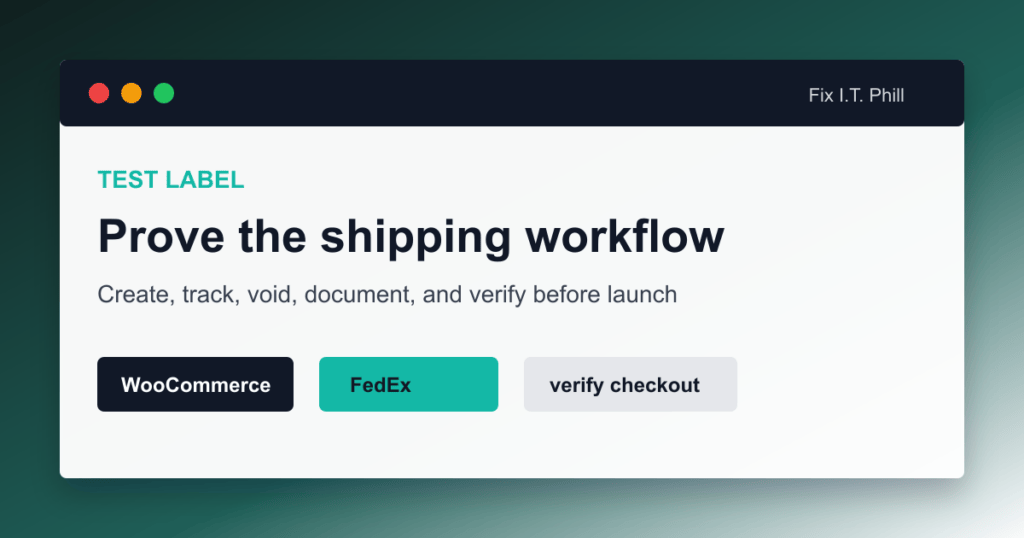
A FedEx test label is not the same thing as a FedEx rate quote. This matters because a lot of WooCommerce stores install a rate plugin, see FedEx at checkout, and then assume they can create labels from the order screen. Sometimes they can. Sometimes they cannot. It depends on the plugin.
This guide gives you a safe label-test path for store owners, GoDaddy Managed WordPress customers, agencies, and support teams that need to prove the workflow without turning the first real customer order into the experiment.
First question: does your plugin create labels?
The official WooCommerce FedEx Shipping Method extension is mainly for live rates. WooCommerce’s own documentation says labels can be bought from FedEx directly or handled through a label-printing extension. So if that is the only FedEx plugin installed, there may be no FedEx label button to test.
If you use a plugin such as PluginHive’s WooCommerce FedEx plugin, another shipping platform, or a fulfillment tool, read that plugin’s exact label documentation. PluginHive’s own FAQ says its FedEx plugin uses production credentials directly and may require a live production label when FedEx asks for a “test” label during approval. That is plugin-specific guidance, so keep the vendor documentation link in the support ticket.
Decide which kind of test you are doing
- Rate-only test: Proves FedEx services and prices appear at cart or checkout.
- Label UI test: Proves staff can reach the label screen and required fields are present.
- Validation test: Proves shipment details pass the plugin or FedEx validation step when supported.
- Production label test: Creates a real label, tracking number, and possible billing event.
- Void/cancel test: Proves staff can cancel or void a mistaken label before it causes operational trouble.
Safe test order setup
- Create or use a private test product with real weight and dimensions.
- Use a real ship-from address controlled by the business.
- Use a real recipient address controlled by the business, such as the owner, office, or warehouse.
- Use a low-value order and a boring service such as Ground when appropriate.
- Do not use a random customer’s address for a label test.
- Do not use fake names, fake ZIP codes, or fake phone numbers if you are creating a real production label.
Run the label test
- Back up the site or create a restore point.
- Update WooCommerce and the label plugin during a controlled window.
- Clear host cache and test from a clean browser session.
- Place the test order or create the test order manually in WooCommerce.
- Open the order and confirm the selected FedEx service.
- Create the label through the label plugin or shipping platform.
- Save the label PDF or thermal output securely for internal proof.
- Confirm a tracking number is attached to the order.
- Confirm the customer-facing email contains the correct tracking information if that feature is enabled.
- Void or cancel the label if the test is not meant to ship and the plugin/carrier workflow allows it.
Use FedEx validation before label creation when available
FedEx’s Ship API documentation describes a shipment validation capability that can check shipment details before submitting a final shipment and printing a label. Whether your WooCommerce plugin exposes that step is up to the plugin. If it does, use validation first. If it does not, treat live label creation as a real production action.
Void and cancel expectations
FedEx’s Ship API documentation also describes cancellation behavior for created shipments and notes that cancellation can fail when the package has already been tendered, the account number is wrong, the account is not associated with the tracking number, or the tracking number is invalid. In plain English: test label cancellation before staff need it under pressure.
Keep the label, tracking number, order number, plugin log, and cancellation result together in the launch notes. That gives the store owner proof that the workflow was tested and gives support something useful if a later label fails.
Hostnames and managed hosting
FedEx documents separate API URIs for production and sandbox work: apis.fedex.com for production and apis-sandbox.fedex.com for sandbox testing. On GoDaddy Managed WordPress or another managed host, ask support whether outbound HTTPS from WordPress/PHP can reach the production FedEx API hostname and any plugin-vendor hostnames needed for license activation, registration, or label service calls.
GoDaddy’s Managed WordPress docs mention server-level caching, WAF/security features, plugin blocklists, and SSH limits on Basic plans. If a label plugin works on one host and fails on managed WordPress, the missing evidence is often not “FedEx is down”; it is the plugin log plus whether the host allowed the outbound call.
External references to include in tickets
- FedEx Developer Portal getting started guide for project and production flow.
- FedEx API authorization docs for key, secret, OAuth, and token behavior.
- FedEx API best-practices guide for production and sandbox API URIs.
- FedEx Ship API docs for label creation, validation, tracking number output, and cancellation notes.
- FedEx rate and tracking API docs when the issue is quote or tracking related.
- WooCommerce FedEx Shipping Method docs when the plugin is rate-only.
- PluginHive setup and FAQ links when that is the label plugin in use.
- GoDaddy Managed WordPress, SSH, and blocklisted-plugin docs when the host is part of the problem.
What a successful test proves
- The store can quote FedEx rates.
- The label plugin can create a label for a real order.
- The tracking number lands where staff expect it.
- The customer notification path works.
- Staff know how to void or cancel a mistake.
- The host is not silently blocking the required outbound API traffic.
That is the test that matters. A screenshot of a settings page is not enough. The store needs an order, a label, a tracking number, and a documented recovery path.
More WooCommerce FedEx troubleshooting
- WooCommerce FedEx Shipping Setup Checklist
- WooCommerce FedEx Test Keys vs Live Keys
- WooCommerce FedEx on GoDaddy Managed WordPress
- WooCommerce FedEx Rates Not Showing at Checkout
- WooCommerce FedEx Rates Do Not Match the Invoice
- WooCommerce FedEx Labels and Tracking
- WooCommerce FedEx Test Label Creation Checklist
Related Fix I.T. Phill guides
- How to Install WooCommerce on a New WordPress Site
- How to Add an Online Store to WordPress with WooCommerce
- How to Back Up WooCommerce Without Losing Orders
- How to Restore WooCommerce Without Losing Orders
- How to Optimize WooCommerce Speed Without Breaking Checkout
Sources checked
- WooCommerce FedEx Shipping Method documentation
- WooCommerce shipping zones documentation
- FedEx Developer Portal getting started guide
- FedEx API Authorization documentation
- FedEx API guides and migration notes
- FedEx API integration best practices and API URI notes
- FedEx Ship API documentation
- FedEx Rates and Transit Times API documentation
- FedEx Basic Integrated Visibility tracking API documentation
- FedEx guide to creating and managing shipping labels
- GoDaddy Managed Hosting for WordPress overview
- GoDaddy Managed Hosting for WordPress SSH documentation
- GoDaddy Managed WordPress blocklisted plugins documentation
- PluginHive WooCommerce FedEx setup guide
- PluginHive WooCommerce FedEx activation and test label FAQ
- PluginHive WooCommerce FedEx API integration FAQ