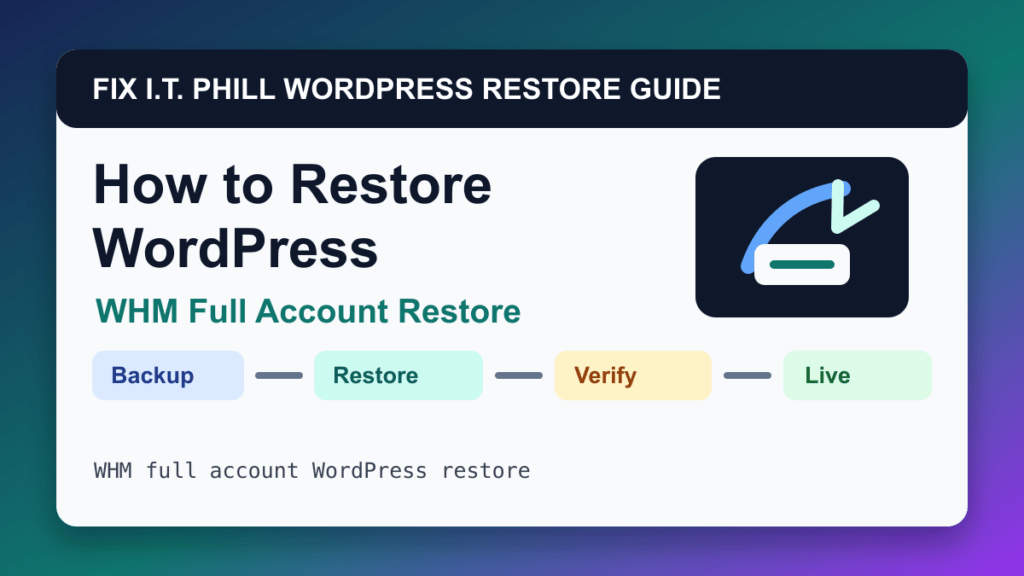
WHM full account restore can restore WordPress safely when you understand what it will overwrite. This method is best for account-level recovery after server migration, account deletion, severe compromise, or provider-managed disaster recovery.
Audience: server owners, web hosts, resellers, and admins restoring cPanel accounts. Use this with the matching backup method whenever possible. If you did not create the backup yourself, verify the backup date, scope, and site path before restoring production.
Before restore
- Check whether the account restore will overwrite email, DNS zone data, databases, and all domains in the account.
- Confirm the destination server uses compatible cPanel, PHP, MySQL/MariaDB, and DNS settings.
- Notify customers before restoring shared accounts with several domains.
Restore steps
- Open WHM restore tools or Backup Restoration depending on the backup type.
- Select the cPanel account and restore point.
- Review restore options for home directory, databases, email, DNS, and account metadata.
- Run the restore during a maintenance window.
- Check account ownership, package limits, SSL, DNS, and PHP version after restore.
- Test every WordPress site in the restored account.
Post-restore verification
Confirm the cPanel account loads, WordPress sites resolve, SSL certificates are valid, mailboxes are present, databases connect, and logs do not show repeated PHP/database errors.
Also check server and application logs, cache layers, CDN behavior, SSL, redirects, and whether scheduled tasks still run. A restore is not complete just because the home page loads.
Restore risks
- Rolling back unrelated domains or email in the same account.
- Restoring old DNS settings after a migration.
- Quota limits blocking restore completion.
- Missing PHP extensions on the destination server.
Rollback planning
Before restoring, keep the current state long enough to recover anything the restore might erase. For stores and membership sites, that means orders, subscriptions, users, payments, form submissions, bookings, and logs. For agencies and hosts, it also means customer communication and a timestamped maintenance note.
Fix I.T. Phill recommendation
Use WHM full account restore when it matches how the backup was created. If the restore tool is not available, fall back to files plus database restore, but test on staging first. After restore, update the backup plan so the next recovery is easier.
Related Fix I.T. Phill Guides
- How to Restore WordPress: Complete Recovery Methods Guide
- How to Restore WordPress by cPanel Backup Wizard
- How to Restore WordPress by File Manager and phpMyAdmin
- How to Restore WordPress by cPanel WP Toolkit
- How to Restore WordPress by Plesk WP Toolkit
- How to Restore WordPress by Plesk Backup Manager
- How to Restore WordPress by Softaculous
- How to Back Up WordPress: Complete Methods Guide
- How to Back Up WooCommerce Without Losing Orders
- How to Test a WordPress Backup Restore Before an Emergency
- Disable WordPress plugins with phpMyAdmin when wp-admin is broken