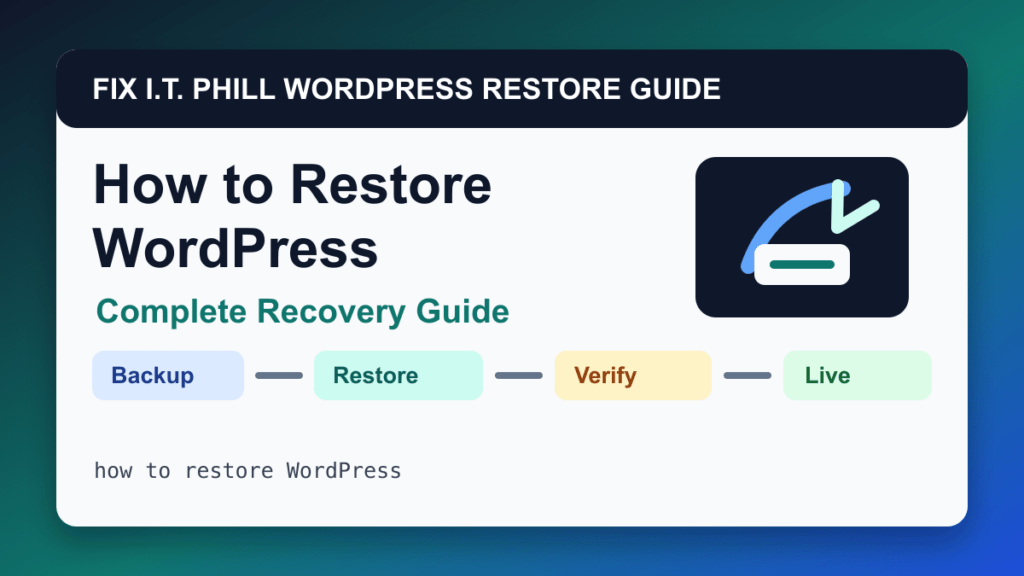
A WordPress backup is only useful if you know how to restore it. The restore path changes depending on whether the backup came from cPanel, WHM, Plesk, Softaculous, Installatron, DirectAdmin, JetBackup, a WordPress plugin, a managed host, WP-CLI, or a multisite network.
This guide is the recovery map. Start with the method that created your backup, then check the risk notes before touching production. If the site is a WooCommerce store, booking site, membership site, donation site, or lead generator, slow down before restoring any database backup.
What makes a restore safe?
A safe restore has four parts: the right backup, the right target, the right restore scope, and verification afterward. Restoring files can fix a broken theme or plugin without rolling back orders. Restoring a database can fix content or settings, but it can also erase newer orders, form entries, users, and plugin changes.
WordPress restore methods covered
- How to Restore WordPress by cPanel Backup Wizard: restoring home directory files, MySQL backups, or a provider-restored full cPanel account after a bad update or accidental deletion
- How to Restore WordPress by File Manager and phpMyAdmin: single-site recovery, migrations, and restoring from a zip plus SQL backup
- How to Restore WordPress by WHM Full Account Restore: account-level recovery after server migration, account deletion, severe compromise, or provider-managed disaster recovery
- How to Restore WordPress by cPanel WP Toolkit: rolling back a single WordPress install after plugin, theme, core, or staging changes
- How to Restore WordPress by Plesk WP Toolkit: per-site rollback without restoring a whole subscription
- How to Restore WordPress by Plesk Backup Manager: subscription-level recovery, server-level backups, and remote-storage restore points
- How to Restore WordPress by Softaculous: one-click restore from installer-managed backups and remote backup locations
- How to Restore WordPress by Installatron: restoring installer-managed WordPress apps from My Backups, including backups stored in Google Drive
- How to Restore WordPress by DirectAdmin: account-level restore, reseller restore, and migration recovery in DirectAdmin hosting environments
- How to Restore WordPress by JetBackup: granular file, database, email, DNS, and account recovery without rolling back more than necessary
- How to Restore WordPress by UpdraftPlus: plugin-managed restores from offsite storage or local backup sets
- How to Restore WordPress by Duplicator: moving or restoring a complete site from a known package
- How to Restore WordPress by WPvivid: component-based restore, remote-storage restore, and migration-style recovery
- How to Restore WordPress by BackWPup: manual restore from backup archives when you know which files and SQL dump belong together
- How to Restore WordPress with WP-CLI: repeatable database restore, staging recovery, migrations, and scripted validation
- How to Restore WordPress by Jetpack VaultPress Backup: offsite restore points, activity-log rollbacks, and recovery when the host backup is not enough
- How to Restore WordPress by BlogVault: offsite restore, staging restore testing, and client-care recovery workflows
- How to Restore WordPress by ManageWP: centralized restore from client-care backup points
- How to Restore WordPress on Managed Hosts: provider restore points, staging-safe rollback, and host-supported recovery
- How to Restore WooCommerce Without Losing Orders: stores, bookings, subscriptions, donations, memberships, and any site where database rollback affects money
- How to Restore a WordPress Multisite Network: recovering a full network or one subsite without breaking shared network data
Before you restore anything
- Take a fresh copy of the current broken site if it still exists.
- Identify whether you need files, database, or both.
- Confirm the backup date and whether newer orders, leads, uploads, or users will be lost.
- Use staging or a temporary restore target when possible.
- Know how to undo the restore before you start.
Fix I.T. Phill recommendation
For most business sites, use the narrowest restore that fixes the problem. If a plugin update broke the site, a file or plugin rollback may be safer than restoring the whole database. If malware changed many files, a full clean restore may be safer than guessing. If orders or bookings are involved, preserve the newer transactional data before rolling back.
Related Fix I.T. Phill Guides
- How to Back Up WordPress: Complete Methods Guide
- How to Back Up WooCommerce Without Losing Orders
- How to Test a WordPress Backup Restore Before an Emergency
- Disable WordPress plugins with phpMyAdmin when wp-admin is broken
- Install essential PHP extensions for WordPress in WHM/cPanel
- Help4 Network hosting and website support