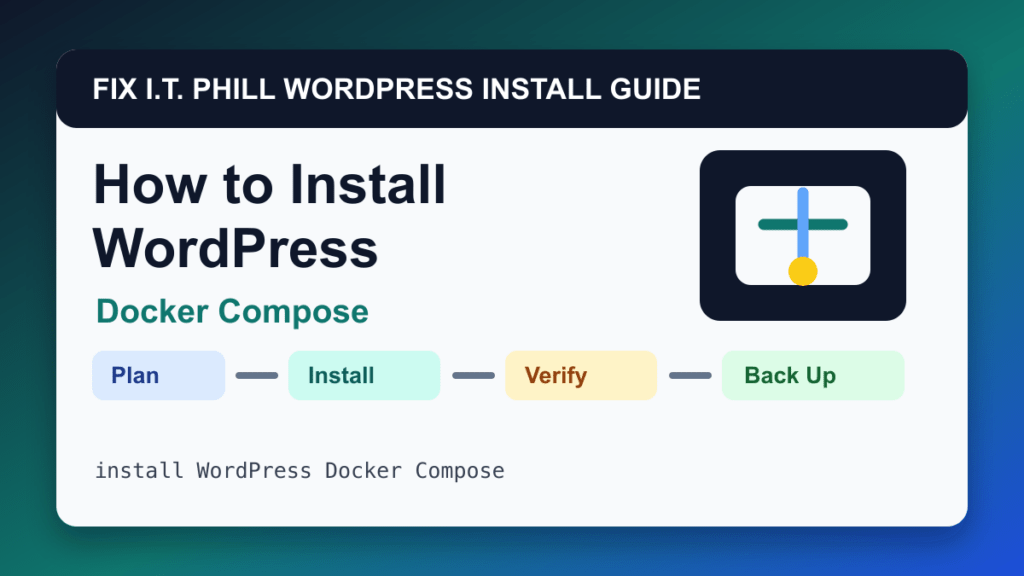
Docker Compose is a good WordPress installation path when it matches the host and future maintenance plan. This method is best for local development, isolated staging, and containerized WordPress environments with explicit volumes and database services.
Audience: developers, homelab users, staging teams, and admins comfortable with containerized services. Before installing, decide who owns the site, where backups live, how updates happen, and what will happen if the first plugin or theme choice breaks the site.
Before install
- Decide whether this is development, staging, or production.
- Plan persistent volumes for WordPress files and the database.
- Prepare reverse proxy, TLS, backups, and update policy.
- Do not treat disposable containers as a backup.
Install steps
- Create a compose project with WordPress and database services.
- Set environment variables and persistent volumes.
- Start the stack.
- Open the site and complete the WordPress installer.
- Add reverse proxy and HTTPS for public use.
- Configure backups for both database and wp-content volumes.
Post-install verification
Check container health, WordPress login, uploads, permalinks, database persistence after restart, backup restore, logs, and reverse-proxy headers.
Also confirm public pages return 200, the dashboard loads over HTTPS, the administrator email can receive password resets, updates are visible, and a backup exists before you start building heavily.
Install risks
- Losing volumes loses the site.
- Public Docker setups need careful proxy and firewall design.
- Automatic updates inside volumes must be planned with image updates.
Backup and rollback planning
A new WordPress site still needs a rollback plan. Create the first backup before installing large themes, builders, ecommerce extensions, membership tools, LMS plugins, or custom code. If this install is for a customer, document the host, login ownership, backup location, update policy, and launch checklist.
Fix I.T. Phill recommendation
Use Docker Compose when it gives you the cleanest path to updates, backups, SSL, and support. Keep the install lean, verify it publicly, and connect it to the backup, restore, and migration guides before the site becomes important.
Related Fix I.T. Phill Guides
- How to Install WordPress: Complete Methods Guide
- How to Install WordPress by cPanel WP Toolkit
- How to Auto-Install WordPress for New cPanel Accounts
- How to Install WordPress by Plesk WP Toolkit
- How to Install WordPress by Softaculous
- How to Install WordPress by Installatron
- How to Install WordPress by DirectAdmin WordPress Manager
- How to Install WordPress Manually in cPanel
- How to Back Up WordPress: Complete Methods Guide
- How to Restore WordPress: Complete Recovery Methods Guide
- How to Migrate WordPress: Complete Hosting Move Guide
- WordPress 7.0: Safe Upgrade Checklist for Business Sites
- Install essential PHP extensions for WordPress in WHM/cPanel
- Help4 Network hosting and website support