There is not one correct way to back up WordPress. There are many, and the right choice depends on your control panel, host, budget, access level, and how painful downtime would be. A flower shop with a five-page website needs a different backup rhythm than a WooCommerce store, agency client fleet, school site, membership platform, or hosting provider.
This guide is the map. Each method below gets its own step-by-step tutorial so you can pick the backup path you actually have available: cPanel, WHM, Plesk, WP Toolkit, Softaculous, Installatron, DirectAdmin, JetBackup, backup plugins, WP-CLI, and cron-based automation.
What every WordPress backup needs
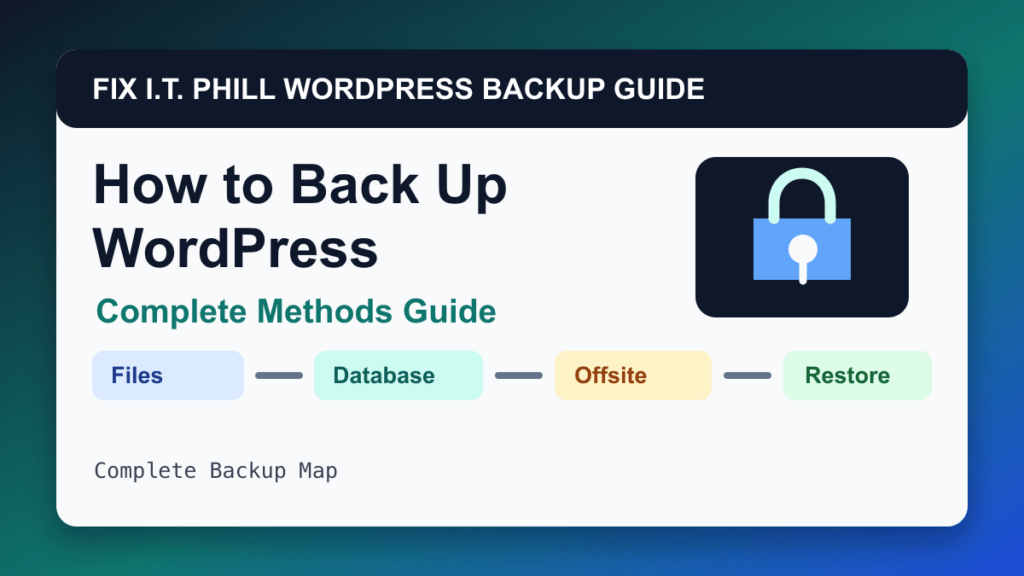
A usable WordPress backup normally needs both pieces of the site: files and database. Files include WordPress core, plugins, themes, uploads, mu-plugins, custom code, and configuration files. The database includes posts, pages, menus, plugin settings, users, forms, orders, products, bookings, and most site settings.
If you only back up files, you may lose content and orders. If you only back up the database, you may lose images, theme changes, plugin files, and uploaded documents. If you leave every backup on the same server, a server failure, hacked account, or full disk can take the backup with the site.
WordPress backup methods covered
- How to Back Up WordPress by cPanel Backup Wizard: before core, plugin, theme, PHP, or DNS changes when you want a panel-level backup you can download
- How to Back Up WordPress by cPanel File Manager and phpMyAdmin: single-site backups before troubleshooting, redesigns, plugin tests, migrations, or developer handoffs
- How to Back Up WordPress by WHM Full Account Backups: server-level protection and provider-managed restores when a WordPress site lives inside a larger cPanel account
- How to Back Up WordPress by cPanel WP Toolkit: quick backups before updates, one-site restores, and managed WordPress maintenance inside cPanel
- How to Back Up WordPress by Plesk WP Toolkit: individual WordPress backups before core, plugin, theme, or staging changes
- How to Back Up WordPress by Plesk Backup Manager: recurring backups, remote cloud storage, and broader protection than a single WP Toolkit backup
- How to Back Up WordPress by Softaculous to Google Drive: simple WordPress installs originally managed by Softaculous, especially when Google Drive or another remote location is available
- How to Back Up WordPress by Installatron to Google Drive: application-level backups, automatic backup schedules, and Google Drive offsite storage from the control panel
- How to Back Up WordPress by DirectAdmin: hosting-account backups, reseller-managed backups, and server migrations where WordPress is one site inside a DirectAdmin account
- How to Back Up WordPress by JetBackup in cPanel or Hosting Panels: provider-managed daily backups, self-service restores, database restores, file restores, and migration safety nets
- How to Back Up WordPress by UpdraftPlus: small business sites, blogs, and many WooCommerce sites when paired with offsite storage and restore testing
- How to Back Up WordPress by Duplicator: site moves, pre-redesign backups, developer handoffs, and single-package recovery planning
- How to Back Up WordPress by WPvivid: manual backups before changes, scheduled backups, site migration, and offsite storage when configured correctly
- How to Back Up WordPress by BackWPup: scheduled backup jobs with different destinations, archive names, and retention rules
- How to Automate WordPress Backups with WP-CLI and Cron: repeatable database exports, scripted file archives, offsite syncs, and monitoring backup schedules outside wp-admin
- How to Back Up WordPress by Jetpack VaultPress Backup: hands-off offsite backups, activity-log restores, and stores that need more than a once-a-day panel backup
- How to Back Up WordPress by BlogVault: client care plans, staging restore checks, incremental backups, and migration safety copies
- How to Back Up WordPress by ManageWP: portfolio-wide backup visibility, update workflows, client reports, and offsite copies managed from one dashboard
- How to Back Up WordPress by MainWP: coordinating host backups, plugin backups, and maintenance reporting across many child sites
- How to Back Up WordPress by InfiniteWP: self-hosted management workflows, backup jobs before updates, and repository-based offsite storage when the add-on is available
- How to Back Up WordPress by SiteGround Site Tools: host-managed daily restore points and manual backups before WordPress maintenance
- How to Back Up WordPress by WP Engine: managed WordPress restore points before deploys, plugin updates, search-replace work, and environment copies
- How to Back Up WordPress by Kinsta: managed WordPress restore points, hourly backup add-ons, downloadable backups, and staging restore tests
- How to Back Up WordPress by Cloudways: server-level scheduled backups, application restore points, local backups, and maintenance windows before application changes
- How to Back Up WordPress by GoDaddy Managed WordPress: provider restore points before everyday WordPress changes when the site owner does not use cPanel directly
- How to Back Up WordPress by Hostinger hPanel: host-level restore points and simple one-click WordPress recovery inside the Hostinger account
- How to Back Up WordPress by Acronis in cPanel and WHM: provider-grade backups with granular restores for files, folders, databases, mailboxes, and full accounts
- How to Back Up WooCommerce Without Losing Orders: stores, booking sites, subscriptions, memberships, LMS platforms, donations, and any WordPress site where database changes mean money
- How to Back Up a WordPress Multisite Network: protecting a network where one database and shared files can affect many subsites
- How to Test a WordPress Backup Restore Before an Emergency: turning backup files into a real recovery plan before malware, bad updates, failed migrations, or server loss
What should small businesses do?
For a basic business website, use at least one panel or host-level backup and one offsite backup. If your host gives you cPanel, Plesk, Softaculous, Installatron, or JetBackup, learn that first because it may restore even when WordPress itself is broken. Then add a plugin backup to Google Drive, Dropbox, S3-compatible storage, or another destination you control.
What should ecommerce and membership sites do?
WooCommerce, booking, LMS, donation, and membership sites need tighter timing. A daily backup may not be enough if orders or leads arrive all day. Use provider backups, database-aware backups, and a clear maintenance window before major changes. Export fresh orders, subscriptions, form entries, or booking data before restoring older backups.
What should agencies and hosting admins do?
Agencies and hosting admins should standardize the stack. Keep a list of every site, control panel, backup method, remote destination, schedule, retention, and restore test date. If twenty clients use the same plugin stack, one compatibility issue can become twenty tickets. Backup before batches of updates, then verify forms, checkout, cache, and logs after the batch.
Backup schedule recommendations
- Static brochure site: weekly files and daily or weekly database, plus a manual backup before changes.
- Active blog or lead site: daily database, weekly files, and manual backups before updates.
- WooCommerce or bookings: at least daily full backups, more frequent database/order protection, and a tested rollback plan.
- Developer work: backup before deployments, keep a staging copy, and export the database before destructive changes.
- Hosting provider: server-level scheduled backups, remote storage, customer self-service restore where possible, and periodic restore audits.
Do cron jobs matter?
Yes. Many WordPress backup plugins rely on WordPress scheduled tasks. WordPress WP-Cron is triggered by site traffic, so low-traffic sites can run scheduled jobs late. Control-panel backups, JetBackup, WHM backups, Plesk Backup Manager, and real server cron are usually more predictable for timed backups. The cron tutorial in this cluster explains the difference.
Fix I.T. Phill recommendation
For most business sites, use layered backups: host-level backup, WordPress-level backup, and offsite storage. Do not trust a backup until you know how it restores. A backup that has never been opened, downloaded, or tested is a hope file, not a recovery plan.
Related Fix I.T. Phill guides
- How to Back Up WordPress by cPanel Backup Wizard
- How to Back Up WordPress by cPanel File Manager and phpMyAdmin
- How to Back Up WordPress by WHM Full Account Backups
- How to Back Up WordPress by cPanel WP Toolkit
- How to Back Up WordPress by Plesk WP Toolkit
- WordPress 7.0 safe upgrade checklist
- Install essential PHP extensions for WordPress in WHM/cPanel
- Disable WordPress plugins with phpMyAdmin when wp-admin is broken
- Help4 Network hosting and website support
Sources checked
- cPanel Backup Wizard documentation
- Plesk WP Toolkit backup and restore documentation
- Plesk scheduled backups documentation
- Softaculous backup and restore documentation
- Installatron Google Drive backup tutorial
- WordPress Plugin Handbook: Cron